Steps 1–9 complete the deployment and make your assistant usable. Steps 10–11 are optional, only for MochiLab Skills.
Deployment route
Choose a cloud server reachable from your phone and computer → Install OpenClaw → Configure the model API → Connect MochiBot or another chat client → Start using your assistant. Add MochiLab Skills later if needed.
This walkthrough uses Tencent Cloud Ubuntu and DeepSeek as an example. MochiBot is the recommended optional phone client and needs no registration. Connect a MochiLab account only when downloading our Skills. Chat and files go to your configured server; cloud models receive the data needed for their service. A local model with no cloud fallback needs no third-party model API. Model API keys stay on your server.
1. Prepare accounts and distinguish the credentials
Prepare a Tencent Cloud account and a DeepSeek platform account ↗. A MochiLab account ↗ is only needed for our Skills; a WeChat account is only needed if you choose WeChat.
If you do not have an API key yet, follow DeepSeek registration, top-up and key setup ↗, then return here. A web-chat subscription and an API balance are different products; use the balance shown in the API platform.
- Tencent SSH private key, a `.pem` file — Used for: Signing into the server; Where to keep or enter it: Keep the file on your own computer
- DeepSeek API key — Used for: OpenClaw model configuration; Where to keep or enter it: Enter privately in the setup prompt
- MochiLab Skills key, beginning `mls_` — Used for: Connecting the account and downloading Skills; Where to keep or enter it: Enter in the assistant's hidden terminal login prompt
These credentials are not interchangeable. Do not send model or MochiLab keys in the WeChat conversation.
2. Purchase a Lighthouse server
Check reachability before choosing a region. Your phone on mobile data, home Wi-Fi and computer must be able to access your server. This applies to every language and location. Singapore below is a historical test location, not a universal recommendation. Successful outbound model API or WeChat traffic does not prove inbound access from your phone. Use a provider test IP where available, and verify your own access after provisioning before continuing.
Open the Tencent Cloud Lighthouse purchase page ↗. This session used Tencent Cloud China. Check each selection before paying:
- Image type — Pure operating system
- Operating system — Ubuntu 24.04 LTS
- Region — Choose one reachable from your phone and computer; Singapore below is the historical example
- CPU / RAM — 2 vCPUs / 8GB
- System disk — 80GB SSD
- Advertised bandwidth — 200Mbps peak; not a sustained dedicated-bandwidth guarantee
- Term / quantity — One month / one instance
- Price during the test — CNY 95 for one month; your order is authoritative
- Login method — SSH key
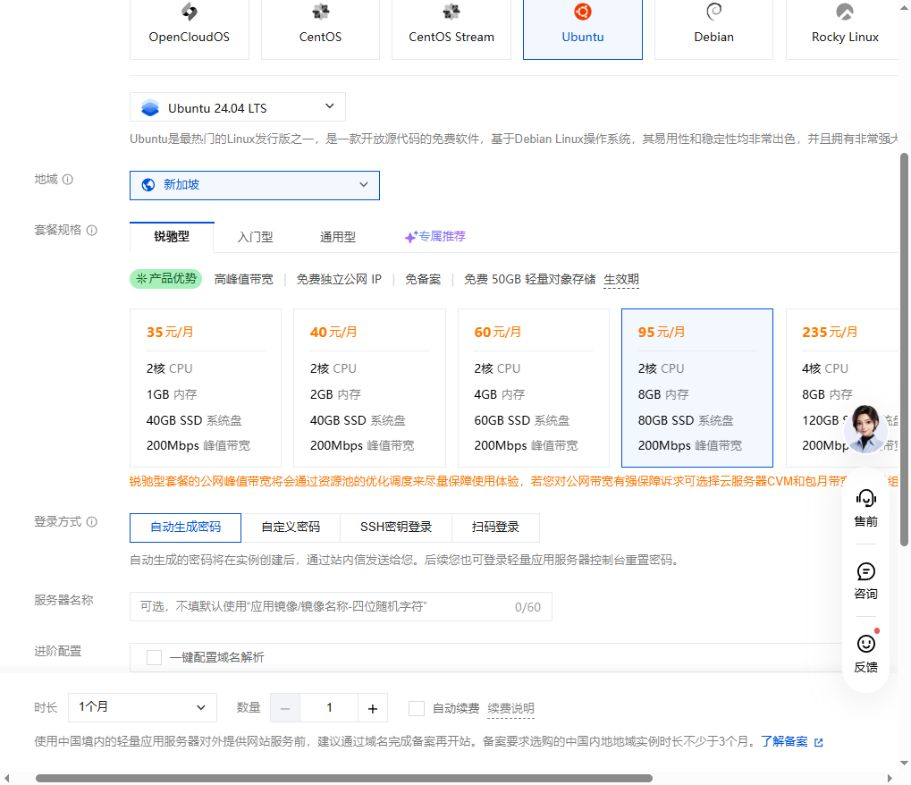
The image illustrates the specifications. Its lower section still shows the page's default automatic-password option. Change the login method to SSH key before checkout.
The session successfully reached its chosen API and WeChat services from Singapore. This does not make Singapore the best region for everyone: check connectivity for your own region and services. No GPU purchase is needed for the workflow tested here.
Create and select an SSH key
- Choose SSH-key login. For this Ubuntu image the user is
ubuntu. - If there is no suitable key, click Create key.
- Select the same region as the server and choose to create a new key.
- Use a simple alphanumeric name such as
mochilabsgkey. The form used in this session rejected our earlier hyphenated example. - Save the automatically downloaded file, such as
mochilabsgkey.pem. The console warned that the private key was available to download only once. - Return to the purchase page, refresh the key list if needed, and select that key. You do not need to copy the public key elsewhere for this console-managed purchase flow.
- Check the OS, region, size, term, quantity, renewal choice, and optional paid extras. Review the agreements yourself before submitting payment.
After payment, open the Lighthouse instance console ↗, select the purchase region, and wait for the new instance to show Running. Make sure you are selecting the new server rather than another existing instance.
3. Sign in through the browser terminal
Click Login for the target instance to open OrcaTerm. Choose SSH, port 22, private-key verification, your downloaded .pem file, and user ubuntu.
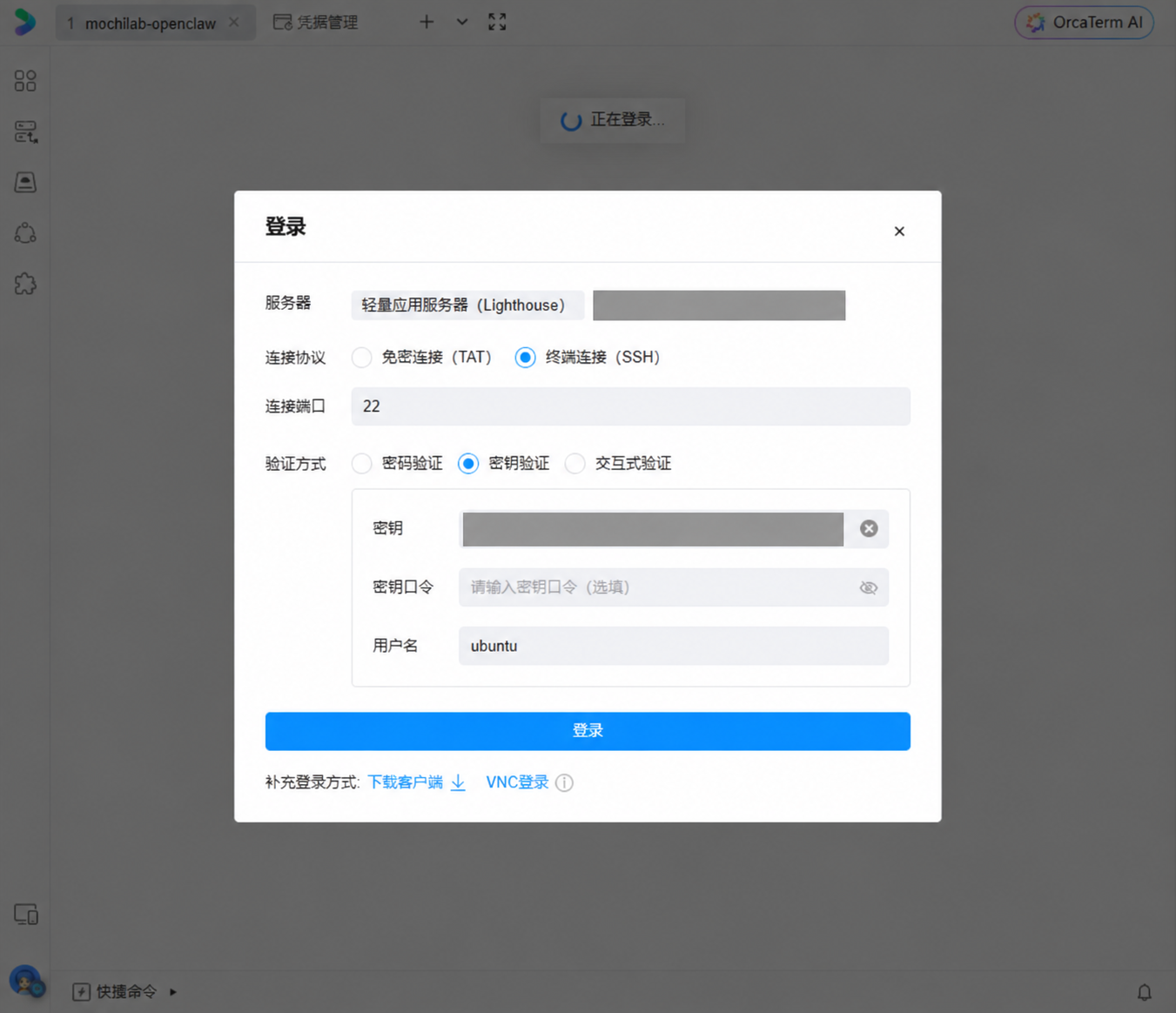
The optional key passphrase is the encryption passphrase for that private key, not your Tencent account password. Leave it empty only if your own key has no passphrase. Never enter an API key there.
A successful login shows a shell prompt resembling:
ubuntu@YOUR_HOST:~$
Run blocks marked server terminal at this shell prompt. OpenClaw's terminal chat interface, encountered later, is a different place.
Check the environment:
whoami
lsb_release -ds
uname -m
nproc
free -h
df -h /
sudo -n id -u
The test returned user ubuntu, Ubuntu 24.04.4 LTS, and two CPU cores. The final command returned 0, confirming the sudo access needed here. Available memory and disk figures will vary.
4. Update Ubuntu and handle the prompts
In the server terminal, run:
sudo apt-get update && \
sudo apt-get upgrade -y && \
sudo apt-get install -y curl ca-certificates git unzip
Wait for completion instead of repeatedly pasting the command when output pauses. Package configuration may still ask questions even with -y.
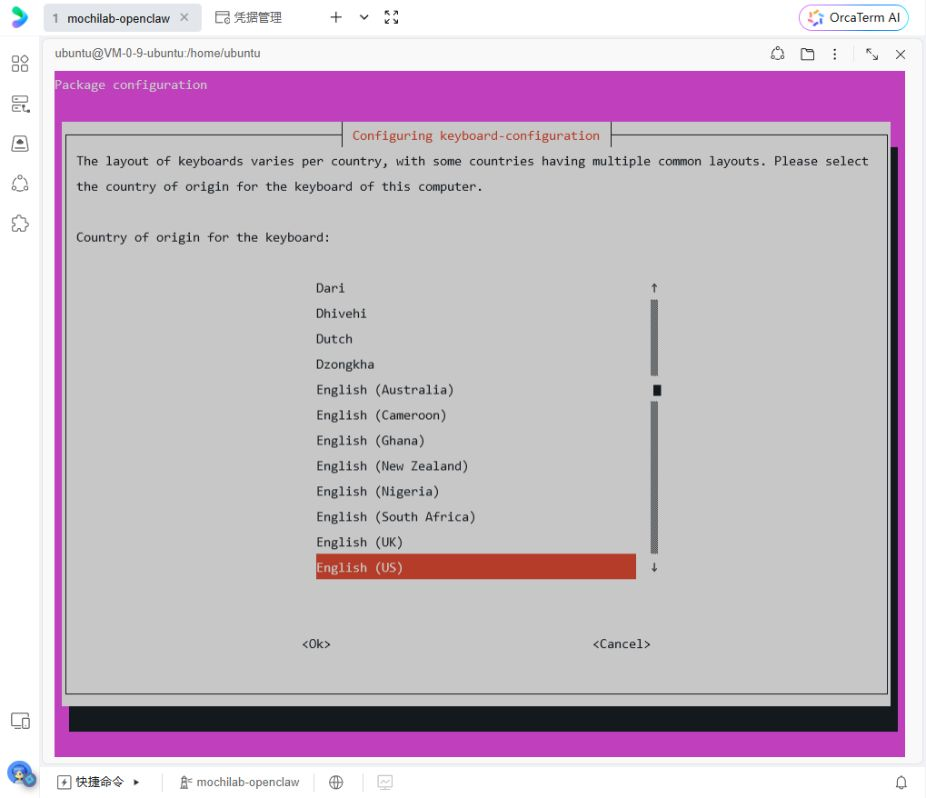
If keyboard configuration appears, select English (US) for the country, then the ordinary English (US) layout on the next screen. Use arrow keys and Enter.
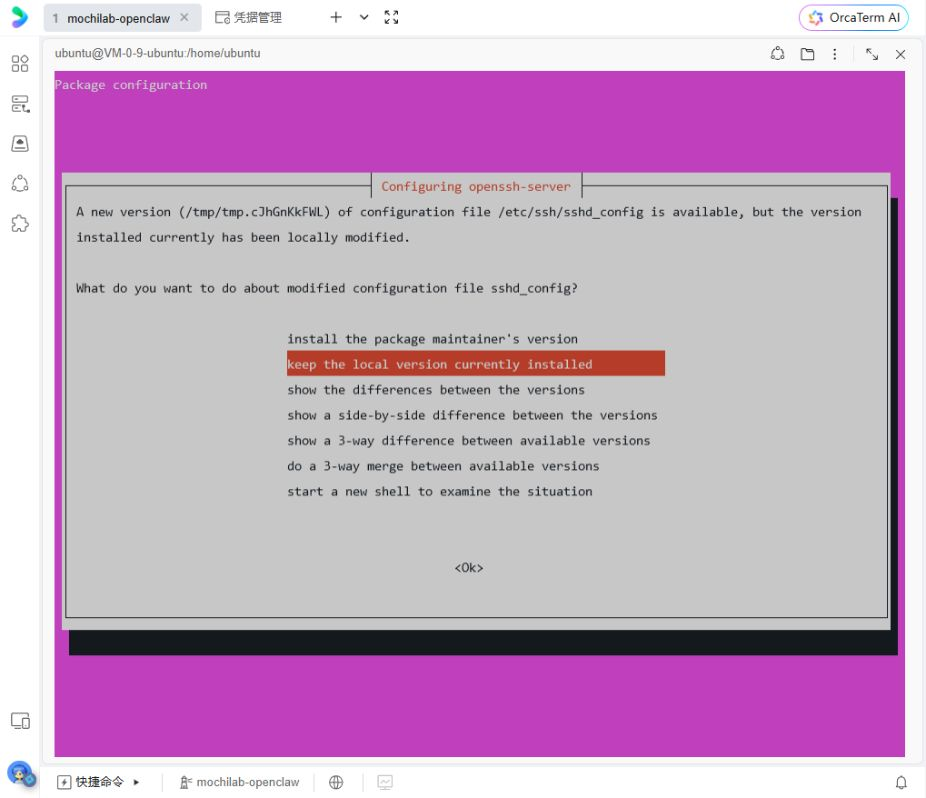
If asked what to do about /etc/ssh/sshd_config, this fresh cloud instance used:
keep the local version currently installed
That preserves the cloud image's existing SSH configuration during this upgrade.
Once the shell returns, reboot if the update reports a pending kernel or service restart:
sudo reboot
The connection will close. Wait for the instance to run again, reconnect using step 3, and check:
uname -r
command -v curl git unzip
Continue when you can sign in and the tools are found.
5. Install OpenClaw
The session used the official OpenClaw installer ↗, keeping installation separate from onboarding:
curl -fsSL --proto '=https' --tlsv1.2 https://openclaw.ai/install.sh | bash -s -- --no-onboard --verify
Verify the official domain before running the script. --no-onboard defers setup, while --verify requests installation checks.
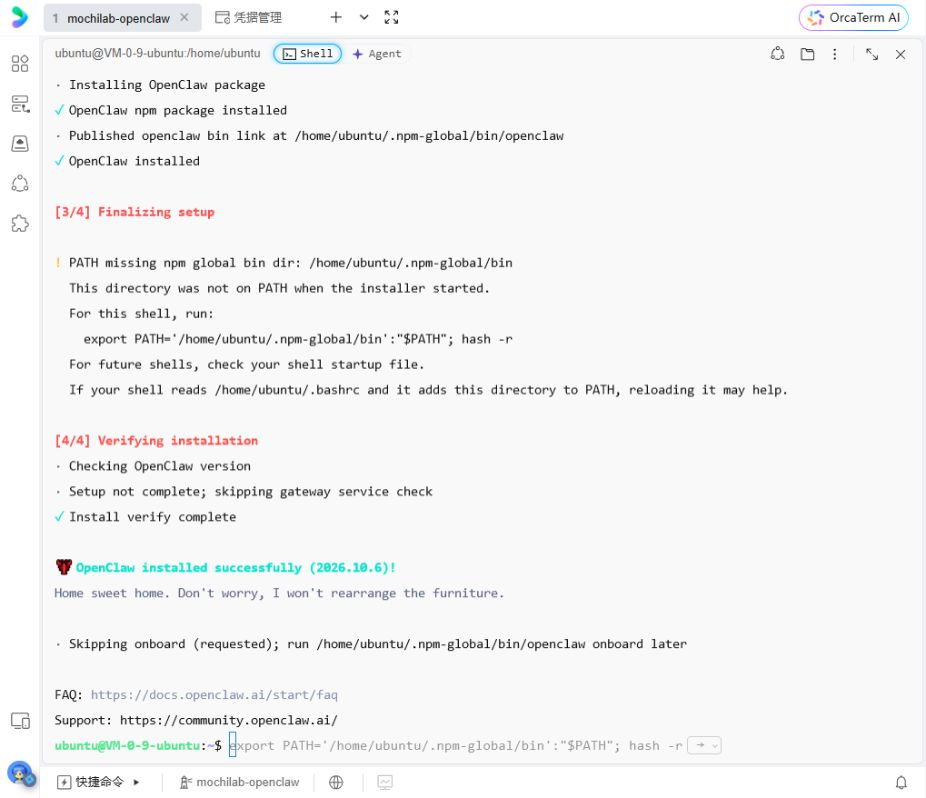
The tested version was OpenClaw 2026.10.6, with Node.js v24.22.1. Future installers may provide newer versions; do not downgrade simply to match a screenshot.
If .npm-global/bin is missing from PATH or openclaw cannot be found, run:
grep -qxF 'export PATH="$HOME/.npm-global/bin:$PATH"' "$HOME/.bashrc" || printf '\n%s\n' 'export PATH="$HOME/.npm-global/bin:$PATH"' >> "$HOME/.bashrc"
export PATH="$HOME/.npm-global/bin:$PATH"
hash -r
openclaw --version
node --version
After seeing the versions, begin onboarding and install the background service:
openclaw onboard --install-daemon
6. Configure DeepSeek
For single-choice menus use Up/Down, then Enter. For checkboxes use Space to select an item before Enter.
Read the personal-use and tool-access notice before continuing. This walkthrough is for your own assistant. The session chose No thanks for optional telemetry, QuickStart for setup, and main for the first agent.
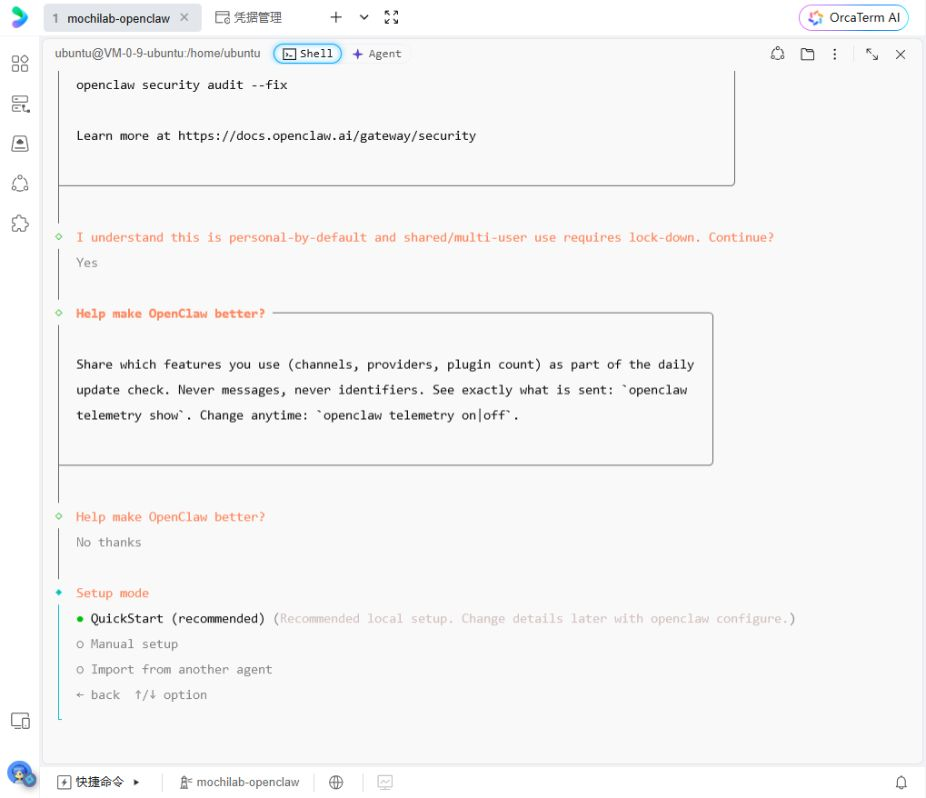
Keep the Gateway on loopback 127.0.0.1, port 18789, as in the test. This WeChat route does not require exposing that port publicly.
Select the provider and supply your key privately
Find DeepSeek (API key) under Model/auth provider. Open More… if it is absent from the initial list.
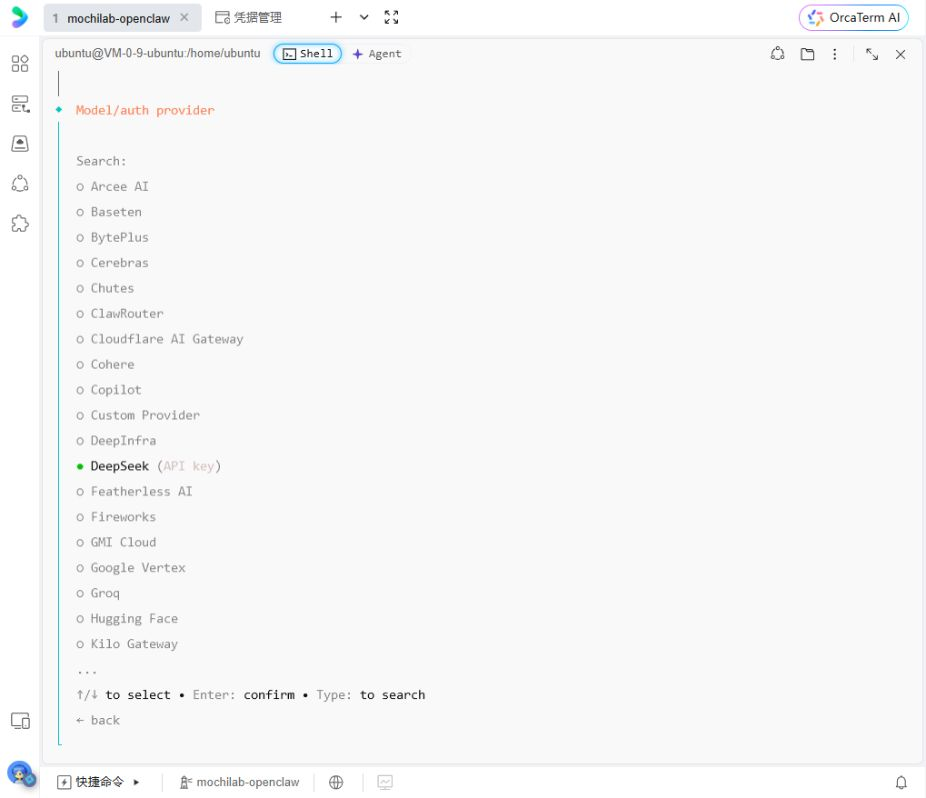
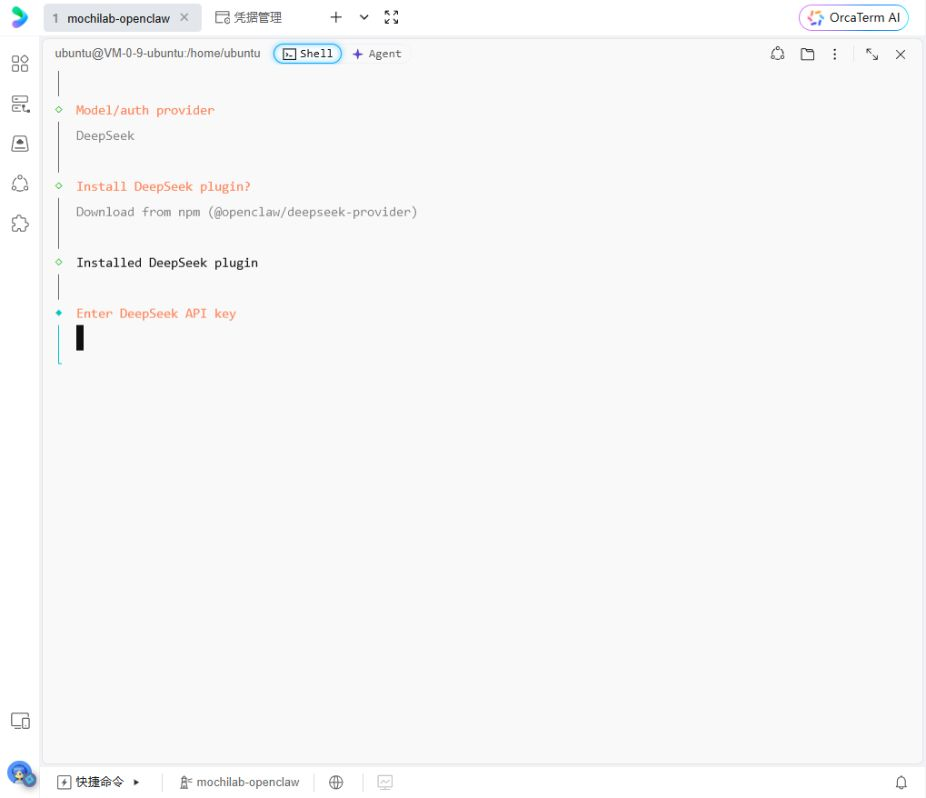
At Install DeepSeek plugin, the session chose the npm package @openclaw/deepseek-provider. Wait for installation, then privately paste your own key at Enter DeepSeek API key.
Choose the model and test access
The wizard initially selected deepseek/deepseek-v4-pro. We chose Enter model manually and entered:
deepseek/deepseek-flash
That is the OpenClaw identifier used in this session. The provider usage page showed deepseek-flash. Refer to the current OpenClaw DeepSeek documentation ↗ if names or choices change.
At Test AI access now with a live completion, choose Yes if you are ready for a billable connectivity test. If it fails, inspect the balance, key, model identifier, and actual error before debugging WeChat.
The official DeepSeek usage page subsequently showed one deepseek-flash request, 46 tokens, and a charge below CNY 0.01. This was a very short access test, not a cost estimate for Skill tasks, which can send longer context and make several tool/model calls.
7. Finish initialization
After the model test succeeds, finish the remaining prompts. Skip optional search and tools you do not need. In checkbox lists, press Space before Enter. MochiBot does not require connecting WeChat first. Exit the terminal chat with Ctrl+D and check openclaw gateway status before connecting your phone. Keep the Gateway port private.
8. Choose a chat client
Recommended: MochiBot. Download the app, run the connector on your server to generate a pairing QR, then scan and confirm your server and agent. Follow the separate MochiBot setup guide ↗.
MochiBot supports Android and is compatible with HarmonyOS. It offers chat, files, the latest Skills catalogue and proactive voice reminders. Voice reminders require a supported device and the relevant push, notification and background permissions.
Other choices: WeChat ↗, Telegram ↗, or Feishu ↗.
9. Verify a reply
Send “Please reply only: Connection test passed” in your chosen client. Once you receive “Connection test passed”, your initial deployment is complete. You can start chatting and giving tasks, and stop this tutorial here.
The next two steps are optional for MochiLab Skills. Skipping them does not affect your working deployment.
10. Optional: install the MochiLab Skills assistant
You do not have to manually upload each Skill ZIP. First send this complete instruction in your connected chat client:
Follow the official installation instructions at https://mochilab.bz/Skills/Connect.aspx?lang=en and install the MochiLab Skills assistant into the current OpenClaw workspace.

Report its version, installation path, and the result of openclaw skills check.
Use the official MochiLab connection page ↗. The agent reads the instructions, obtains the installer and assistant package, and installs it in the workspace. Bootstrapping the assistant itself does not require an account key.
The agent reported helper version 1.0.0 at:
/home/ubuntu/.openclaw/workspace/skills/mochilab-skills
Independently check in the server terminal:
node --version
openclaw skills info mochilab-skills
openclaw skills check
Look for the target helper to be Ready, Visible to model: yes, with its Node requirement satisfied. Other bundled Skills may lack unrelated external tools; check the target entry rather than treating every missing dependency as a failed helper installation.
The observed Node version was v24.22.1, which met the connection page's requirements at the time. Follow that page if requirements change.
Send /new as its own WeChat message. Wait for the new-session confirmation before using the newly installed helper.
11. Optional: connect your MochiLab account privately
Browsing the catalog and downloading an actual Skill have different authorization requirements. During this test, even a free Skill download required an account connection; paid Skills also require their applicable membership or purchase entitlement.
Open the MochiLab Skills access-key page ↗, sign in, and create a Skills access key following the page's instructions. In the server terminal, run:
node "/home/ubuntu/.openclaw/workspace/skills/mochilab-skills/scripts/mochilab.mjs" login
Paste your mls_ key into the hidden prompt. Do not send it to the WeChat agent.
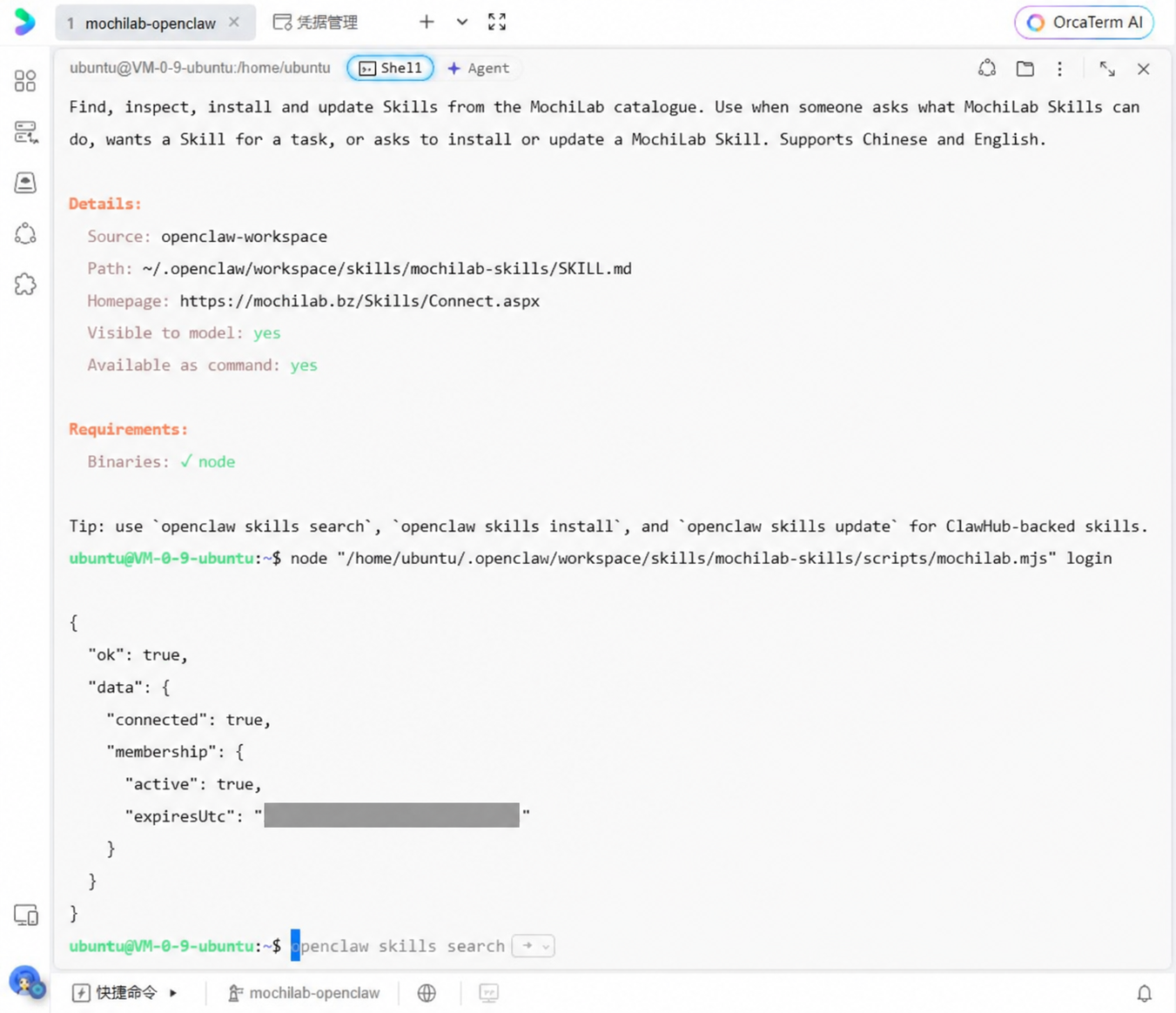
Check for ok: true and connected: true. membership.active describes that account's membership state; it was true in this session, but that does not mean a paid membership is required for every free Skill.
If your workspace differs, adjust the script path to its actual location rather than assuming /home/ubuntu.
Continue when needed
These are optional extensions, not requirements for the initial deployment.