Connect MochiBot to your AI agent: a complete walkthrough
Use this guide with an Ubuntu cloud server that already runs OpenClaw. Follow the numbered steps for a first connection. If the connector is already installed and only the phone needs pairing again, go straight to step 8; do not initialise another connector.
Where to work: install the APK, scan and chat on your phone. Run every shell command below in the terminal of the server running OpenClaw, not Windows PowerShell or the MochiBot chat box.
1. Confirm OpenClaw and the model work
Complete the cloud deployment guide ↗, configure your model API, and ask OpenClaw to reply “connection successful”. Continue only after receiving a reply.
Copy the server's public IPv4 from its cloud console. Your phone and computer must be able to reach this server from their own networks. Region choice alone does not guarantee reachability. Model API keys stay on the server, not in MochiBot.
2. Install the stable phone app
On your phone, open MochiBot downloads ↗, choose “Download APK” and install MochiBot 1.0.0. If Android requires an installation-source permission, enable it only for the browser or file manager actually opening the APK.
MochiBot needs no account registration. Open the Settings tab; leave manual connection fields alone for now.
3. Allow inbound TCP 443 in the cloud firewall
Tencent Cloud Lighthouse
- Open the Lighthouse console ↗ on your computer.
- Select the instance running OpenClaw and open its details.
- Open Firewall, then Add rule.
- Choose HTTPS, or Custom with protocol TCP and port 443. Set source to 0.0.0.0/0, action Allow, and description
MochiBot HTTPS. - Save. Confirm an allow rule for TCP 443 appears; do not add a duplicate.
Source is the client address range, not your server address. Mobile addresses change, so this example allows the required 443 port publicly instead of opening every port.
Tencent CVM and other providers
For CVM: instance details → Security groups → attached security group → Inbound rules. Add the same TCP 443 allow rule. Other providers normally use Security group/Firewall → Inbound rules. Retain existing SSH rules.
References: Lighthouse firewall management ↗, HTTPS rule example ↗.
4. Open the server terminal and check prerequisites
Choose Login in the cloud instance console. Use the same ordinary Linux user that runs OpenClaw. Do not switch to root or prefix node connect.mjs with sudo: that can select another home directory and workspace.
Run these individually:
whoami
node --version
openclaw --version
openclaw gateway status
whoami prints the current user. The connector requires Node 22 or newer; follow any higher requirement of your installed OpenClaw. The remaining commands should show an installed OpenClaw and its Gateway status. Resolve missing commands, an offline Gateway or a model that cannot reply before proceeding.
Check the host firewall:
sudo ufw status
Only if it reports Status: active, run:
sudo ufw allow 443/tcp
If UFW is inactive or unavailable, skip this command. Do not enable or disable a firewall just for this guide.
Check for existing web listeners:
sudo ss -lntp | grep -E ':(80|443)�'
No output means no matching listener. If an existing website, Nginx, Apache or HTTPS service appears, ask the server administrator to reconcile the entry configuration. Do not stop an existing service merely to force installation.
5. Download, upload and extract the connector
Download connector 0.1.6 ↗ to your computer. This is server software, not the phone APK.
Open File manager beside the cloud terminal, enter the current Linux user's home directory, and upload the ZIP. For user ubuntu, the destination is /home/ubuntu/MochiBot_Connector_0.1.6.zip; use the actual home directory for another username.
Confirm the uploaded file:
ls -lh ~/MochiBot_Connector_0.1.6.zip
Continue only when the filename and size appear. No such file means you need to check the upload destination.
For a first installation in a new directory:
sudo apt-get update
sudo apt-get install -y unzip openssl
mkdir -p ~/mochibot
unzip ~/MochiBot_Connector_0.1.6.zip -d ~/mochibot
cd ~/mochibot/MochiBotConnector
The first two commands prepare system tools; unzip extracts the package; cd enters the program directory. If extraction asks about replacing existing files, stop and check whether a connector is already installed.
Check the directory and QR dependency:
pwd
ls connect.mjs package.json
node --input-type=module -e "await import('qrcode-terminal'); console.log('QR dependency OK')"
The path should end in MochiBotConnector, both files should exist, and the final command should print QR dependency OK. The published ZIP bundles the dependency. Only if it reports that qrcode-terminal is missing, run this in the same directory:
npm install --omit=dev
Then repeat the dependency check.
6. Run first-time setup and prepare HTTPS
Confirm sudo access:
sudo -v
sudo -n true && echo "sudo ready"
If requested, enter your own sudo password privately in the terminal. After seeing sudo ready, use the same terminal for the next commands. Replace YOUR_PUBLIC_IPV4 with the real public IPv4 copied in step 1, keeping the quotes:
SERVER_IP='YOUR_PUBLIC_IPV4'
node connect.mjs setup --ip "$SERVER_IP"
Setup prepares a dedicated MochiBot agent and workspace, saves connector configuration, installs or configures Caddy, creates a server certificate and public-key fingerprint, and installs the connector background service. Conflicting existing agents/services cause setup to stop; do not keep retrying to overwrite them.
Success shows a dedicated agent/workspace, an https://your-public-IP entry and a pairing QR valid for five minutes. Use your actual displayed agent ID and path; they need not match an illustration exactly.
How HTTPS works
The connector listens internally. Caddy accepts TLS on public TCP 443 and forwards requests to the local connector. Setup generates a server certificate and includes its public-key fingerprint in the pairing QR. After you check the server and confirm pairing, MochiBot saves the fingerprint and verifies that key on subsequent encrypted connections.
This IP entry uses app-based certificate pinning, not a publicly trusted browser CA certificate. A browser padlock is not the success test for this connection method, and you do not install a root certificate on the phone. A daily certificate check renews near-expiry certificates using the same key. Rebuilding the server or replacing its key requires pairing again.
No manual Caddyfile or openssl certificate-generation commands are needed. To inspect the automatically created certificate in the same terminal:
openssl x509 -in "/etc/caddy/mochibot-ip/$SERVER_IP/server.crt" -noout -subject -dates
This prints the subject and validity dates, never the private key. Do not publish server keys or private connector configuration.
7. Verify both services
Run individually:
systemctl --user is-active mochibot.service
systemctl is-active caddy
node connect.mjs status
The first two should report active. The last should return connector status. If a service is not running, inspect its recent log:
journalctl --user -u mochibot.service -n 30 --no-pager
sudo journalctl -u caddy -n 30 --no-pager
The first checks the connector; the second checks HTTPS. Follow the actual environment, configuration or port error. Redact tokens, keys and private content before sharing logs. A firewall rule alone does not start these services.
8. Scan and confirm on your phone
Open Settings → Scan to connect, allow camera access and scan the terminal QR. Check that the confirmation names your server and agent, then confirm pairing. Choose Start using after the success message.
For an expired QR or a new phone pairing, enter the existing connector directory and run:
node connect.mjs pair
This generates a new short-lived code without reinstalling or rerunning setup. Old unused codes expire; already paired devices remain connected. Keep valid pairing QRs private.
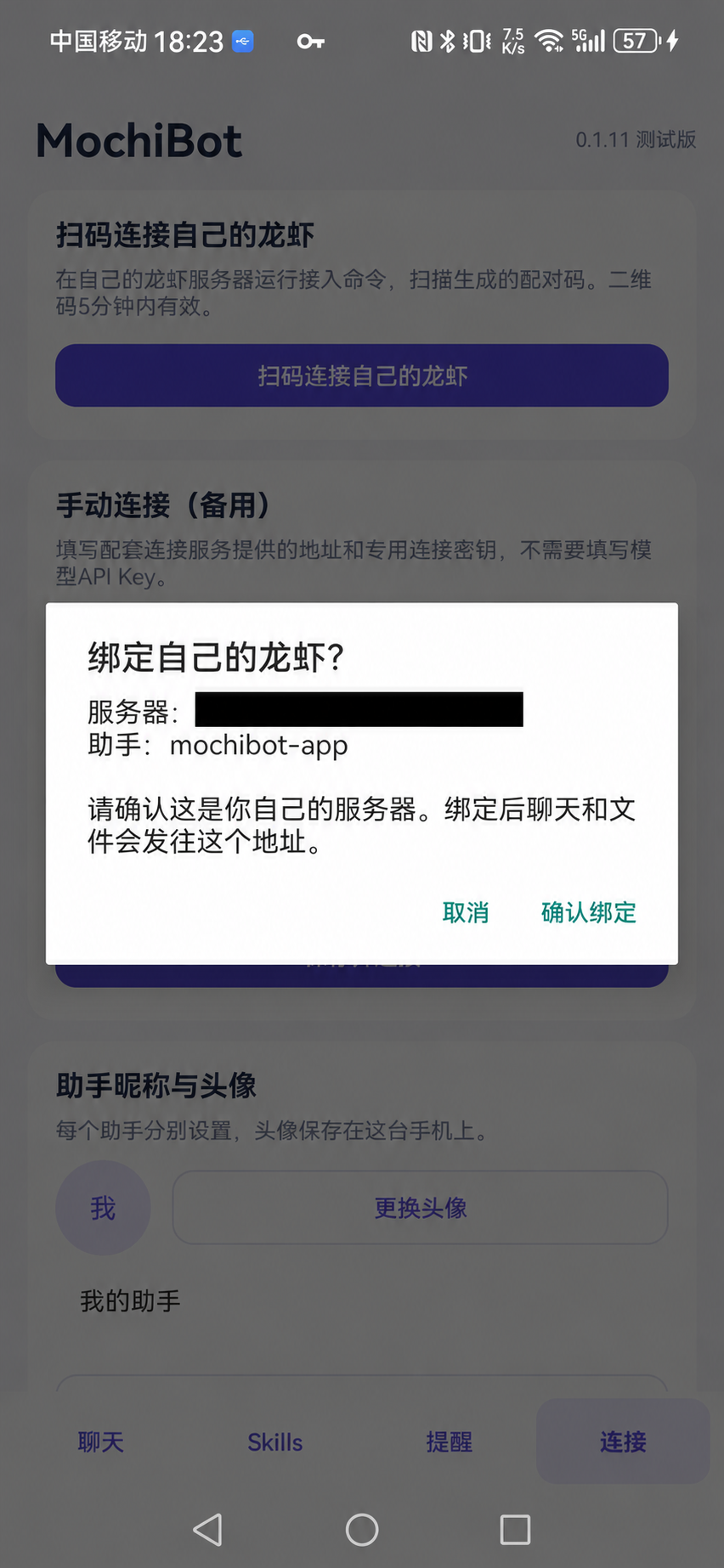
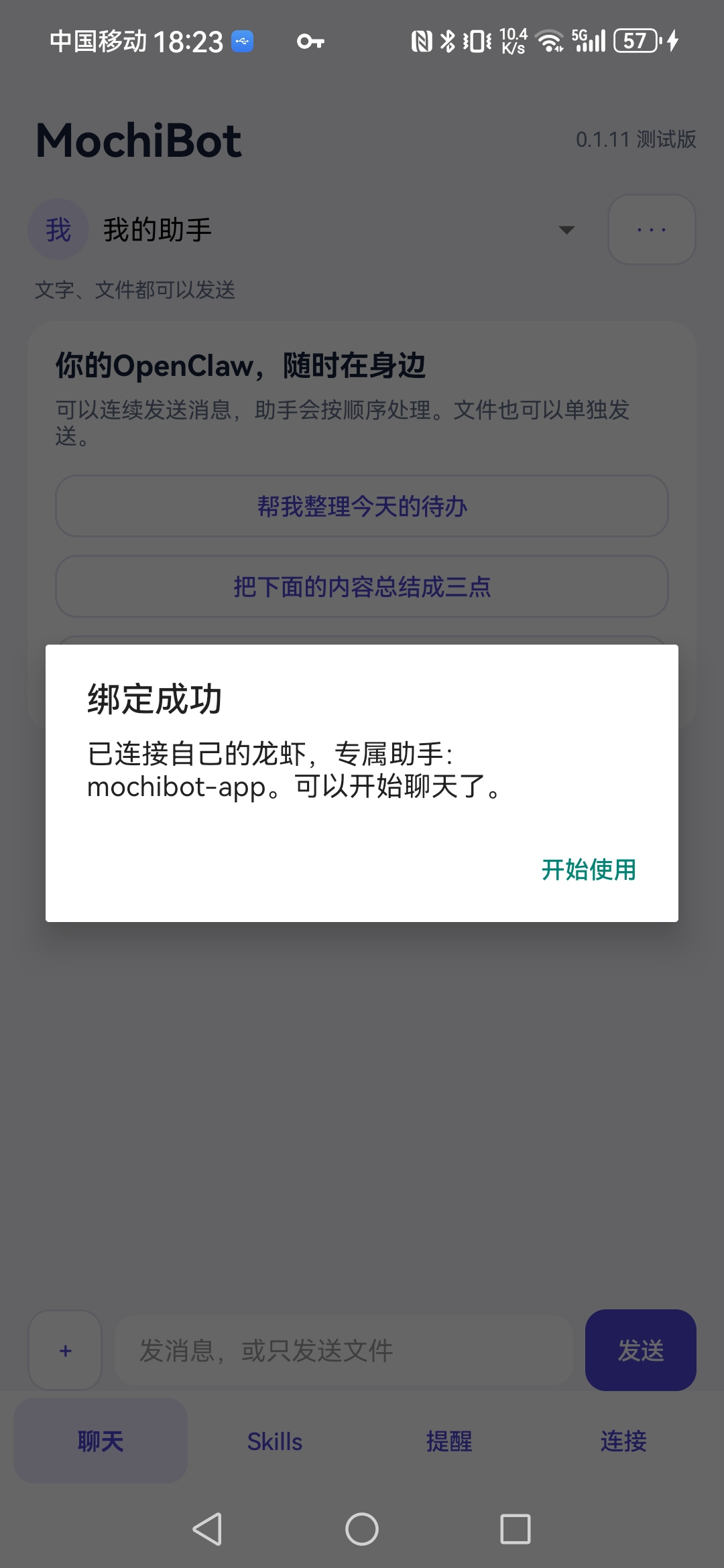
9. Verify chat, files and Skills
Send “Please reply only: connection successful”. A reply confirms the phone can reach your own agent through this connection. Use “+” to select a file; files can be sent without a message. Start with a small non-private sample.
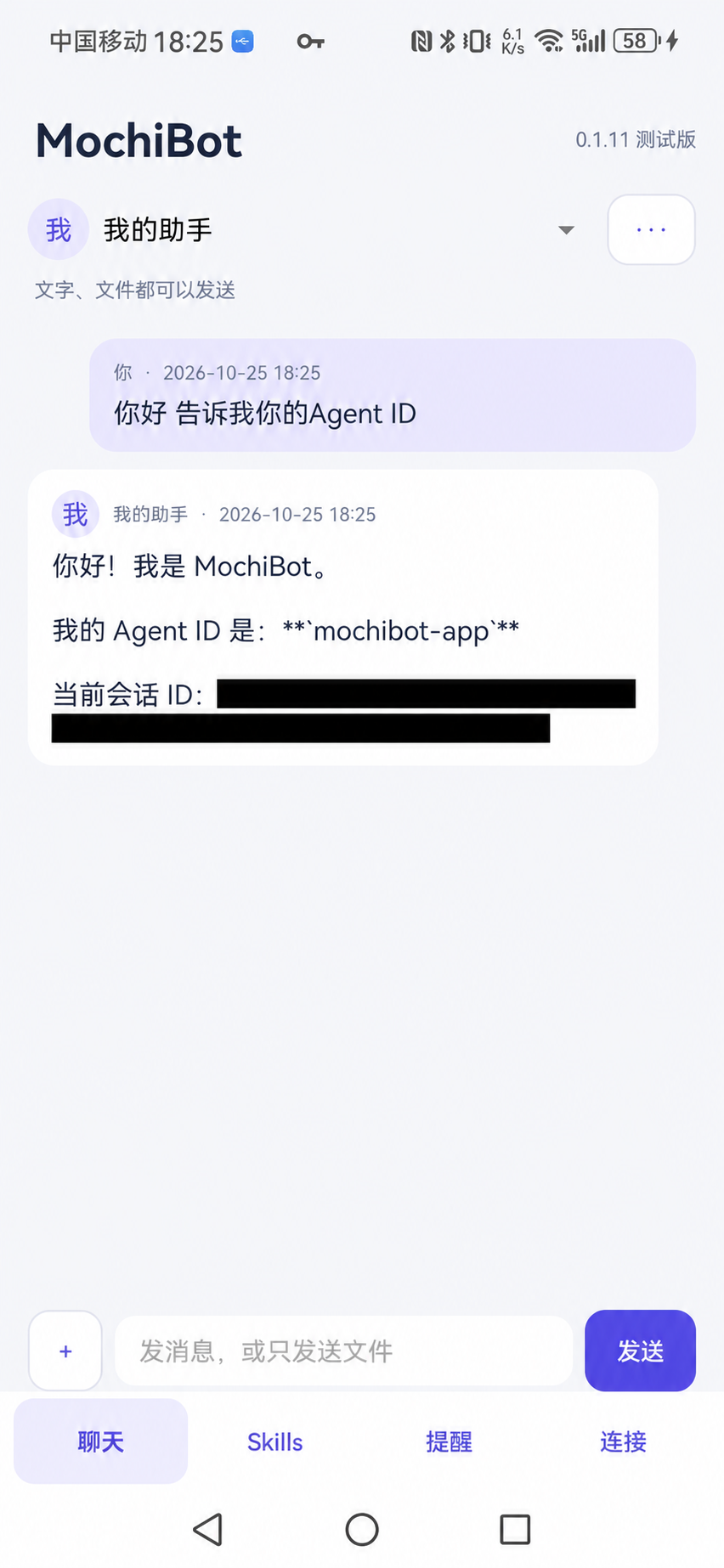
Open Skills, then View details and usage. Browsing does not install a Skill. For MochiLab Skills, follow Connect the Skills assistant ↗, sign in with that BOT's own MochiLab account, choose Ask my assistant to install, review the drafted chat task and send it. Check the assistant's installation and test results.
Free registration provides the MochiLab Skills assistant and free Skills. Member Skills follow the detail-page entitlement. Compatible third-party Skills also work.
10. Reminders, disconnecting and shared servers
Use Reminders for local schedules and select a remote reception mode for your device. Spoken reminders require device support and the relevant push, notification and background permissions. Remote reminders also require the server's corresponding push channel; successful chat pairing does not configure that channel automatically.
To pause: Settings → Disconnect. The current app keeps the saved address and encrypted key; choose Reconnect later. Settings → Advanced settings → Remove saved connection is the separate action that clears these details and requires another scan.
Chat and files go to your configured server and through any relay you choose. Model data follows the provider you configure. A fully local model with no cloud fallback does not require a third-party model API.
For family, coworkers or friends sharing a server, follow isolated BOT workspaces ↗. Separate directories alone do not establish a security boundary.
Troubleshoot in this order
- No QR response: scan inside MochiBot, check camera permission, generate a fresh code with
node connect.mjs pair, and display the complete QR. - QR recognised but binding times out: confirm the phone can reach the public IP, then check cloud TCP 443, the host firewall and Caddy.
- Paired but no agent reply: check the connector and Gateway, then model authorisation, quota and errors. Regenerating a QR does not fix a model problem.
- Chat works but remote speech does not: check the chosen push channel, device registration, notification/background permissions and speech settings using the reminder instructions.