An existing OpenClaw server can connect another WeChat account and route it to a separate assistant. Your own WeChat can keep using main, while a family member uses family with a separate workspace and identity.
Start with the Tencent Cloud deployment walkthrough ↗ if OpenClaw, DeepSeek, and the first WeChat account are not yet working. No second server or OpenClaw installation is needed for this procedure.
Tested on October 23, 2026 with OpenClaw 2026.10.6. Two WeChat accounts were connected, a family agent was created and bound to the added account, and the user confirmed separate replies. Instructions for a third account appear at the end; that extension has not been tested in this session.
Understand what is being separated
WeChat is a messaging entry point. An agent handles the tasks, and its workspace holds its everyday identity files, preferences, Skills, and task files. Adding another WeChat login alone may still send both accounts to the same agent. Both assistants saying their name is MOCHI does not by itself indicate misdelivery.
The intended arrangement is:
- Your WeChat → main → the original workspace.
- Second WeChat → family → workspace-family.
- A future third WeChat → another agent → another workspace.
Separate workspaces are not an operating-system security boundary. These agents still run as the same server user. Tools with access outside the assigned workspace may be able to read other files. Untrusted users or sensitive material require additional sandboxing, tool restrictions, separate system users, or separate deployments.
Step 1 Sign in to the existing server
Open the existing instance in the Tencent Cloud console and connect to its terminal. Run the commands on the server, not in WeChat:
openclaw channels list
openclaw agents list
openclaw channels login --help
Record the existing actual WeChat account ID, agent ID, and workspace. Do not count every listed row as a separate login: this environment displayed a default configuration entry as well as actual bot account entries.
Keep a recoverable backup before changing configuration. See the deployment walkthrough for the full backup procedure. An automatically created openclaw.json.bak is only a configuration backup, not a complete backup of the installation.
Step 2 Separate direct-message sessions and scan a new QR code
Run:
openclaw config set session.dmScope per-account-channel-peer
This separates direct-message sessions by account, channel, and peer. Agent identity, workspace, and tool permissions require the remaining steps.
Start another login:
openclaw channels login --channel openclaw-weixin
Have the owner of the second WeChat account scan and approve the QR code using their own account. Do not scan it again with the first account. Keep the login QR code and its fallback URL private.
Step 3 Confirm that a new account exists
Run:
openclaw channels list
Compare with the earlier output and locate a new actual account ID. The following output is an example with replacement IDs:
openclaw-weixin default: installed, configured, enabled
openclaw-weixin ACCOUNT_A-im-bot: installed, configured, enabled
openclaw-weixin ACCOUNT_B-im-bot: installed, configured, enabled
ACCOUNT_B-im-bot represents the added login. Use the complete ID from your own terminal, including its suffix; do not reuse IDs from another person's screenshot.
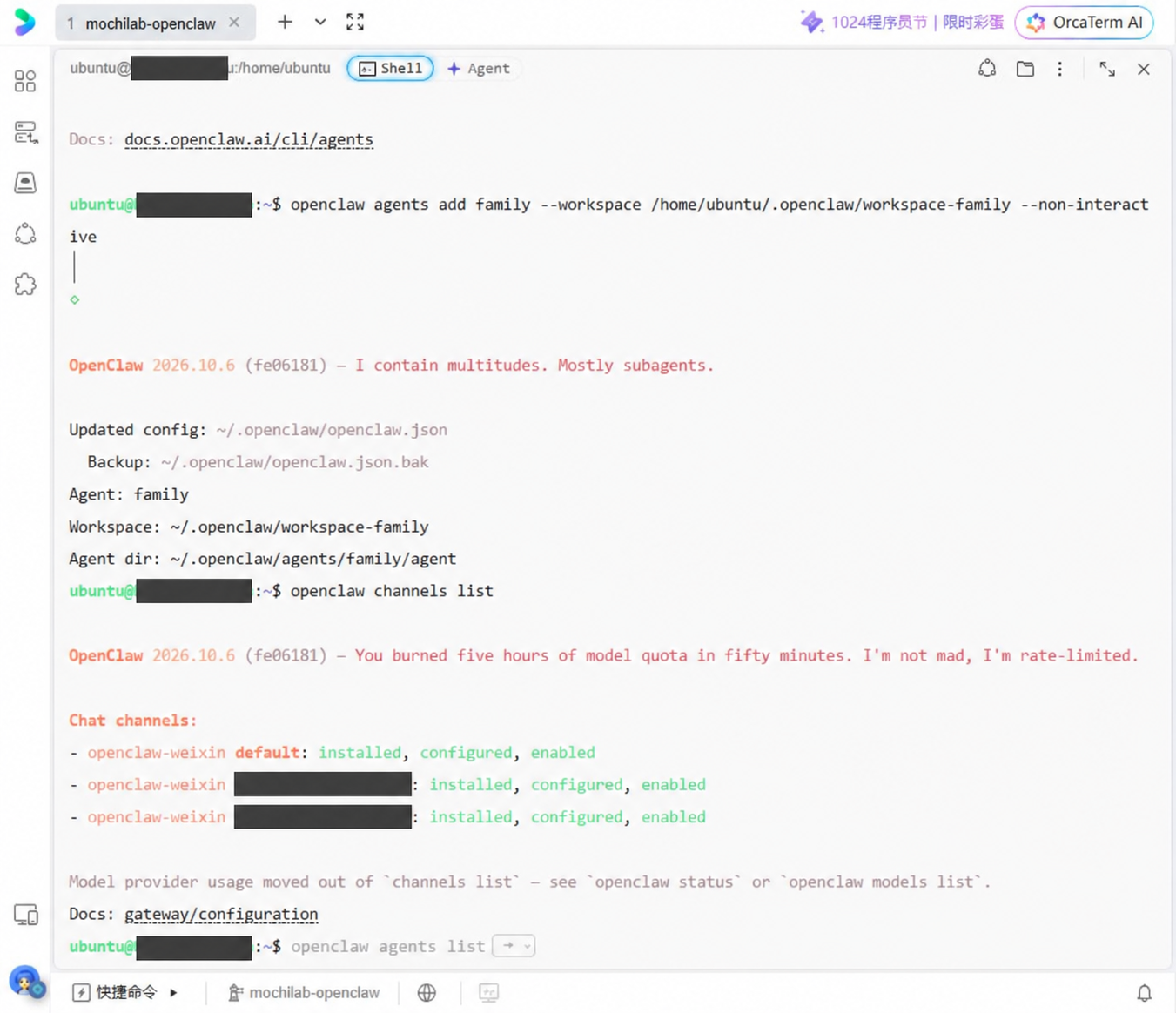
During this session, the login printed a successful connection message followed by state database read admission is closed and Plugin inventory has retired errors. A success message alone was therefore insufficient. If this happens, check again in fresh commands rather than repeatedly scanning:
openclaw gateway restart
openclaw channels list
openclaw channels status --probe
Run one command at a time and wait for it to finish. Resolve persistent configuration or Gateway errors before adding routing rules.
Step 4 Create a separate agent and workspace
The new agent's internal ID will be family. Its conversational name can be chosen later.
openclaw agents add family --workspace /home/ubuntu/.openclaw/workspace-family --non-interactive
The tested server uses the ubuntu account. Change the home directory if yours is different, and use a new workspace rather than the original agent's directory.
Successful output in this session included:
Agent: family
Workspace: ~/.openclaw/workspace-family
Agent dir: ~/.openclaw/agents/family/agent
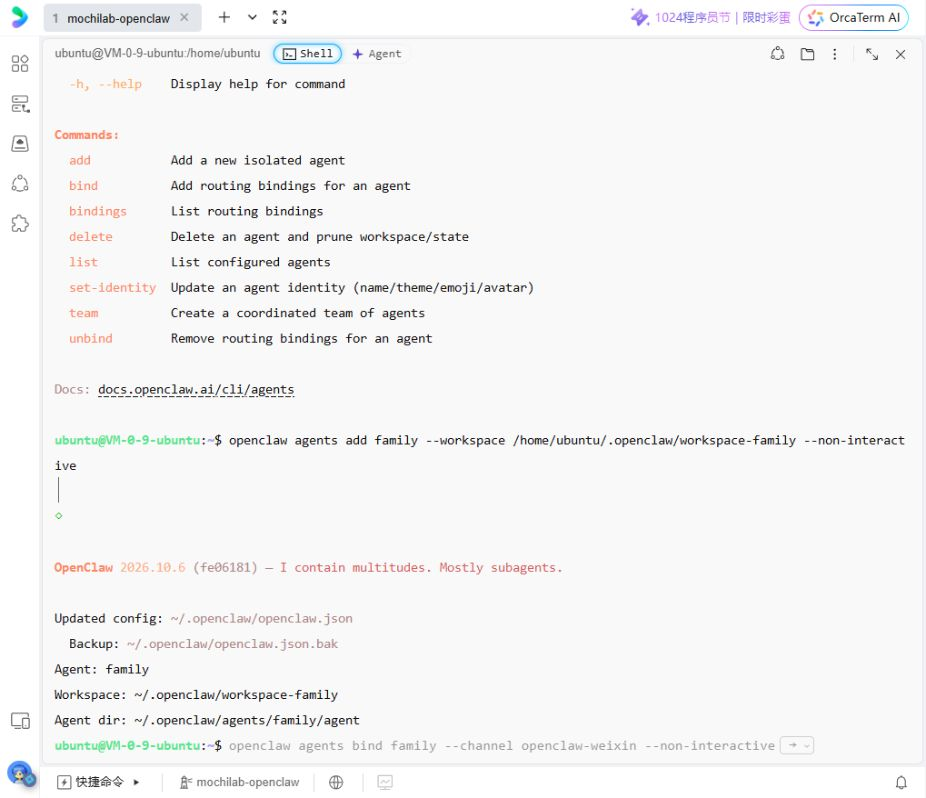
If family already exists, inspect openclaw agents list before retrying. Do not delete and recreate it blindly. Creation alone does not change the WeChat routing.
Step 5 Bind only the added account
Replace SECOND_ACCOUNT_ID with the complete new account ID from channels list:
openclaw agents bind --agent family --bind openclaw-weixin:SECOND_ACCOUNT_ID
For an ID of ACCOUNT_B-im-bot, the last argument would be openclaw-weixin:ACCOUNT_B-im-bot. Do not replace the ID with an asterisk or omit it: that can broaden the binding beyond the intended account.
Inspect the result:
openclaw agents bindings
The tested environment showed these rules, with the actual ID replaced here:
main <- openclaw-weixin accountId=*
family <- openclaw-weixin accountId=ACCOUNT_B-im-bot
The specific account rule routes the new login to family; main's wildcard receives the other accounts. The wildcard was present in this environment and is not an instruction to add it everywhere. Inspect your existing rules rather than copying this sample output into configuration.
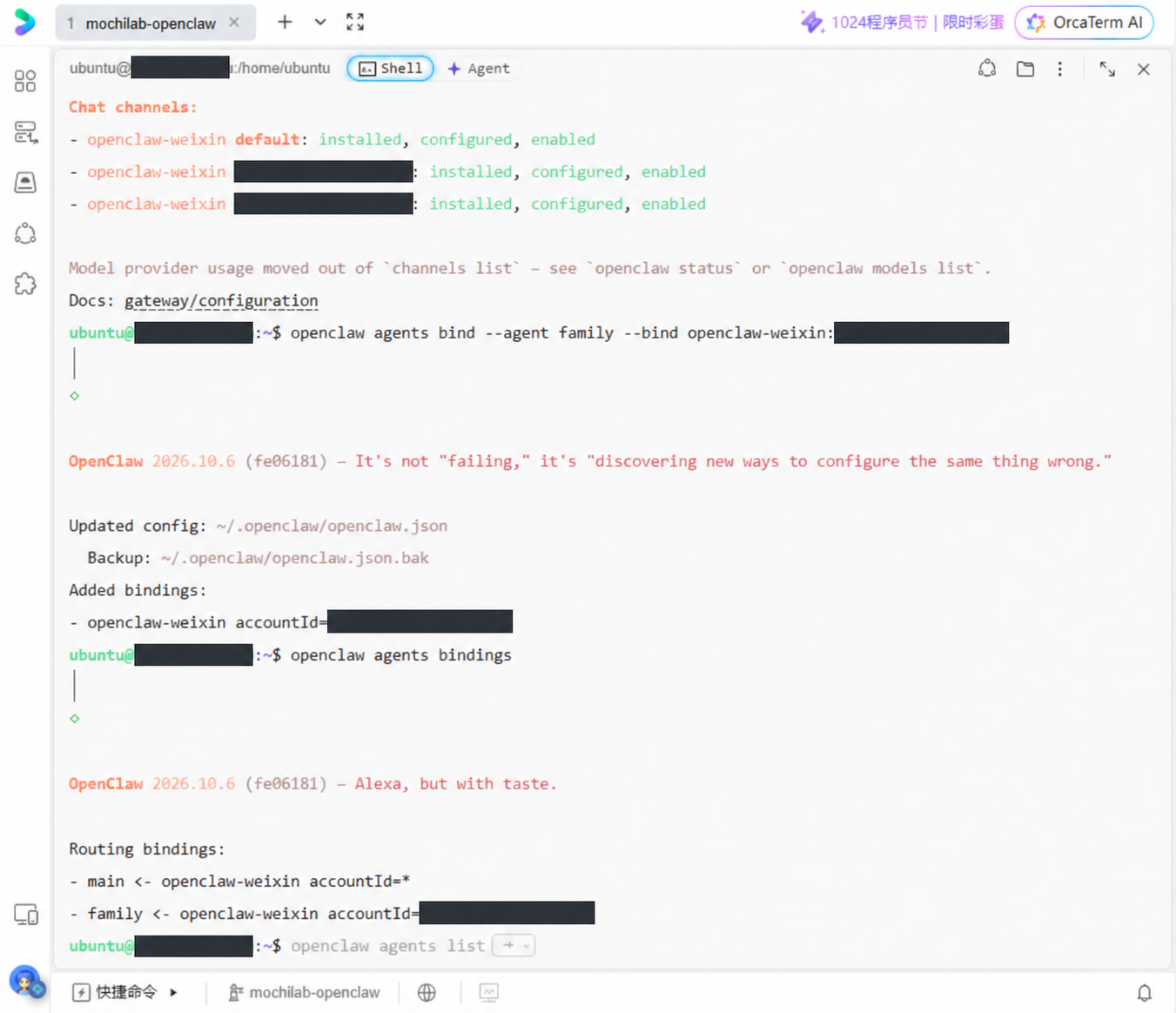
Gray text at the bottom of OrcaTerm may be an automatic command suggestion. It has not necessarily run and may omit the account scope you need. Use the commands in the article and check their arguments.
Step 6 Restart and check live connectivity
Run separately:
openclaw gateway restart
openclaw channels status --probe
Replies may pause during restart. Check that the Gateway is reachable and inspect both actual accounts. Configured or enabled describes configuration, not a completed message round trip.
If family reports an unavailable model or missing credentials, inspect its model and authentication setup. Agent creation does not guarantee that every version inherits every credential. Do not paste a DeepSeek API key into WeChat to resolve it.
Step 7 Test each WeChat independently
Send the following once from each WeChat account:
/new
From the first account, send:
Reply only: WeChat account one connection test succeeded.
From the second account, send:
Reply only: WeChat account two connection test succeeded.
Each reply should return to the sender that requested it. Then ask each assistant:
Tell me your current agent ID and workspace path.
The user supplied this reply from the second account:
Agent ID: family
Workspace: /home/ubuntu/.openclaw/workspace-family
The first account should still use main and its original workspace. Compare the replies against agents bindings and agents list. A model can misreport its environment, so a self-introduction alone is not proof of correct routing.
This session combined the observed binding rules with the user's separate-message tests and the second assistant's reported agent and workspace. It did not test operating-system access isolation.
Step 8 Choose a name and preferences
A new assistant saying it has no name is expected: it has a fresh identity rather than the original MOCHI identity. In the second WeChat, you can say:
Your name is Little Mochi and you are my personal assistant. First ask how to address me, then learn my daily routine and preferences. Save confirmed preferences in your own workspace.
The internal ID remains family. Do not copy the first user's entire USER.md, MEMORY.md, or chat history into this workspace, as that also transfers their personal information.
Check which Skills the new agent can actually use. Workspace-local Skills should not be assumed to appear automatically in a new workspace. Follow the MochiLab connection guide ↗ to install the helper into the family workspace, then connect the required account and install specific Skills. Enter access keys only in the terminal's hidden prompt, not in chat.
Add a third account later
Record the current channel list, repeat QR login, and identify the newly added third account ID. Create a different agent and workspace:
openclaw agents add personal3 --workspace /home/ubuntu/.openclaw/workspace-personal3 --non-interactive
Replace THIRD_ACCOUNT_ID with the complete actual third account ID:
openclaw agents bind --agent personal3 --bind openclaw-weixin:THIRD_ACCOUNT_ID
openclaw agents bindings
Restart the Gateway and test all three accounts. This is an extension of the tested two-account procedure; the third account has not yet been added in this session. Do not overwrite family or reuse an existing agent's workspace.
Agents can share a server and model provider, while requests using the same API account generally share its billing and limits. Capacity depends on tasks, tools, and concurrency; the two-account test is not a multi-user performance guarantee.
Remove the dedicated binding if needed
Inspect agents bindings first. To remove only family's account-specific route, replace the placeholder with that same actual account ID:
openclaw agents unbind --agent family --bind openclaw-weixin:SECOND_ACCOUNT_ID
openclaw agents bindings
openclaw gateway restart
Remaining rules determine where messages go afterward. With main's wildcard in this environment, the account returns to main. Unbinding does not log WeChat out or prevent access to the original assistant. To disable the account, use the installed plugin's account-management procedure separately. Removing a route does not require deleting an agent or its workspace.
If memory search becomes unavailable
After account routing was working, the original MOCHI assistant reported an incompatible memory index. Chat remained available, but memory search needed a separate repair. This procedure was tested on main; do not apply it indiscriminately to every agent.
Inspect the mismatch first. Run on the server:
openclaw memory status --agent main
The existing index was identified as fts-only, while the configured model was text-embedding-3-small. Vector search was paused. For the underlying error, run:
openclaw memory status --deep --agent main --verbose 2>&1
The diagnostic requested an OpenAI API key. DeepSeek still handled chat; a separately configured OpenAI embedding model handled memory vectors. Do not enter a DeepSeek key as an OpenAI credential. A colorful startup slogan mentioning 429 is not evidence of an actual rate-limit error.
Choose keyword-only recall if you do not want an embedding API dependency. If you intentionally use a paid embedding model, fix that provider's authentication instead. This session chose keyword recall and changed only main:
openclaw config set agents.entries.main.memory.search.provider none
The CLI confirmed the update and said no Gateway restart was needed. Here none disables embeddings, not all memory search. This command does not change family's own configuration.
Rebuild only main's derived index. Run separately:
openclaw memory index --force --agent main
openclaw memory status --agent main
The observed result was Model: none, Indexed: 3/3 files, 18 chunks, Dirty: no, and FTS: ready, with the mismatch warning gone. Your file and chunk counts will differ. Vector store: disabled is expected in keyword-only mode.
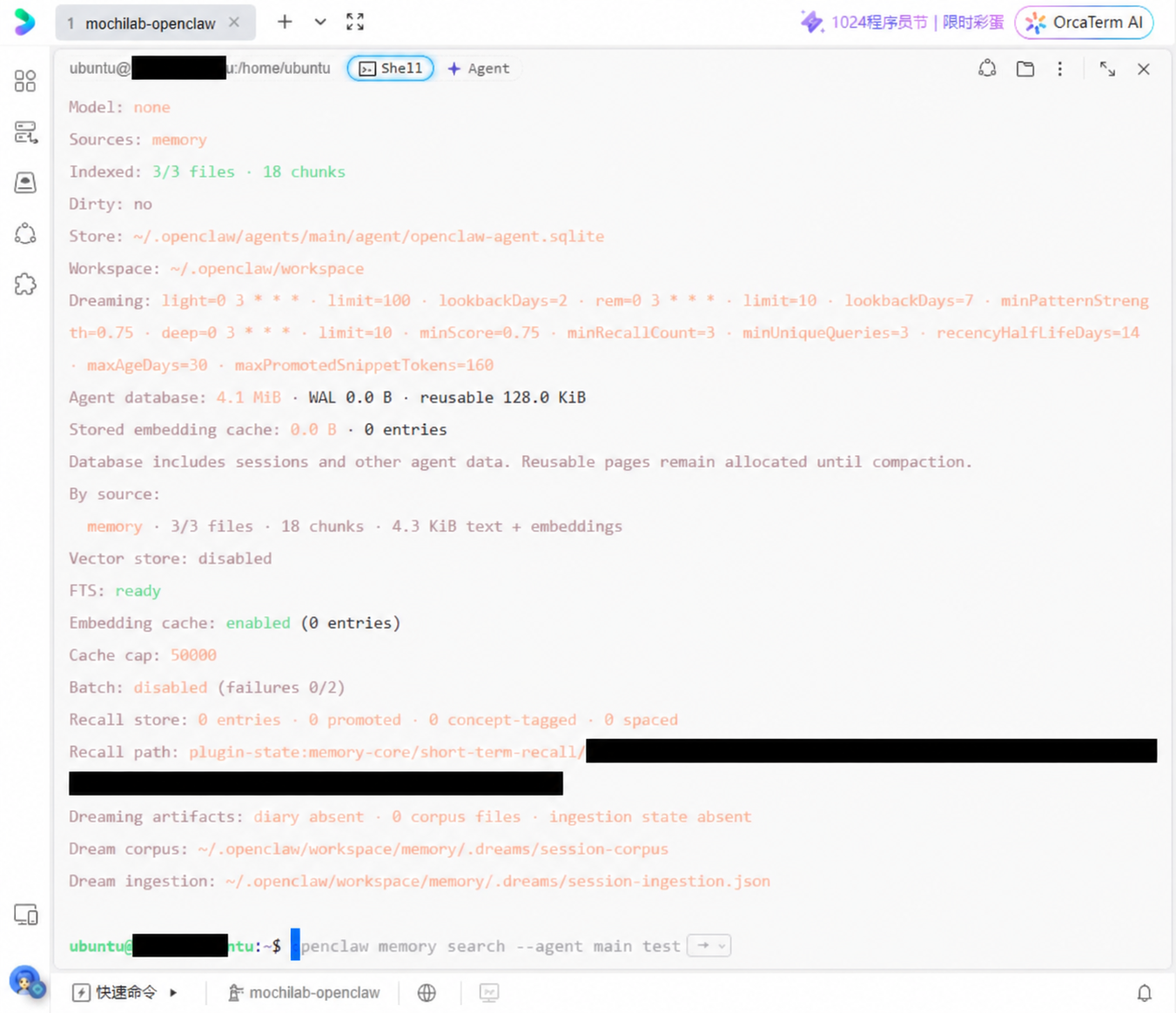
Derived-index rebuilding preserves memory source files and other agent state. Never delete openclaw-agent.sqlite or its sidecar files to clear an index: they can contain sessions and other durable state. The memory status --index option can also repair an incompatible index and is not a read-only status check.
Verify a known record from the terminal. These commands append a harmless verification record without overwriting existing content. Adjust the home directory if needed:
mkdir -p /home/ubuntu/.openclaw/workspace/memory
printf '%s\n' 'Memory verification marker: MOCHILAB_CHECK_20261023' >> /home/ubuntu/.openclaw/workspace/memory/mochilab-check.md
openclaw memory index --agent main
openclaw memory search --agent main --query "MOCHILAB_CHECK_20261023"
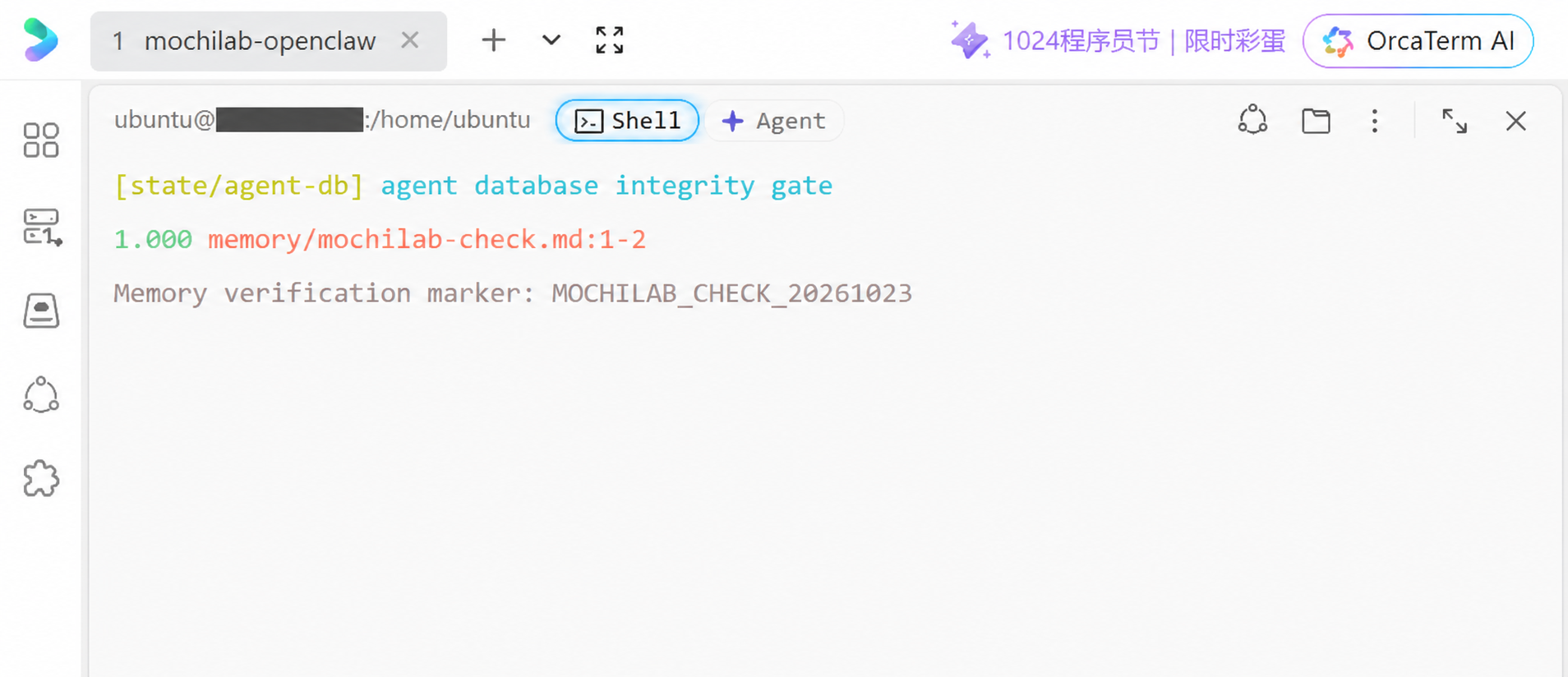
The first observed result referenced memory/mochilab-check.md:1-2 and returned the complete marker. Scores and line numbers may differ in your installation.
Verify from the original WeChat account. Send /new to the first MOCHI assistant, then send this request without including the marker's answer:
Actually use the memory search tool to find the Memory verification marker saved in mochilab-check.md. Return the complete marker and cite the source file and line numbers. If retrieval fails, report that honestly instead of guessing.
The user confirmed that WeChat returned MOCHILAB_CHECK_20261023 and cited the test file. Together with the observed terminal hit, this confirmed restored keyword recall for this case. Semantic vectors remain intentionally disabled. The WeChat result was supplied as user feedback; no unobserved WeChat screenshot was fabricated.
The test note is a verification fixture, not a personal preference. See memory search ↗, the configuration reference ↗, and the memory CLI ↗ for provider configuration and safe recovery.
References
Actual account identifiers are redacted in the images. Use the article's command blocks as the reference. Interfaces and parameters can change; if a command is unsupported, inspect its --help output before continuing.