Start with a fresh Ubuntu host. Install the server component, pair your phone, then enter your cloud model API settings in the App. You do not need to install DeepSeek or Qwen model weights first.
1. Prepare the server and phone
Use Ubuntu 24.04 LTS x86_64, with at least 4 GB RAM and 40 GB storage for a small group;8GB or more is recommended for concurrent use. Cloud servers and owned computers use the same installer. An owned computer initially works with phones on the same LAN. No GPU is required.
The host needs access to Ubuntu package repositories, nodejs.org, npm and your model API. The small installer downloads pinned Node.js and OpenClaw archives and checks their size and SHA256. It stops if it finds an existing unrelated deployment.
On your phone, open the MochiBot download page ↗, download the APK and install it. Allow installation only for the browser or file manager you actually used if prompted. Use 1.0.0 build 19 or later; Settings should include model management. No MochiBot account or USB debugging is required.
2. Open the server terminal and download
In Tencent Lighthouse, select the instance, choose Login and use the available TAT connection. Other providers offer SSH or a web terminal; on your own computer, use its terminal. Run the following commands on Ubuntu, not in MochiBot chat or Windows PowerShell.
Prepare HTTPS download tools:
sudo apt-get update
sudo apt-get install -y curl ca-certificates
Wait for both commands to finish without an E: error and return to the prompt. Create a download directory:
mkdir -p ~/mochibot-setup
cd ~/mochibot-setup
pwd
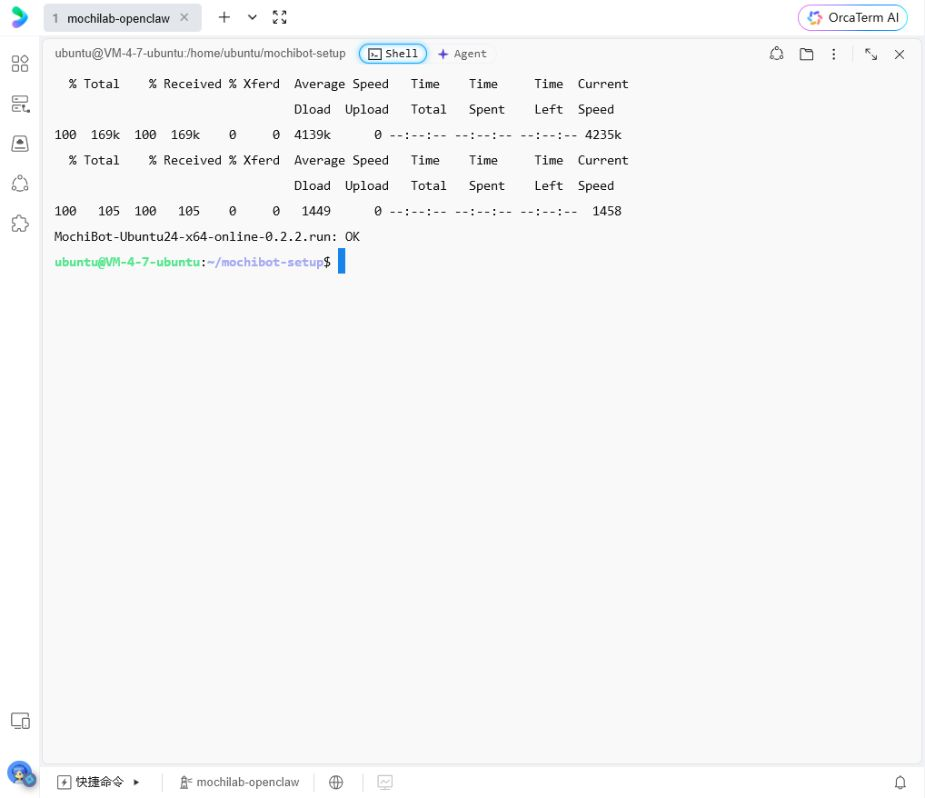
The path should end in /mochibot-setup. Download the exact version and its checksum, then verify:
curl -fL --proto '=https' --tlsv1.2 'https://mochilab.bz/MochiBot/Installer.ashx?version=0.2.2' -o MochiBot-Ubuntu24-x64-online-0.2.2.run
curl -fL --proto '=https' --tlsv1.2 'https://mochilab.bz/MochiBot/Installer.ashx?version=0.2.2&checksum=1' -o SHA256SUMS.txt
sha256sum -c SHA256SUMS.txt
Continue only when the result is MochiBot-Ubuntu24-x64-online-0.2.2.run: OK. For HTTP 404 or a checksum failure, stop and redownload; never execute an error page.
Check your OS and architecture:
cat /etc/os-release
uname -m
Expect VERSION_ID="24.04" and x86_64. Ubuntu 26.04 and ARM are outside this package's tested scope.
3. Check, then install
Replace YOUR_PUBLIC_IPV4 with the public IPv4 shown in your cloud console. Do not leave the placeholder in the command:
sudo bash ./MochiBot-Ubuntu24-x64-online-0.2.2.run --mode cloud --address YOUR_PUBLIC_IPV4 --check
The check should report Ubuntu 24.04/x86_64 and no installation changes. If it reports an existing deployment or an occupied port, resolve that issue before continuing.
Run the same command without --check:
sudo bash ./MochiBot-Ubuntu24-x64-online-0.2.2.run --mode cloud --address YOUR_PUBLIC_IPV4
For an owned computer on the same LAN as the phone, replace the mode and address with --mode lan --address YOUR_LAN_IPV4. Find its address with hostname -I and reserve a stable LAN address.
The six stages prepare system tools, download and verify the runtime, install OpenClaw dependencies, configure services, generate a TLS certificate and check service health. Leave the terminal open and do not start a second installer. Model credentials are not entered here.
At completion, the terminal reports running services and displays an administrator pairing QR. Check health with:
sudo mochibotctl doctor
Expect installerState: complete and connector, tlsEntry, apiHealthy all true. modelConfigured: false is normal until you save a model in the App.
If installation is interrupted, fix the reported cause and rerun the same installation command with --resume. Verified archives are reused. If npm connectivity requires the alternative registry, append --registry https://registry.npmmirror.com; integrity checks remain enforced.
4. Allow the phone's HTTPS connection
For Tencent Lighthouse: open the instance → Firewall → Add rule. Choose HTTPS, or custom TCP port 443, source 0.0.0.0/0 when phones need access from changing mobile networks, action Allow, then save. Confirm the rule appears in the list. Keep existing SSH rules. For CVM or other providers, add the equivalent inbound rule in the attached security group.
Expose only the required 443 entry, not internal ports 18890 or 19000–19099. For LAN mode, allow TCP 8443 only on the local network. The installer adds a rule if UFW is already active; it does not enable/disable UFW or change SSH.
The installer generates a certificate for the chosen IP. The QR includes the public-key fingerprint; MochiBot verifies it after you confirm pairing and uses TLS for the connection. This is App certificate pinning, not a public-CA browser certificate. Do not disable certificate checks or install a root certificate on the phone.
5. Pair and configure your cloud model
- In MochiBot, open Settings → Scan to connect. Scan the administrator QR shown by the installer.
- Verify your server and confirm pairing. Each QR expires after five minutes. For a fresh administrator QR, run
sudo mochibotctl pair-admin. - Open Settings → model management → add a cloud model.
- Choose Qwen, DeepSeek, OpenAI or another compatible API. Enter a profile name, provider URL and your API Key. Qwen defaults to Beijing's shared endpoint; use the endpoint matching your key's region/workspace.
- Load the model list and select a text/tool-capable model ID, or enter the exact ID from the provider console. Image/audio/embedding-only and Responses-only models are not supported by this first version.
- Set context/output limits within the provider's supported range. 32768/2048 is a starting point only if supported. For DeepSeek account funding and keys, see the separate guide ↗.
- Test and save. The test makes a small billable API request. Return to chat, send a greeting and confirm a real reply. Attach a harmless small text file and ask for a summary.
Keys are kept in administrator configuration on your server, not on the phone or MochiLab website. Your API provider processes requests. Failed saves preserve the previous configuration. Up to eight profiles can be saved; select a profile and test/switch after active tasks finish. The selected model applies to subsequent requests from all members. Existing conversation context sent with later requests also goes to the newly selected provider.
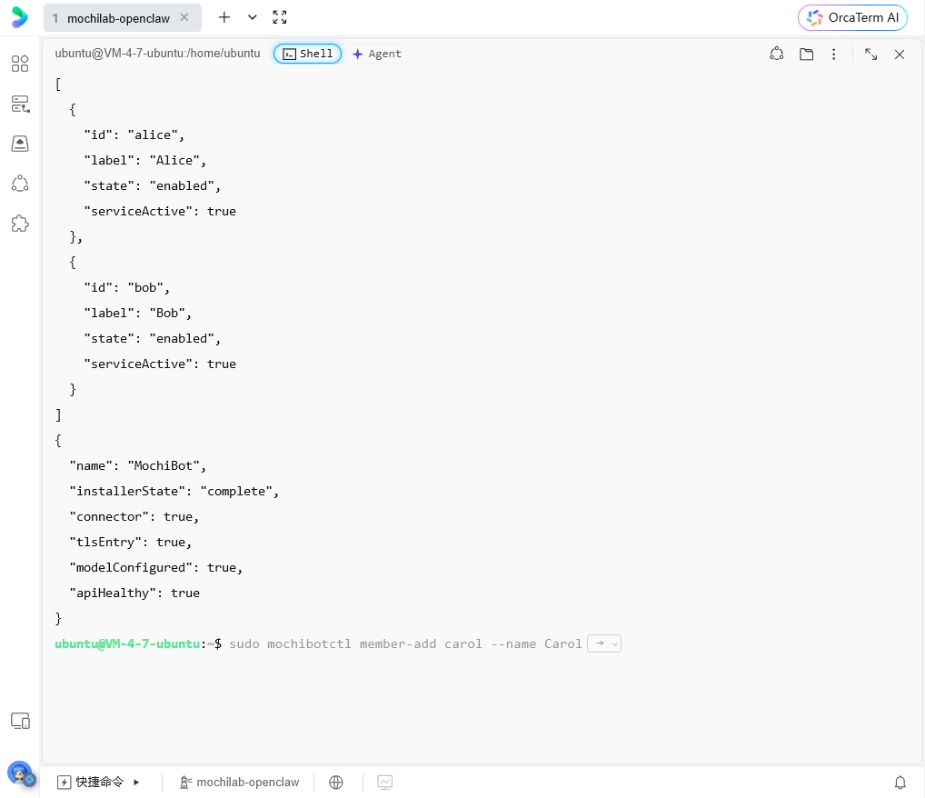
The initial setup is complete when chat replies work. For other people, follow the separate member workspaces guide ↗. Single-person users can stop here.
Troubleshooting
- Pairing times out: check the cloud TCP 443 rule, server address and phone network. Ping success does not prove HTTPS works.
- Model test fails: check the region/URL, key, balance and exact model ID.
- Inspect health with
sudo mochibotctl doctor. For recent service errors:
sudo journalctl -u mochibot.service -u mochibot-entry.service -n 60 --no-pager
Redact private addresses and credentials before sharing logs. This package does not install local models or configure remote access to a home LAN. Spoken reminders require device support, push/notification/background permissions and a separately configured remote push channel.