Deploy MochiBot on your own Ubuntu computer: same-LAN phone access
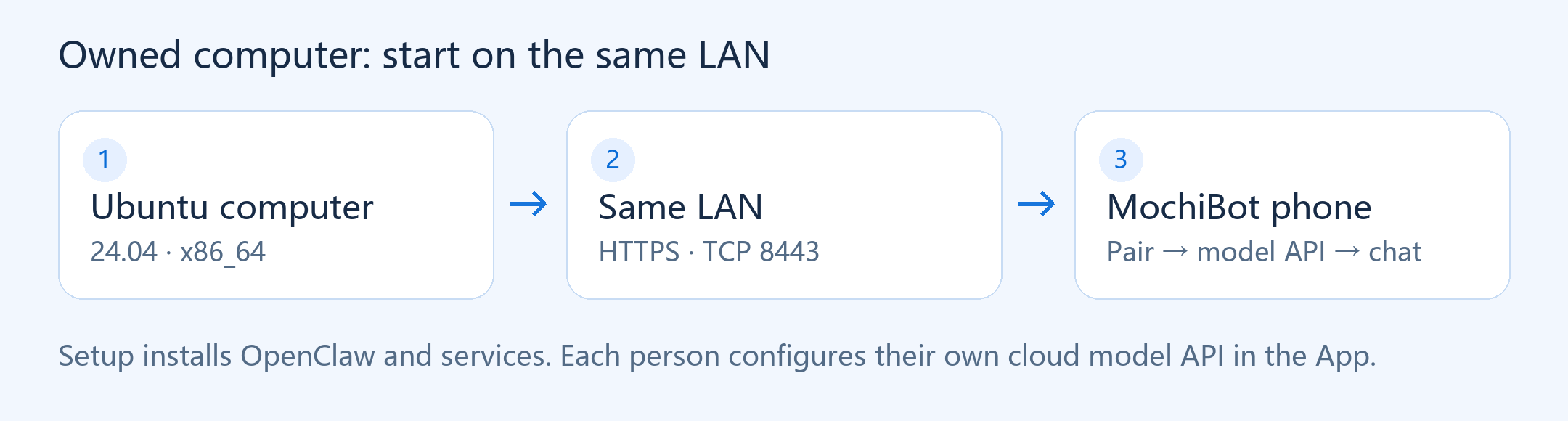
Use an owned desktop or mini PC at home or in the office. This guide verifies access from phones on the same LAN. Leaving that network does not automatically provide remote access. For access while away, start with the cloud-server route ↗.
The same small package installs pinned OpenClaw, MochiBot and the Skills assistant. Configure cloud model APIs after pairing. No GPU, model-weight download, USB debugging or MochiBot registration is needed.
Run all commands in this computer's Ubuntu terminal, not phone chat or Windows PowerShell. On Ubuntu Desktop press Ctrl+Alt+T; on Ubuntu Server use its login terminal. Copy one code block at a time, press Enter and wait for the prompt. If sudo requests your Ubuntu login password, no visible characters while typing is normal.
If Ubuntu is not installed, follow the official Desktop ↗ or Server ↗ installation tutorial, then return to step 1.
1. Check the computer and disk
Use clean Ubuntu 24.04 LTS x86_64 with at least 4GB RAM (8GB recommended for several users), a recommended 40GB or larger system disk and at least 8GB currently free. If Ubuntu is not installed, first follow Ubuntu's official installation instructions and create a login user. This package does not format disks or install the OS.
The host must reach Ubuntu repositories, nodejs.org, npm and the chosen model API. Do not initialize a computer already running OpenClaw/MochiBot; setup stops on an existing deployment.
cat /etc/os-release
uname -m
df -h /
Expect ID=ubuntu, VERSION_ID="24.04", and x86_64. The final command's Avail column shows remaining disk space. Do not continue on ARM/aarch64, Windows or another Ubuntu version.
2. Find the LAN IP and connect the phone to the same network
On the host run:
ip -4 -brief address show scope global
Find the connected physical interface: wired interfaces often start with en, Wi-Fi with wl. A typical address is 192.168.1.100/24; record only the part before the slash. Do not use loopback 127.0.0.1, docker/veth addresses or a cloud public IP.
Connect the phone to the router's normal Wi-Fi, not mobile data or a guest network. A wired computer and Wi-Fi phone can share a LAN, provided client isolation is disabled. Reserve the computer's current IP in the router's DHCP reservation/static lease settings and confirm it remains unchanged. An address change after reboot or changing networks breaks the old connection.
The phone entry is TCP 8443, bound only to the supplied LAN IP. No cloud security-group rule or public port forwarding is needed. If UFW is already active, setup adds the entry rule; it does not enable or disable UFW. Other host firewalls must allow the phone's LAN access to TCP 8443.
3. Prepare download tools
Run each command separately:
sudo apt-get -o Acquire::Retries=3 -o DPkg::Lock::Timeout=180 -o APT::Update::Error-Mode=any update
This refreshes package indexes. Continue only after it returns without an E: error:
sudo apt-get -o Acquire::Retries=3 -o DPkg::Lock::Timeout=180 install -y ca-certificates curl python3
This installs HTTPS download tools and Python. If apt waits for a lock, a system update may still be running; wait rather than deleting lock files. Resolve errors before proceeding.
4. Download and verify
Create a folder and enter it:
mkdir -p ~/mochibot-setup
cd ~/mochibot-setup
pwd
The final path should end with /mochibot-setup. Download setup:
curl --fail --location --retry 3 --connect-timeout 20 --proto '=https' --tlsv1.2 'https://mochilab.bz/MochiBot/Installer.ashx?version=0.2.7' -o MochiBot-Ubuntu24-x64-online-0.2.7.run
Download its checksum:
curl --fail --location --retry 3 --connect-timeout 20 --proto '=https' --tlsv1.2 'https://mochilab.bz/MochiBot/Installer.ashx?version=0.2.7&checksum=1' -o MochiBot-Ubuntu24-x64-online-0.2.7.run.sha256
Verify:
sha256sum --check MochiBot-Ubuntu24-x64-online-0.2.7.run.sha256
Expect `MochiBot-Ubuntu24-x64-online-0.2.7.run: OK`. Stop on a failed download or checksum. Redownload and recheck; do not run an incomplete file.
5. Set the LAN IP, check and install
Replace the entire placeholder with the computer's LAN IPv4 from step 2, keeping the quotes and omitting the /24 suffix:
SERVER_IP='YOUR_LAN_IPV4'
Check that it prints the real address:
printf '%s\n' "$SERVER_IP"
Run local preflight:
sudo bash MochiBot-Ubuntu24-x64-online-0.2.7.run --check --mode lan --address "$SERVER_IP"
Expect success including “局域网主机”. This does not test phone access. Install next:
sudo bash MochiBot-Ubuntu24-x64-online-0.2.7.run --mode lan --address "$SERVER_IP"
Wait through [1/6] to [6/6]: dependencies, Node.js, OpenClaw, private workspace, HTTPS, services and health. No model key is requested in the terminal. Do not start a second installer or repeatedly paste commands. Success ends with “服务已启动。模型尚未配置” and a pairing QR.
6. Install the App and pair
Install the current APK from the MochiBot download page ↗, version 1.0.4 or newer. Allow installation only for the browser/file manager used, if asked. No USB debugging or MochiBot registration is needed. Open Settings → Scan to connect, allow camera access, scan the terminal QR, check the server and assistant, then confirm pairing.
HTTPS is configured by setup. The App pins the server's public key during pairing; no separate domain or purchased certificate is required, and certificate checks remain enabled.
QR codes expire after five minutes. If installing the App took longer, generate a new code:
sudo mochibotctl pair
Scan the new code. Do not reinstall the server. Each extra person needs their own workspace code, not the first user's code.
7. Configure your cloud model
Open Settings → Models → Add a cloud model:
- Choose DeepSeek, Qwen, OpenAI, or a compatible API.
- Enter a recognizable profile name, the provider's HTTPS API endpoint and your own key. Qwen keys and endpoints must use the same region. The API endpoint is not a website login URL.
- Tap Read available models and choose a chat model; if listing is unavailable, enter the exact ID from the provider console. Image, audio and embedding models are not chat models.
- Context and output limits are prefilled but must fit the selected model; reduce them if the provider requires it.
- Tap Test and save, and wait for success before returning to chat. Testing makes a small billable API request.
For a key, follow the DeepSeek account, credit and API-key guide ↗. Provider API charges apply. Enter keys in dedicated fields, never in chat.
8. Receive the first real reply
Send: "Hello, please introduce yourself in one sentence."
A normal reply completes first-time setup. You can now chat and send files without the optional steps below.
9. Keep the computer available
Keep the computer and router powered and online. On Ubuntu Desktop, disable Automatic Suspend in Settings → Power. A laptop may sleep when its lid closes; keep it open and connected to power during testing. Turning off a display is fine, but shutdown/sleep stops chat and scheduled server tasks. Services start automatically after a normal reboot; the terminal does not need to remain open.
The phone still needs notifications and background operation for voice alerts. Same-LAN access does not imply access when away. A separate secure remote-network entry is required for that; exposing internal management ports is outside this guide.
Optional later steps
- Skills account: Settings → MochiLab Skills account → Connect/manage account. Sign in on the website, obtain an
mls_ access key, enter it in the dedicated App field and verify. The assistant is already installed; account authorization permits entitled downloads. Each workspace connects separately; authorized users may connect the same membership account. - More people: Create a separate workspace and pairing code ↗. Chats, files and model settings remain separate; everyone uses the same App interface.
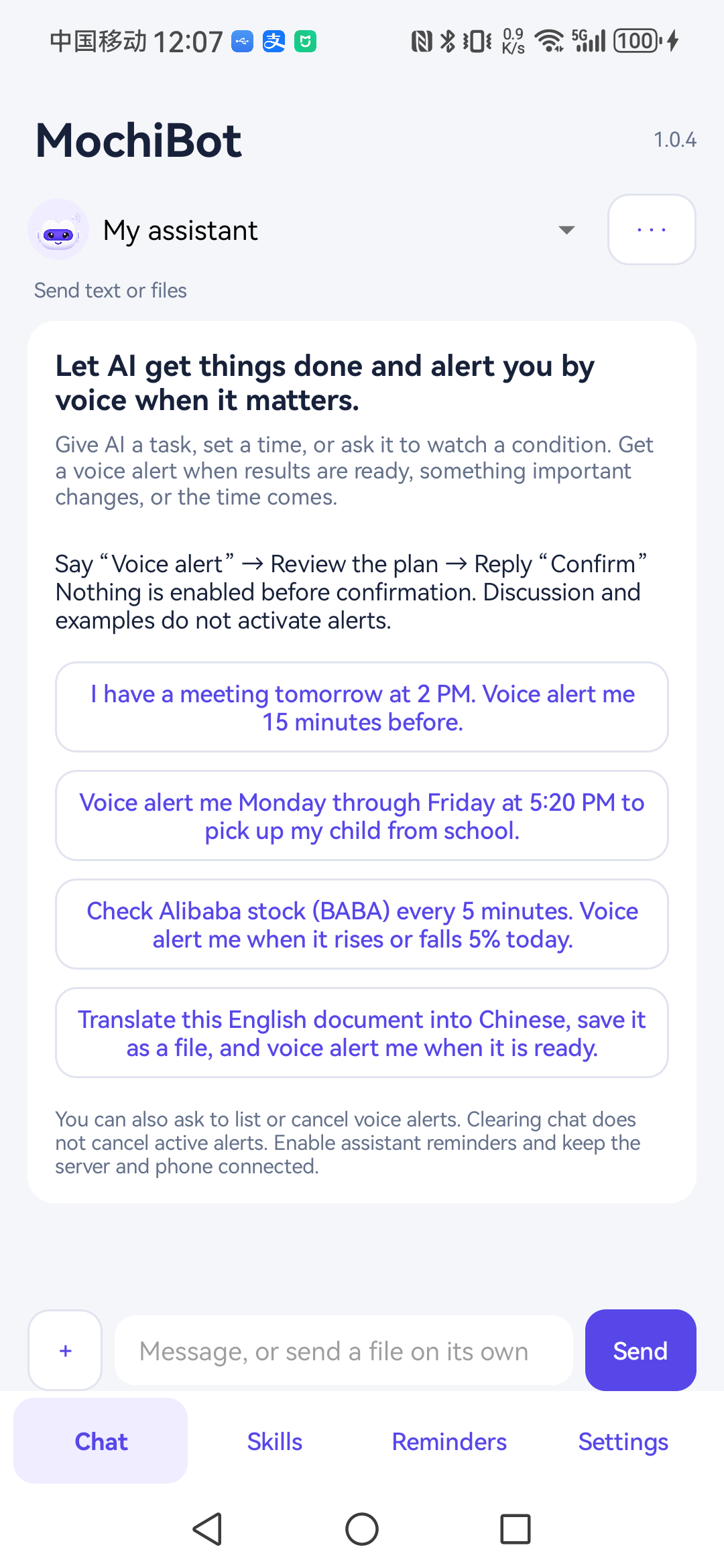
- Voice alerts: Plans, confirmation, task results and cancellation ↗. Enable reception on the Reminders tab, allow notifications and background operation, and keep both devices online.
Troubleshooting: resume rather than reinstall
Interrupted download or setup
Return to the same folder. Set the address again after a new login:
cd ~/mochibot-setup
SERVER_IP='YOUR_LAN_IPV4'
If initialization started but did not finish, resolve the reported network/error condition and resume the same package version:
sudo bash MochiBot-Ubuntu24-x64-online-0.2.7.run --resume --mode lan --address "$SERVER_IP"
Completed stages and verified download caches are retained. Do not delete workspaces, switch package versions to resume, disable firewalls, or delete apt/dpkg locks. Wait for any existing installation to exit first. A completed setup does not need the resume flow.
For failed Ubuntu repositories, fix the network then repeat step 3. Only if apt explicitly reports dpkg was interrupted, wait for other system updates to finish, run sudo dpkg --configure -a, repeat step 3 and resume. Never delete locks or kill a running package manager.
If [3/6] OpenClaw repeatedly fails reaching the official npm registry, append --registry https://registry.npmmirror.com to the same-version resume command. This changes only npm dependency downloads; pinned file integrity remains checked. Node.js downloads and model API reachability are separate requirements.
Setup completed, but pairing times out
Check whether the host IP changed, the host slept, the phone is on normal Wi-Fi, client isolation is enabled, or a host firewall blocks TCP 8443. For an expired QR, run sudo mochibotctl pair. Do not reinstall for a pairing timeout.
Check server services:
sudo mochibotctl doctor
Expect connector, tlsEntry, apiHealthy to be true, and installerState to be complete. `modelConfigured: false` is normal before entering a model; it should become true after saving the App's model configuration.
For recent service errors:
sudo journalctl -u mochibot.service -u mochibot-entry.service -n 60 --no-pager
Redact private addresses and credentials before sharing logs. A failed model test calls for checking endpoint, region, key, balance and model ID, not reinstalling Ubuntu.
Optional: update an existing standard deployment
For a completed standard deployment only, wait for all workspace tasks to finish. Repeat the step 4 download and verification commands. Only after the versioned file reports OK, run:
sudo bash MochiBot-Ubuntu24-x64-online-0.2.7.run --update
Expect “服务器更新完成” and a healthy-service count. This updates recognized service code while retaining keys, Skills connections, pairing and workspaces. It does not rerun initialization or replace installed Node.js/OpenClaw. Unknown local modifications or unfinished jobs stop the update; resolve the reported condition rather than invoking fresh setup. Interrupted setup must resume its original package version; --update is not a substitute.
Verification scope
Existing-host updates, separate multi-user chat and phone connections were tested. No blank test host is currently available: a complete first-to-last installation of this version on clean Ubuntu remains pending, as does a full run on an independent owned LAN computer. Expected results and troubleshooting are provided; success on every network/hardware combination is not guaranteed.