This walkthrough takes a newly purchased Tencent Cloud server all the way to a personal assistant in WeChat, with DeepSeek API access, MochiLab Skills, a real translation check, and verified downloads of your backups. Each stage identifies where to act and what result to check.
Tested on October 23, 2026: Tencent Cloud China, Singapore Lighthouse, 2 vCPUs, 8GB RAM, Ubuntu 24.04 LTS, and the paid DeepSeek API. We checked WeChat messaging, MochiLab account connection, Skill readiness, a report saved on the server, continued operation after closing the terminal, and backup file hashes after downloading.
Prices and screens describe that session, not a promise about future offers. Screenshots are selected or privacy-redacted; actual API keys, SSH private-key contents, login QR codes, public IPs, instance IDs, and WeChat account identifiers are not published. Copy commands from the code blocks, not from screenshots. The screenshots show the Chinese interface used during the test.
What you are building
You send a request in WeChat. OpenClaw receives it on the server, calls DeepSeek, and uses an installed Skill when needed to carry out a task or create a file.
- Tencent Cloud: hosts OpenClaw, its workspace, Skills, and reports.
- DeepSeek API: supplies model inference, billed separately from the server.
- WeChat: is the conversation interface; it does not run the model on your phone.
- MochiLab Skills assistant: finds, downloads, installs, and checks MochiLab Skills. Individual Skills then guide specific tasks.
This API route does not require Ollama or a downloaded local Qwen model. The tested 2-vCPU/8GB configuration is evidence for this personal API workflow, not for local large-model inference or concurrent multi-user workloads.
The sequence is: purchase → SSH login → system updates → OpenClaw → DeepSeek → WeChat → MochiLab assistant → account connection → Skill installation and testing → background operation → backup and download verification.
1. Prepare accounts and distinguish the credentials
Prepare a Tencent Cloud account, a personal WeChat account, a DeepSeek platform account ↗, and a MochiLab account ↗.
Complete the DeepSeek platform's account requirements and recharge its API balance. Create an API key from the platform's API Keys page and store it privately. A web-chat subscription and an API balance are different products; use the balance shown in the API platform.
- Tencent SSH private key, a `.pem` file — Used for: Signing into the server; Where to keep or enter it: Keep the file on your own computer
- DeepSeek API key — Used for: OpenClaw model configuration; Where to keep or enter it: Enter privately in the setup prompt
- MochiLab Skills key, beginning `mls_` — Used for: Connecting the account and downloading Skills; Where to keep or enter it: Enter in the assistant's hidden terminal login prompt
These credentials are not interchangeable. Do not send model or MochiLab keys in the WeChat conversation.
2. Purchase a Lighthouse server
Open the Tencent Cloud Lighthouse purchase page ↗. This session used Tencent Cloud China. Check each selection before paying:
- Image type — Pure operating system
- Operating system — Ubuntu 24.04 LTS
- Region — Singapore
- CPU / RAM — 2 vCPUs / 8GB
- System disk — 80GB SSD
- Advertised bandwidth — 200Mbps peak; not a sustained dedicated-bandwidth guarantee
- Term / quantity — One month / one instance
- Price during the test — CNY 95 for one month; your order is authoritative
- Login method — SSH key
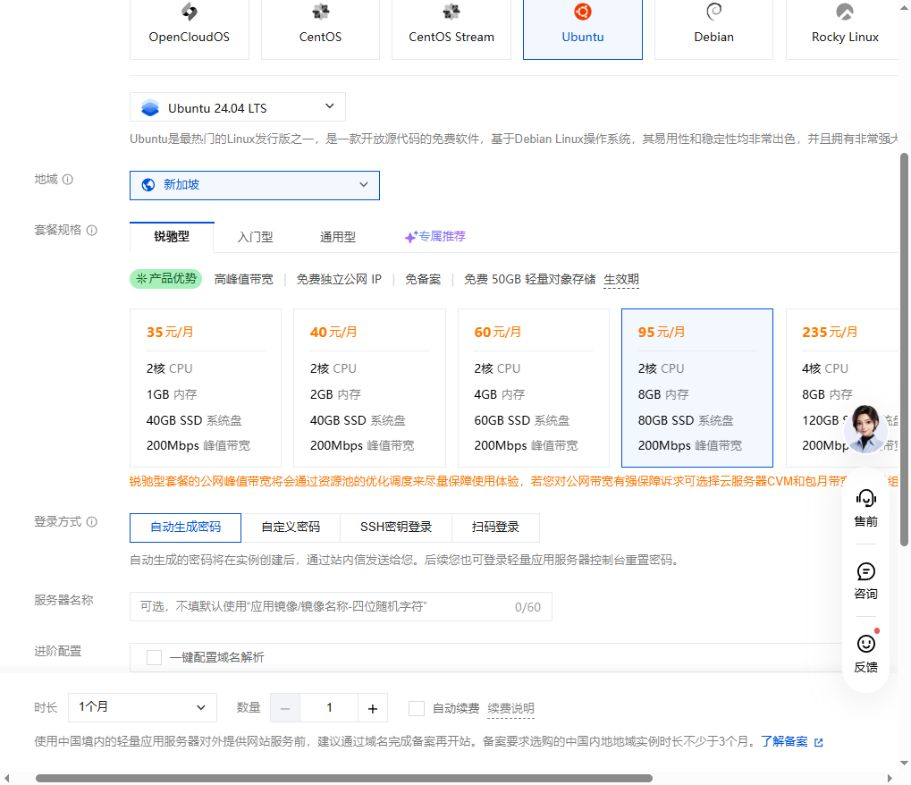
The image illustrates the specifications. Its lower section still shows the page's default automatic-password option. Change the login method to SSH key before checkout.
The session successfully reached its chosen API and WeChat services from Singapore. This does not make Singapore the best region for everyone: check connectivity for your own region and services. No GPU purchase is needed for the workflow tested here.
Create and select an SSH key
- Choose SSH-key login. For this Ubuntu image the user is
ubuntu. - If there is no suitable key, click Create key.
- Select the same region as the server and choose to create a new key.
- Use a simple alphanumeric name such as
mochilabsgkey. The form used in this session rejected our earlier hyphenated example. - Save the automatically downloaded file, such as
mochilabsgkey.pem. The console warned that the private key was available to download only once. - Return to the purchase page, refresh the key list if needed, and select that key. You do not need to copy the public key elsewhere for this console-managed purchase flow.
- Check the OS, region, size, term, quantity, renewal choice, and optional paid extras. Review the agreements yourself before submitting payment.
After payment, open the Lighthouse instance console ↗, select the purchase region, and wait for the new instance to show Running. Make sure you are selecting the new server rather than another existing instance.
3. Sign in through the browser terminal
Click Login for the target instance to open OrcaTerm. Choose SSH, port 22, private-key verification, your downloaded .pem file, and user ubuntu.
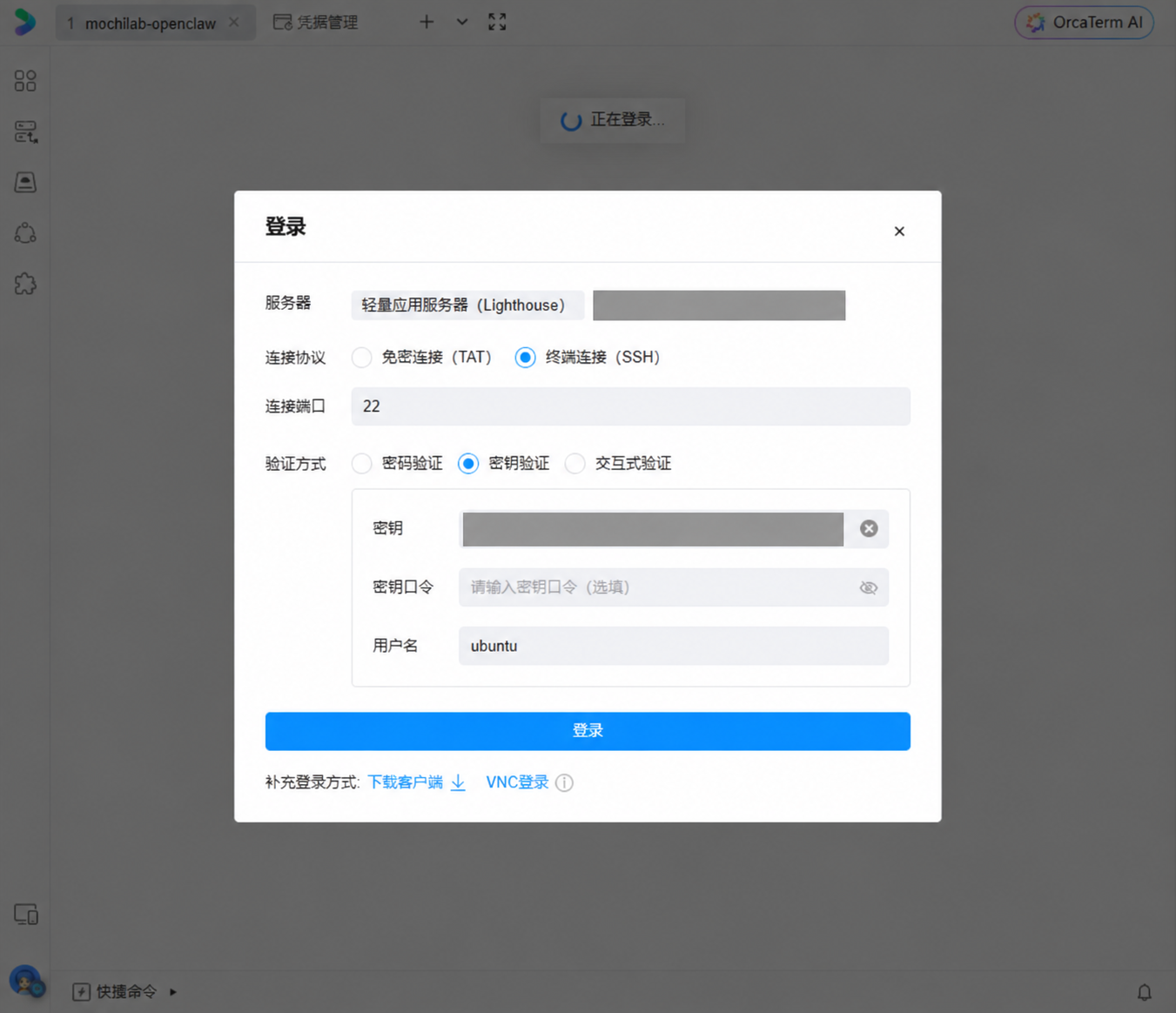
The optional key passphrase is the encryption passphrase for that private key, not your Tencent account password. Leave it empty only if your own key has no passphrase. Never enter an API key there.
A successful login shows a shell prompt resembling:
ubuntu@YOUR_HOST:~$
Run blocks marked server terminal at this shell prompt. OpenClaw's terminal chat interface, encountered later, is a different place.
Check the environment:
whoami
lsb_release -ds
uname -m
nproc
free -h
df -h /
sudo -n id -u
The test returned user ubuntu, Ubuntu 24.04.4 LTS, and two CPU cores. The final command returned 0, confirming the sudo access needed here. Available memory and disk figures will vary.
4. Update Ubuntu and handle the prompts
In the server terminal, run:
sudo apt-get update && \
sudo apt-get upgrade -y && \
sudo apt-get install -y curl ca-certificates git unzip
Wait for completion instead of repeatedly pasting the command when output pauses. Package configuration may still ask questions even with -y.
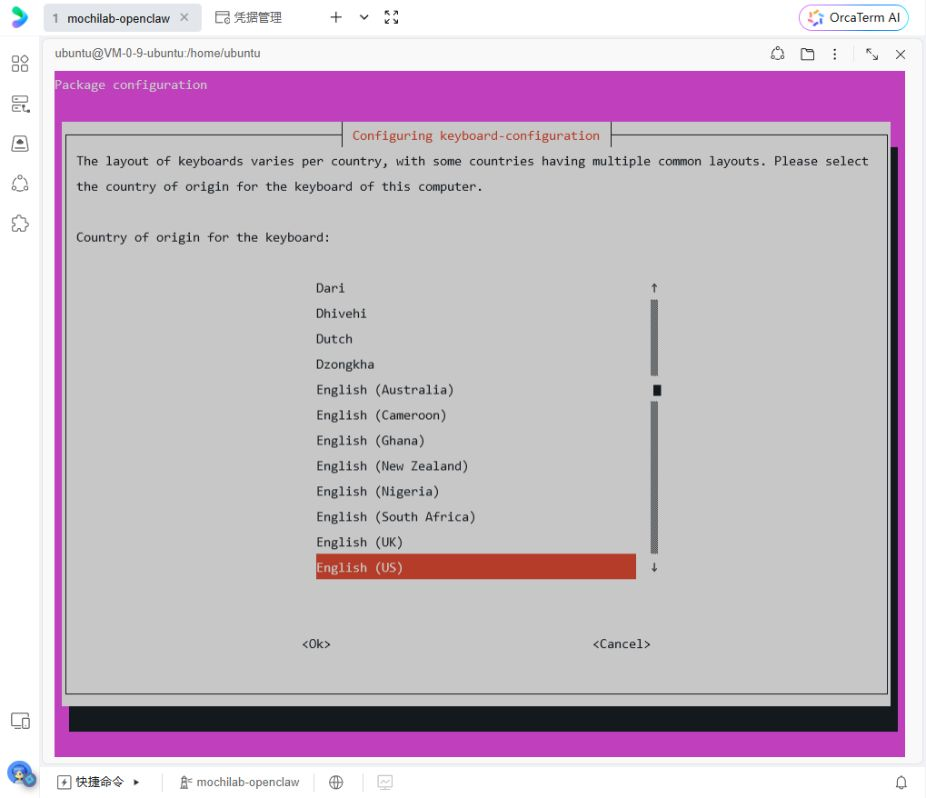
If keyboard configuration appears, select English (US) for the country, then the ordinary English (US) layout on the next screen. Use arrow keys and Enter.
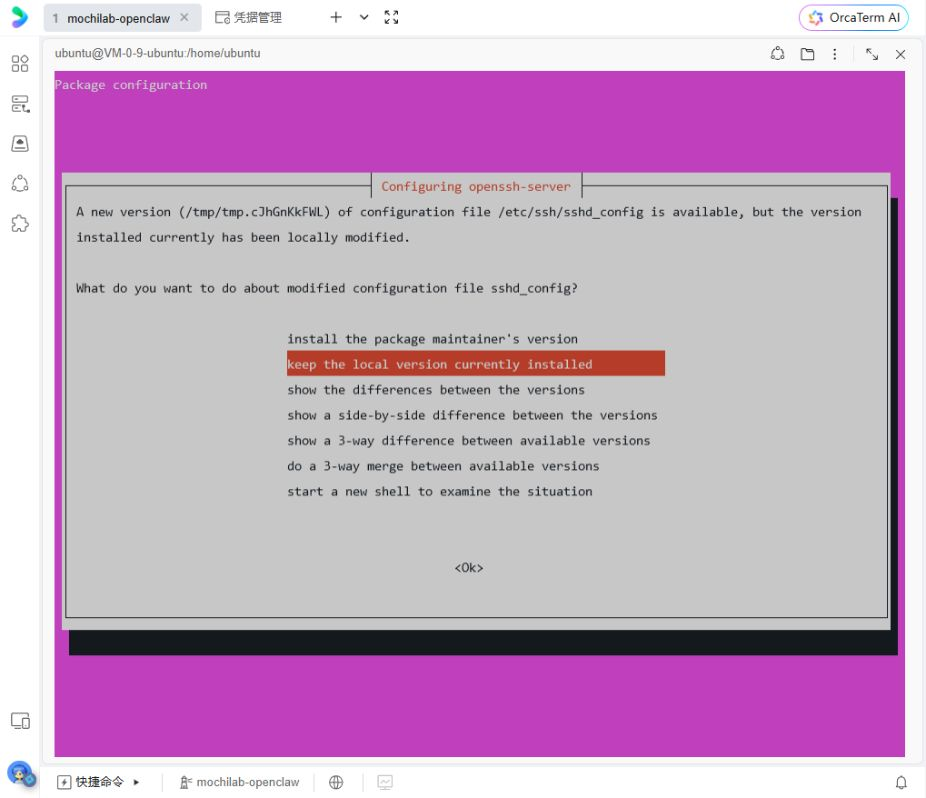
If asked what to do about /etc/ssh/sshd_config, this fresh cloud instance used:
keep the local version currently installed
That preserves the cloud image's existing SSH configuration during this upgrade.
Once the shell returns, reboot if the update reports a pending kernel or service restart:
sudo reboot
The connection will close. Wait for the instance to run again, reconnect using step 3, and check:
uname -r
command -v curl git unzip
Continue when you can sign in and the tools are found.
5. Install OpenClaw
The session used the official OpenClaw installer ↗, keeping installation separate from onboarding:
curl -fsSL --proto '=https' --tlsv1.2 https://openclaw.ai/install.sh | bash -s -- --no-onboard --verify
Verify the official domain before running the script. --no-onboard defers setup, while --verify requests installation checks.
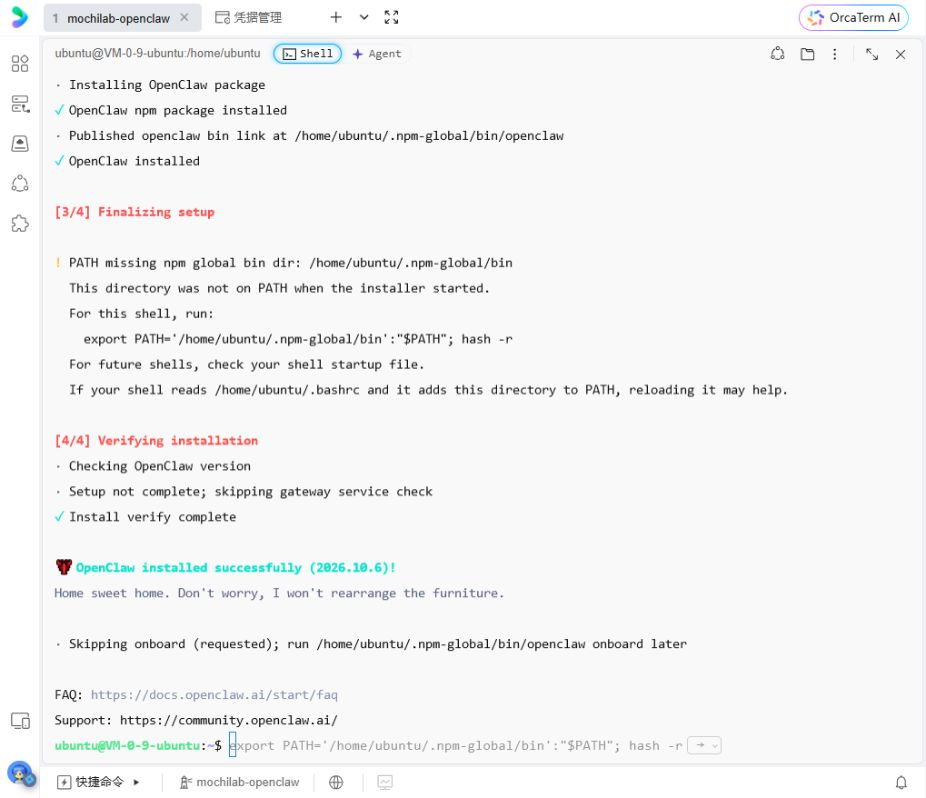
The tested version was OpenClaw 2026.10.6, with Node.js v24.22.1. Future installers may provide newer versions; do not downgrade simply to match a screenshot.
If .npm-global/bin is missing from PATH or openclaw cannot be found, run:
grep -qxF 'export PATH="$HOME/.npm-global/bin:$PATH"' "$HOME/.bashrc" || printf '\n%s\n' 'export PATH="$HOME/.npm-global/bin:$PATH"' >> "$HOME/.bashrc"
export PATH="$HOME/.npm-global/bin:$PATH"
hash -r
openclaw --version
node --version
After seeing the versions, begin onboarding and install the background service:
openclaw onboard --install-daemon
6. Configure DeepSeek
For single-choice menus use Up/Down, then Enter. For checkboxes use Space to select an item before Enter.
Read the personal-use and tool-access notice before continuing. This walkthrough is for your own assistant. The session chose No thanks for optional telemetry, QuickStart for setup, and main for the first agent.
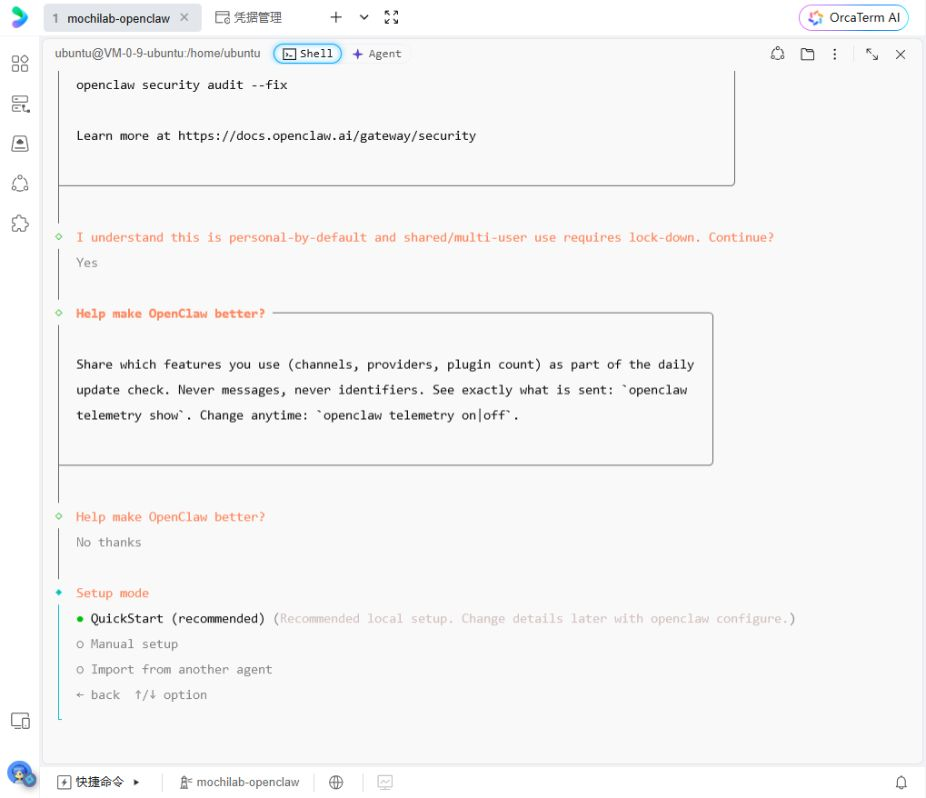
Keep the Gateway on loopback 127.0.0.1, port 18789, as in the test. This WeChat route does not require exposing that port publicly.
Select the provider and supply your key privately
Find DeepSeek (API key) under Model/auth provider. Open More… if it is absent from the initial list.
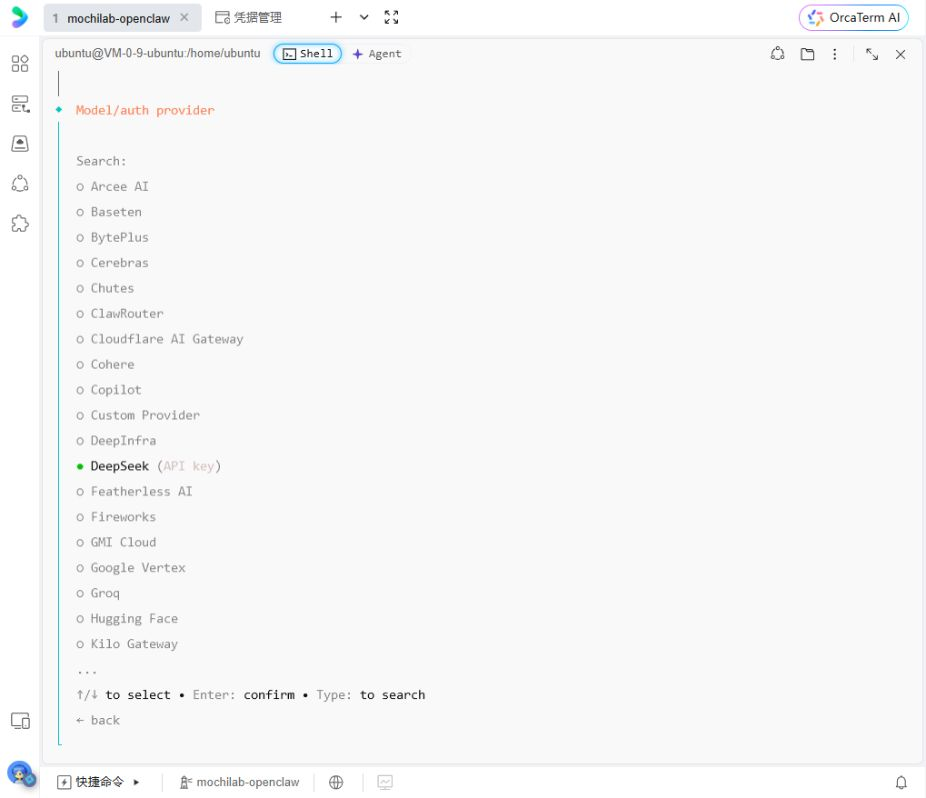
At Install DeepSeek plugin, the session chose the npm package @openclaw/deepseek-provider. Wait for installation, then privately paste your own key at Enter DeepSeek API key.
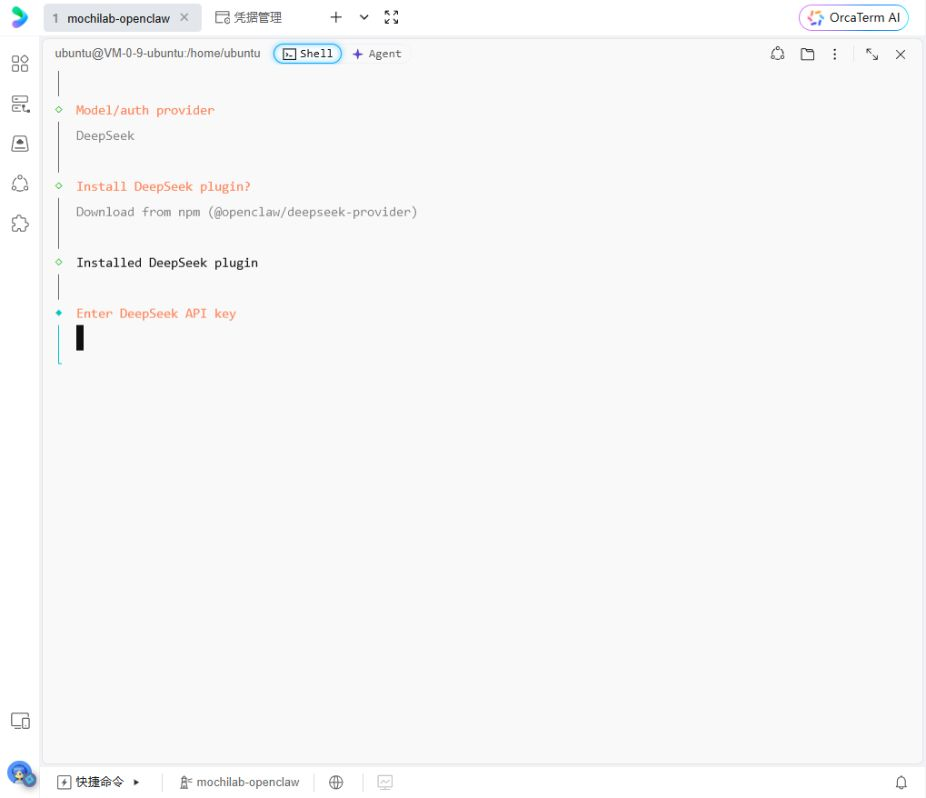
Choose the model and test access
The wizard initially selected deepseek/deepseek-v4-pro. We chose Enter model manually and entered:
deepseek/deepseek-flash
That is the OpenClaw identifier used in this session. The provider usage page showed deepseek-flash. Refer to the current OpenClaw DeepSeek documentation ↗ if names or choices change.
At Test AI access now with a live completion, choose Yes if you are ready for a billable connectivity test. If it fails, inspect the balance, key, model identifier, and actual error before debugging WeChat.
The official DeepSeek usage page subsequently showed one deepseek-flash request, 46 tokens, and a charge below CNY 0.01. This was a very short access test, not a cost estimate for Skill tasks, which can send longer context and make several tool/model calls.
7. Finish the channel and optional setup choices
Search for we in the channel selector and move to Weixin(微信) for personal WeChat. WeCom(企业微信) is a different channel.
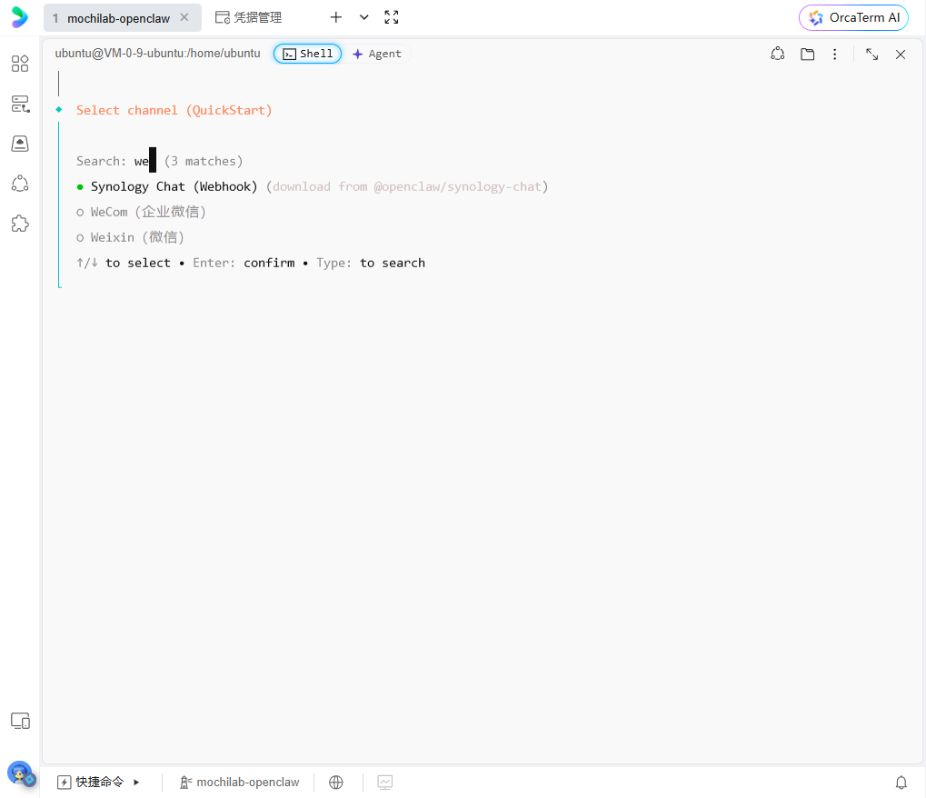
The screenshot shows the filtered results with the cursor still on the first item. Use the arrows to select Weixin. Installing it in this wizard may not show a QR code immediately; step 8 performs the separate login.
This session selected DuckDuckGo Search (experimental) and the npm package @openclaw/duckduckgo-plugin. The translation test below does not depend on search. Selecting a search provider does not establish its retrieval quality; you may defer search using the choices your wizard offers.
For optional Skill dependencies, move to Skip for now, press Space to check it, then Enter.
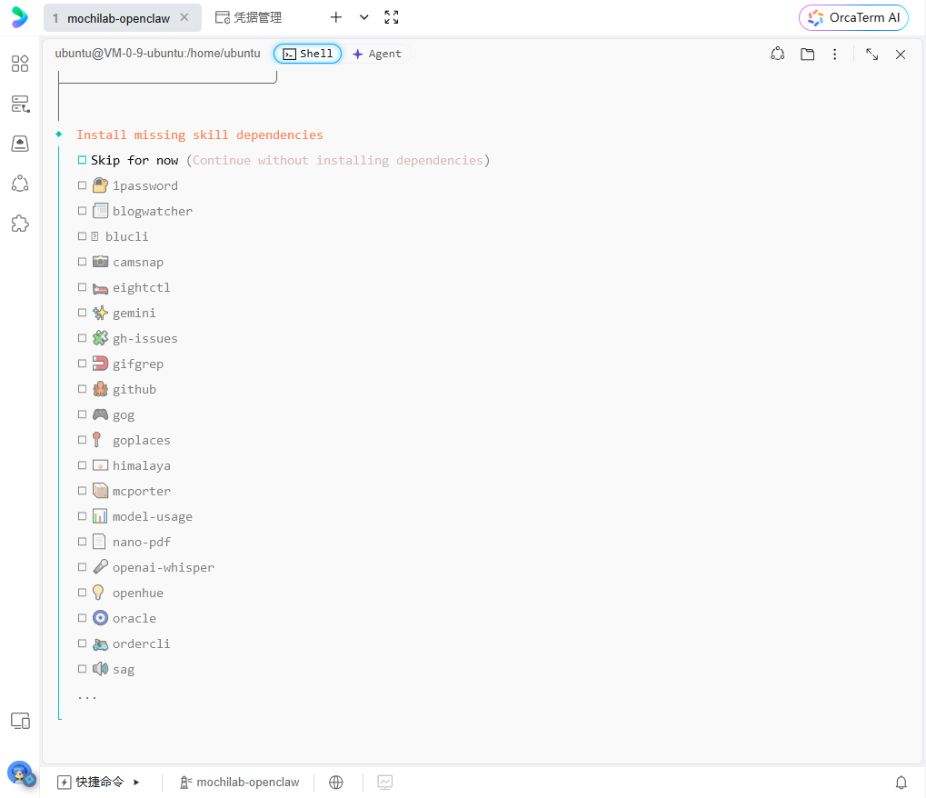
If Please select at least one option appears, the row may be highlighted but not checked. Space selects it; Enter submits.
Onboarding may finish in OpenClaw's terminal chat interface, or TUI. Press Ctrl+D to return to the Linux shell before running system commands. A chat input is not a shell prompt.
8. Check WeChat plugin compatibility and scan to sign in
The wizard installed WeChat plugin 2.4.8 with OpenClaw 2026.10.6. Tencent's 2.4.10 changelog records a compatibility repair for the 2026.10 SDK. The tested combination therefore used 2.4.10; see Tencent's changelog ↗.
These are the commands for that tested combination. Check compatibility before using them with future versions; do not blindly downgrade a newer plugin:
openclaw plugins install "@tencent-weixin/openclaw-weixin@2.4.10" --force
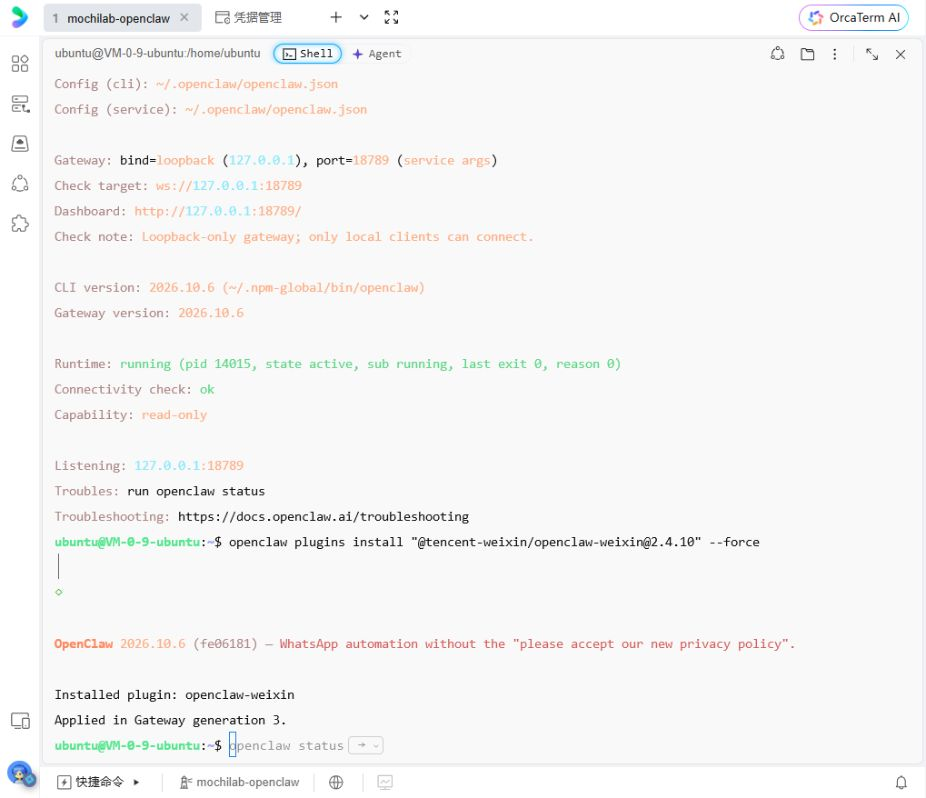
Then enable it and log in:
openclaw plugins enable openclaw-weixin && \
openclaw channels login --channel openclaw-weixin
Scan the QR code generated in your current terminal with your own phone and confirm the connection. This article deliberately publishes no usable login QR code.
The session displayed a successful WeChat connection and saved local login credentials. Now check both the Gateway and channel:
openclaw gateway status
openclaw channels status --channel openclaw-weixin --probe
If the Gateway is healthy but WeChat is enabled and configured yet stopped or not-running, try:
openclaw gateway restart && \
openclaw channels status --channel openclaw-weixin --probe
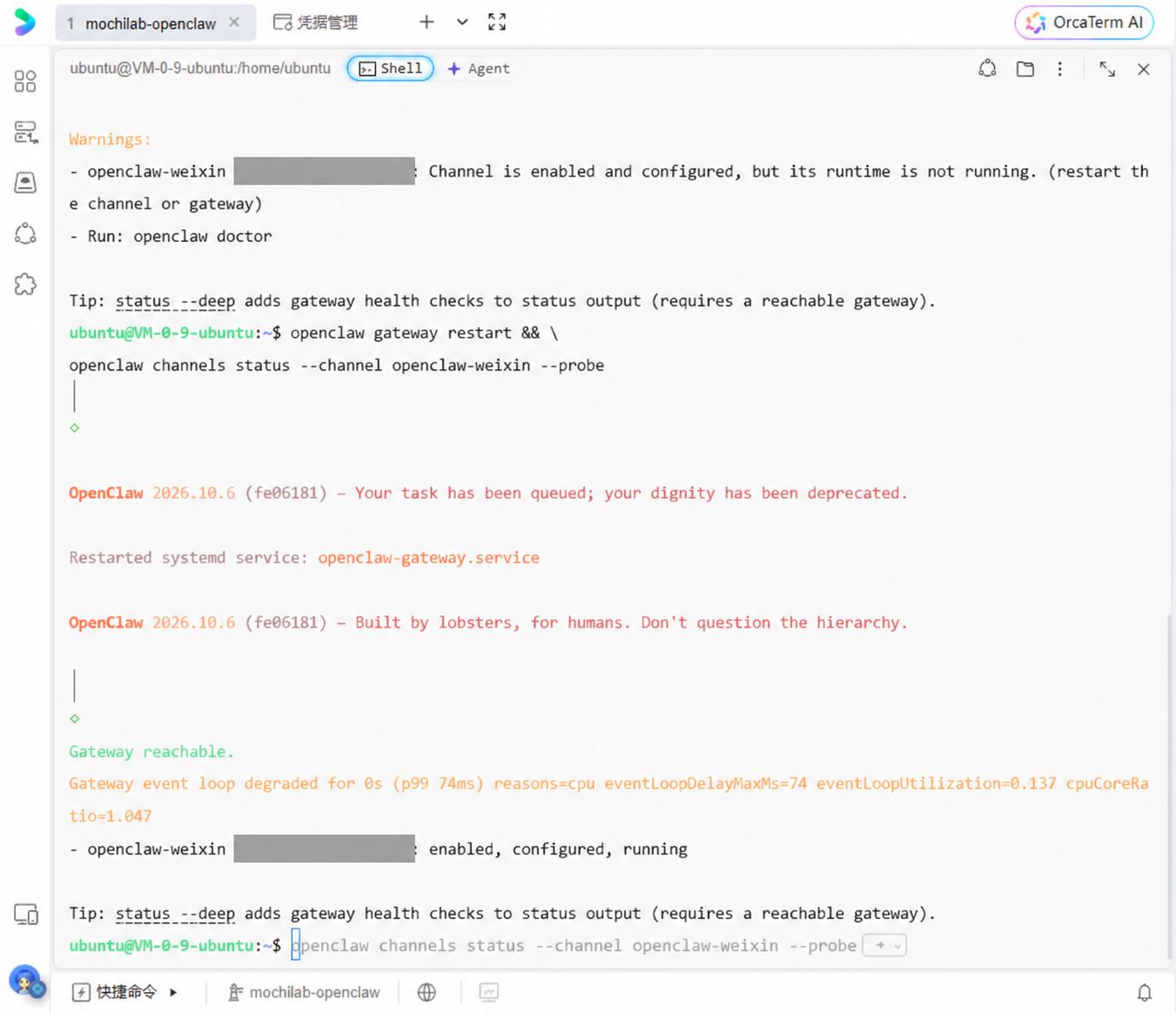
In this session a database-closing cleanup error followed successful QR login. The credentials had been saved. Inspection and a Gateway restart brought WeChat to running without another scan. Do not delete configuration merely because the last line is an error. Re-authenticate when the actual status indicates it is necessary.
The target result is a reachable, running Gateway and an enabled, configured, running channel. If the Gateway service was never installed, finish service setup first: restart alone is not a replacement for onboarding.
9. Test an actual WeChat reply
Send this in WeChat, not the server shell:
你好,这是微信连接测试。请只回复:微信连接测试成功。
It asks for the exact Chinese reply “微信连接测试成功。” The session received that response.
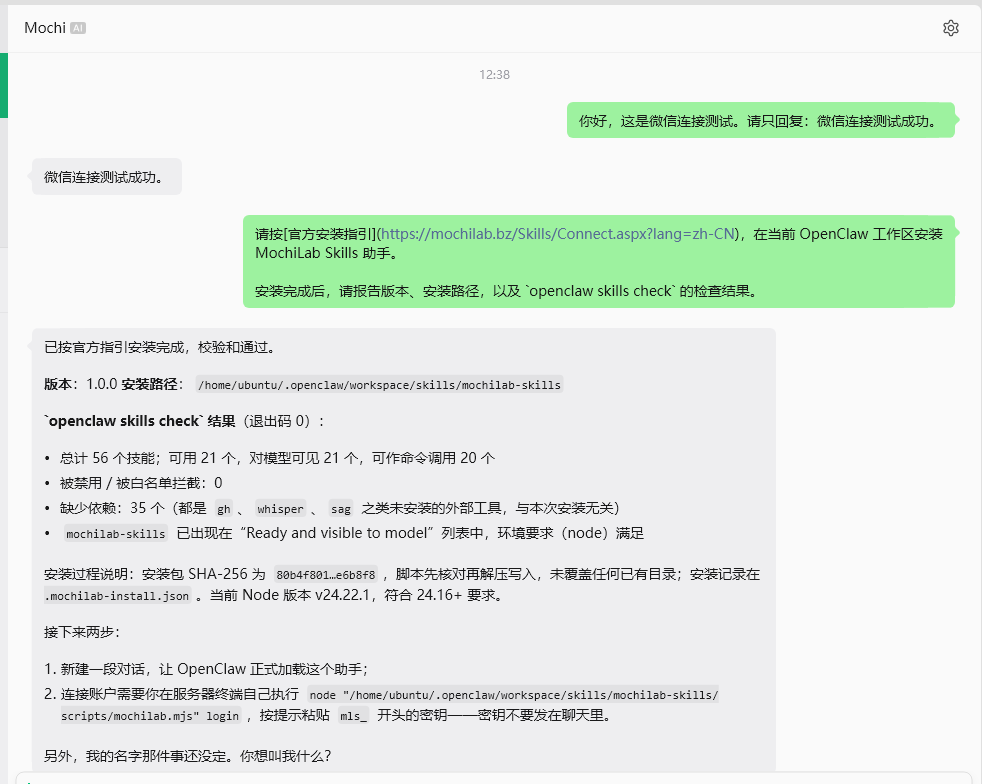
This screenshot also contains step 10's installation conversation. Establish basic messaging first so you can distinguish model/channel problems from Skill problems. Exact latency was not measured in this session.
10. Install the MochiLab Skills assistant
You do not have to manually upload each Skill ZIP. First send this complete instruction in WeChat:
Follow the official installation instructions at https://mochilab.bz/Skills/Connect.aspx?lang=en and install the MochiLab Skills assistant into the current OpenClaw workspace.

Report its version, installation path, and the result of openclaw skills check.
Use the official MochiLab connection page ↗. The agent reads the instructions, obtains the installer and assistant package, and installs it in the workspace. Bootstrapping the assistant itself does not require an account key.
The agent reported helper version 1.0.0 at:
/home/ubuntu/.openclaw/workspace/skills/mochilab-skills
Independently check in the server terminal:
node --version
openclaw skills info mochilab-skills
openclaw skills check
Look for the target helper to be Ready, Visible to model: yes, with its Node requirement satisfied. Other bundled Skills may lack unrelated external tools; check the target entry rather than treating every missing dependency as a failed helper installation.
The observed Node version was v24.22.1, which met the connection page's requirements at the time. Follow that page if requirements change.
Send /new as its own WeChat message. Wait for the new-session confirmation before using the newly installed helper.
11. Connect your MochiLab account privately
Browsing the catalog and downloading an actual Skill have different authorization requirements. During this test, even a free Skill download required an account connection; paid Skills also require their applicable membership or purchase entitlement.
Open the MochiLab Skills access-key page ↗, sign in, and create a Skills access key following the page's instructions. In the server terminal, run:
node "/home/ubuntu/.openclaw/workspace/skills/mochilab-skills/scripts/mochilab.mjs" login
Paste your mls_ key into the hidden prompt. Do not send it to the WeChat agent.
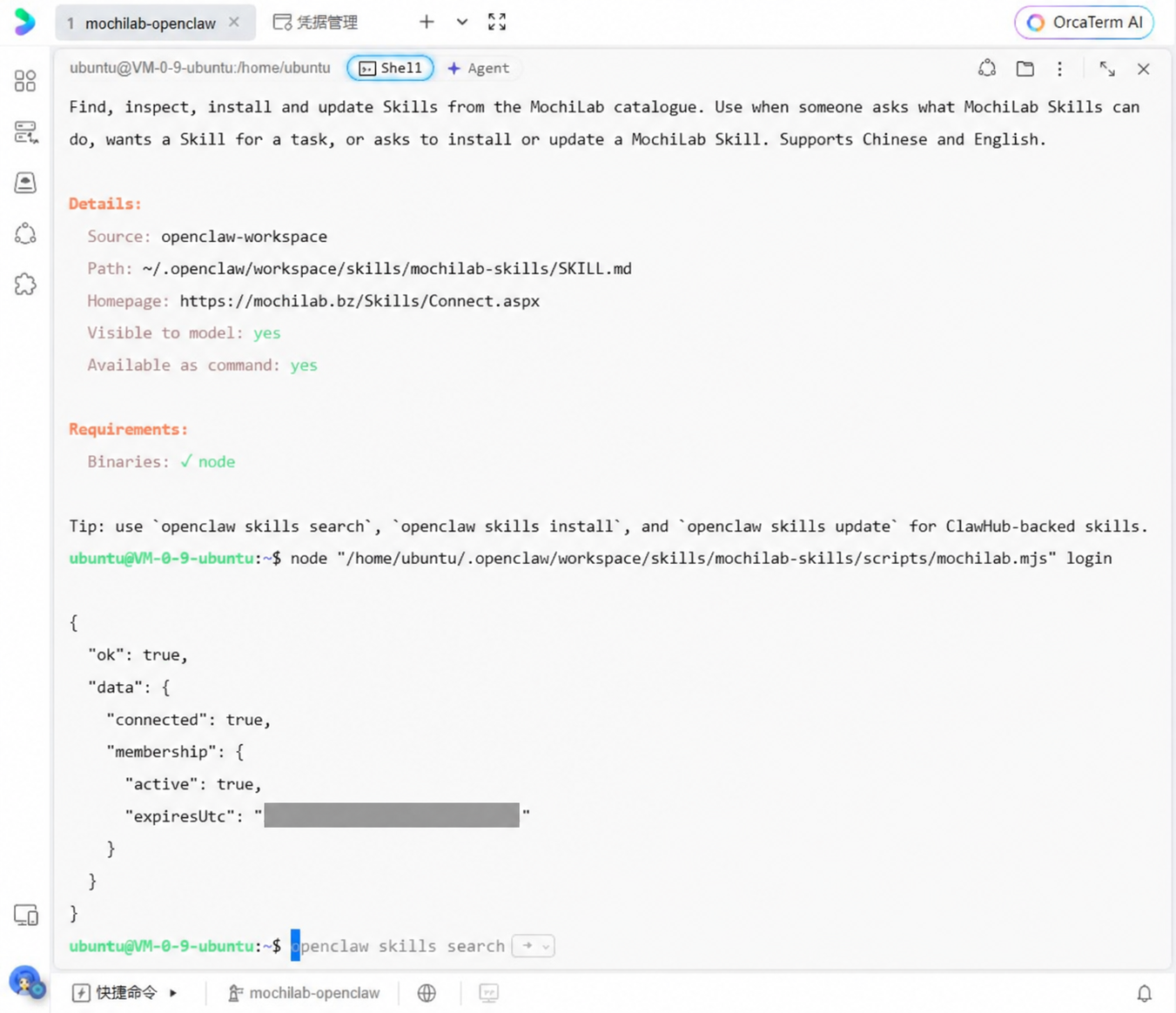
Check for ok: true and connected: true. membership.active describes that account's membership state; it was true in this session, but that does not mean a paid membership is required for every free Skill.
If your workspace differs, adjust the script path to its actual location rather than assuming /home/ubuntu.
12. Find and install the Translation QA Skill through conversation
In WeChat, send /new separately and wait for confirmation. Then send:
Use the MochiLab Skills assistant to find and install Translation QA (mochi-translation-qa).

Report its version, installation path, and whether it passes OpenClaw's readiness checks.
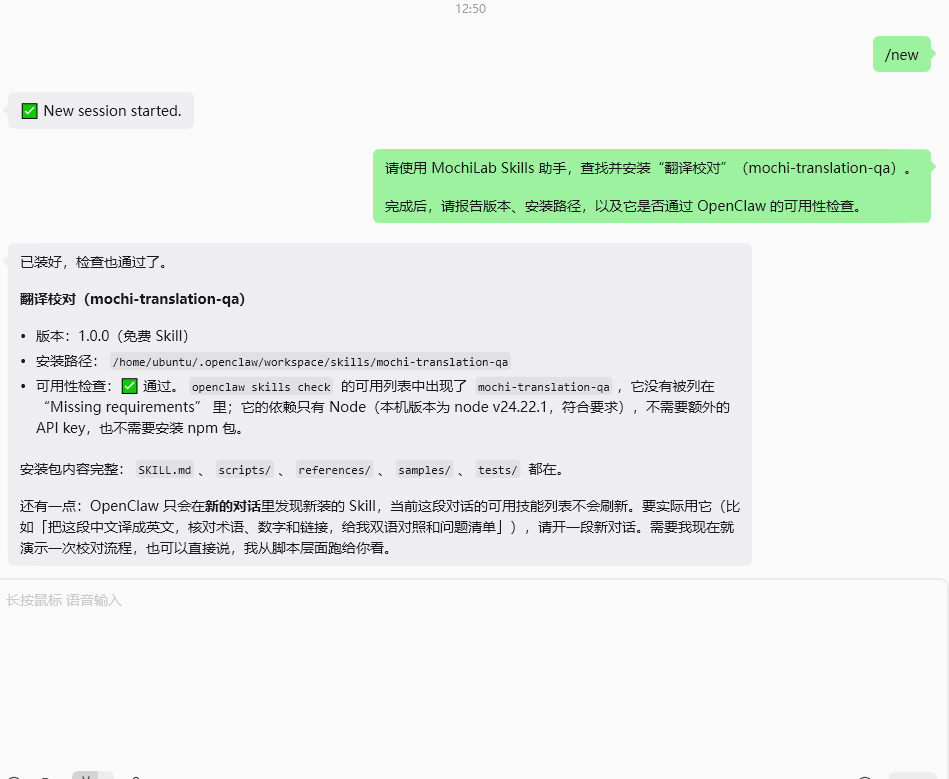
The session installed version 1.0.0 at:
/home/ubuntu/.openclaw/workspace/skills/mochi-translation-qa
Check independently in the server terminal:
openclaw skills info mochi-translation-qa
Once it is Ready and visible to the model, start another fresh WeChat session with /new for the test.
For connect_required, finish step 11. For an access-denied response, check the Skill's entitlement requirements. A searchable catalog entry does not itself grant download access.
13. Test three deliberate translation errors and a real saved file
Send the following as one complete WeChat message. Keeping the instruction and source text together avoids splitting the task across conversations:
Read the installed mochi-translation-qa SKILL.md first and follow its translation QA workflow. Treat the English source as authoritative.

English source:
The Starter plan costs USD 9.90 per month and supports 3 projects.

Chinese translation to check:
Starter计划每年收费99美元,支持30个项目。

Identify each discrepancy, provide the correct Chinese translation, save the report as deepseek-flash-translation-qa.md in the current workspace, and return its absolute path.
The expected discrepancies are:
- Billing period — Source: per month; Incorrect translation: 每年, per year; Correction: 每月, per month
- Amount — Source: USD 9.90; Incorrect translation: 99 dollars; Correction: 9.90 dollars
- Quantity — Source: 3 projects; Incorrect translation: 30 projects; Correction: 3 projects
Correct Chinese: Starter 计划每月收费 9.90 美元,支持 3 个项目。 Translating USD as 美元 is correct and should not be reported as an error.
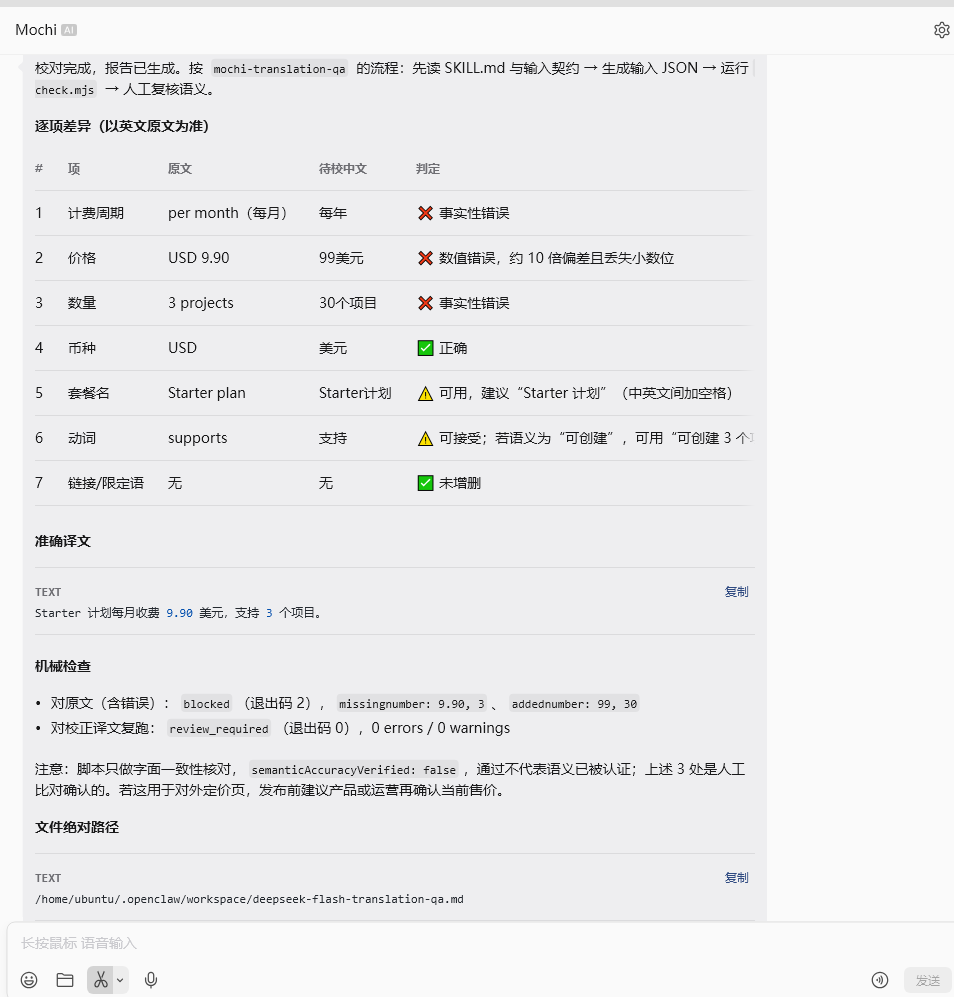
Now verify the actual file in the server terminal:
openclaw skills info mochi-translation-qa
ls -lh "/home/ubuntu/.openclaw/workspace/deepseek-flash-translation-qa.md"
sed -n '1,160p' "/home/ubuntu/.openclaw/workspace/deepseek-flash-translation-qa.md"
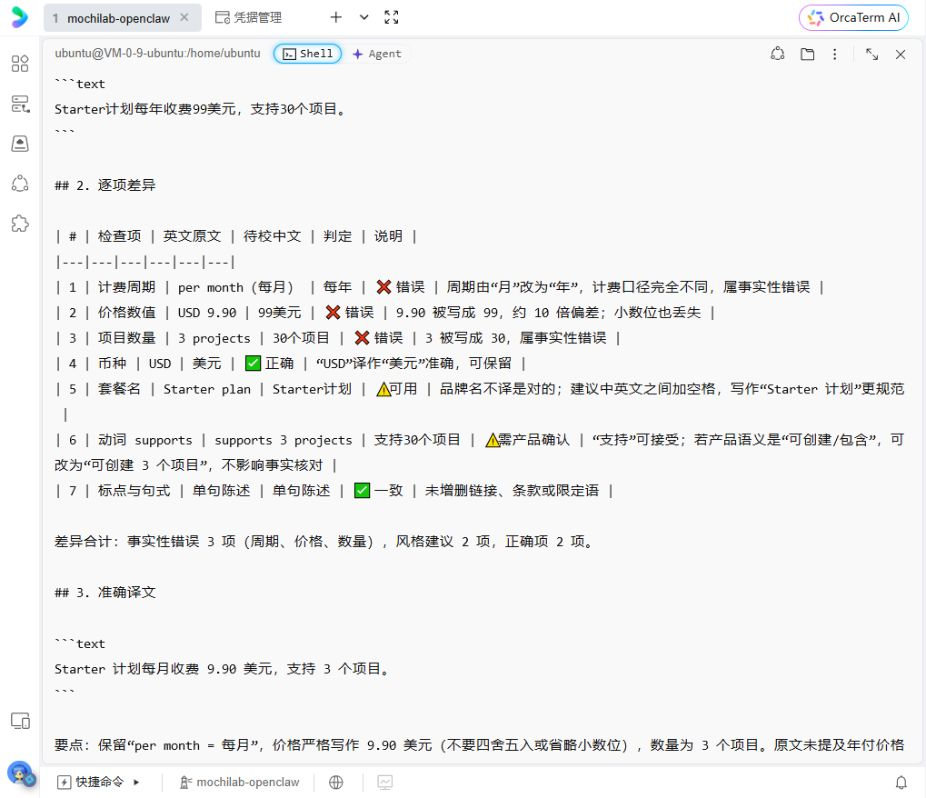
The observed file existed, was approximately 3.3 KB, and contained the correct findings. The target Skill was independently confirmed Ready.
Mechanical checks of numbers, links, and terms do not certify semantic accuracy. A review_required result with semanticAccuracyVerified: false still calls for review. The original screenshot calls the comparison “human-confirmed”; that wording is inaccurate for this test, which had no independent human sign-off. The accurate description is an AI comparison awaiting user confirmation. We checked the saved content, not a complete audit trace of every claimed script invocation.
14. Check operation after closing the terminal
In the server terminal:
openclaw gateway status
loginctl show-user ubuntu -p Linger
The Gateway service should be enabled and running. Linger=yes allows the user's service manager to remain after logout.
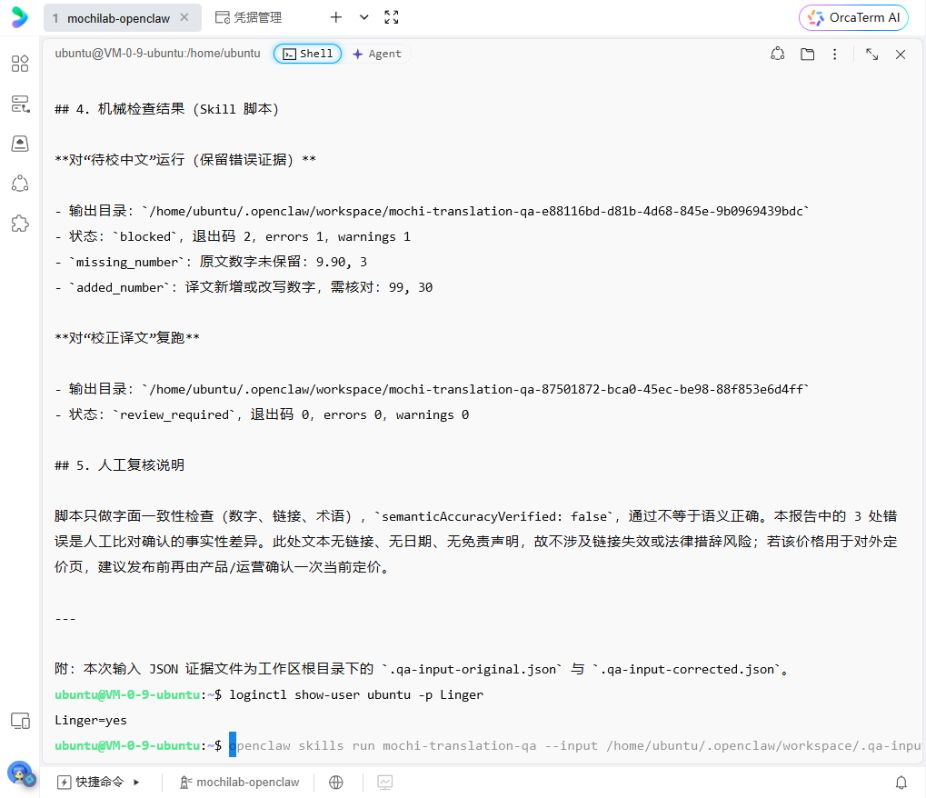
If your result is no, on your personal server you can enable it and recheck:
sudo loginctl enable-linger ubuntu
loginctl show-user ubuntu -p Linger
This is supplemental handling for a no result. The tested server was already yes and did not need that change. Linger does not install a missing Gateway service or prevent a cloud server from being shut down.
Close the terminal tab while leaving the server powered on. In WeChat send:
请只回复:后台运行测试成功。
The user confirmed receiving the requested “后台运行测试成功” reply after closing the terminal. This checks terminal-independent operation. A server-reboot recovery test was not performed at this stage.
15. Back up OpenClaw and the separate MochiLab connection file
Reconnect to the server terminal. These backups may contain provider and channel credentials. Keep them private; do not upload them to the article, a group chat, or a public repository.
15.1 Create and verify the OpenClaw archive
umask 077
mkdir -p "$HOME/openclaw-backups"
openclaw backup create --output "$HOME/openclaw-backups" --verify
The session produced a timestamped .tar.gz in /home/ubuntu/openclaw-backups and reported Archive verification: passed. A workspace or agent marked covered by ~/.openclaw is included through its parent, not omitted. Regenerable paths and volatile logs can be excluded intentionally.
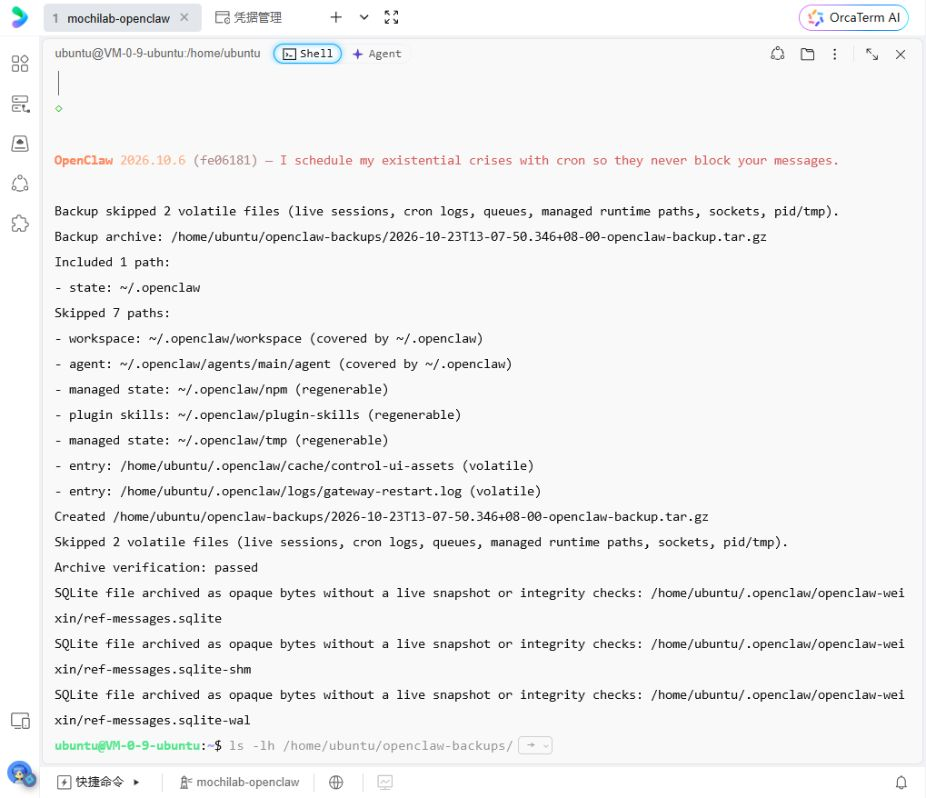
There was an additional warning: the WeChat plugin's ref-messages.sqlite and related files were archived as opaque bytes, without a live snapshot or SQLite integrity check. Archive verification therefore does not establish that all WeChat message-cache data is recoverable. Perform a restore rehearsal before relying on a migration. See the official backup reference ↗.
15.2 Include the MochiLab account connection separately
The assistant's source places its default login file at ~/.mochilab/credentials.json, outside ~/.openclaw. Save it separately:
umask 077
mochi_config_dir="${MOCHILAB_CONFIG_DIR:-$HOME/.mochilab}"
mochi_backup="$HOME/openclaw-backups/mochilab-account-$(date +%Y%m%d-%H%M%S).tar.gz"

if [ -f "$mochi_config_dir/credentials.json" ]; then
  tar -czf "$mochi_backup" -C "$mochi_config_dir" credentials.json &&
  tar -tzf "$mochi_backup" &&
  ls -lh "$HOME/openclaw-backups" &&
  sha256sum "$HOME/openclaw-backups/"*.tar.gz
else
  echo "MochiLab connection file not found; stop and check its location."
fi
This lists filenames, sizes, and hashes without displaying key contents. If the file is missing, inspect the connection setup or custom directory; do not create an empty file to make the check appear successful.
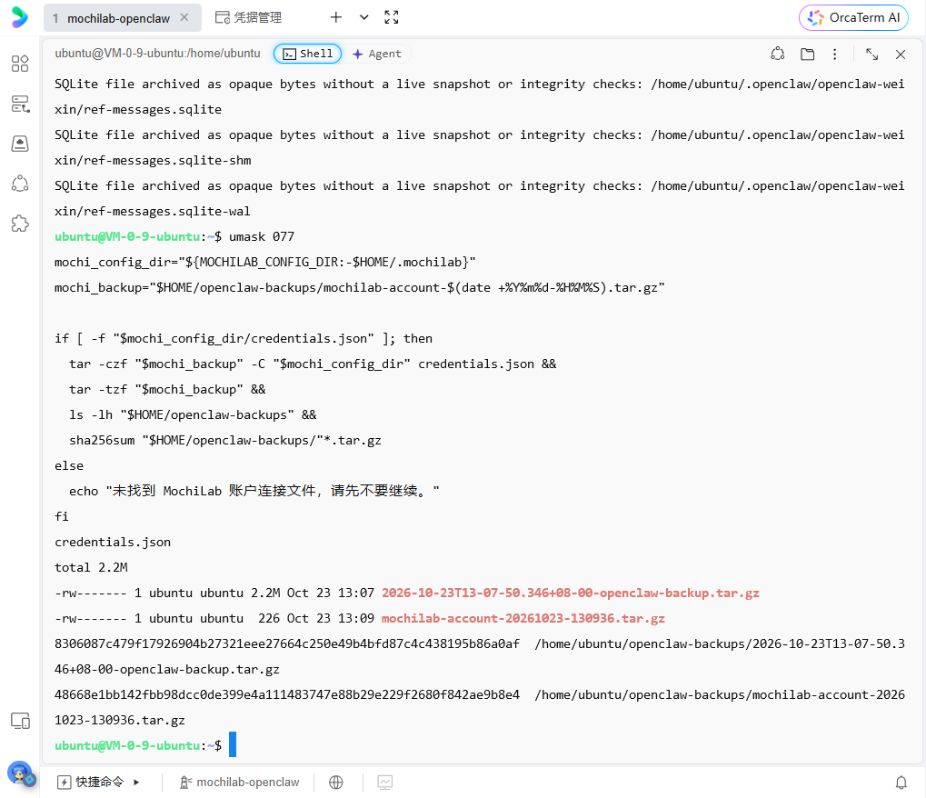
The tested account archive was 226 bytes and contained credentials.json. A small archive is not inherently a failure: check that it is readable, contains the intended member, and matches the server's hash after download.
16. Download both archives and verify them on your computer
Click OrcaTerm's folder icon to open its file manager and navigate to:
/home/ubuntu/openclaw-backups
Download both the archive ending openclaw-backup.tar.gz and the one starting mochilab-account-. Hover over each row and click its downward download arrow.
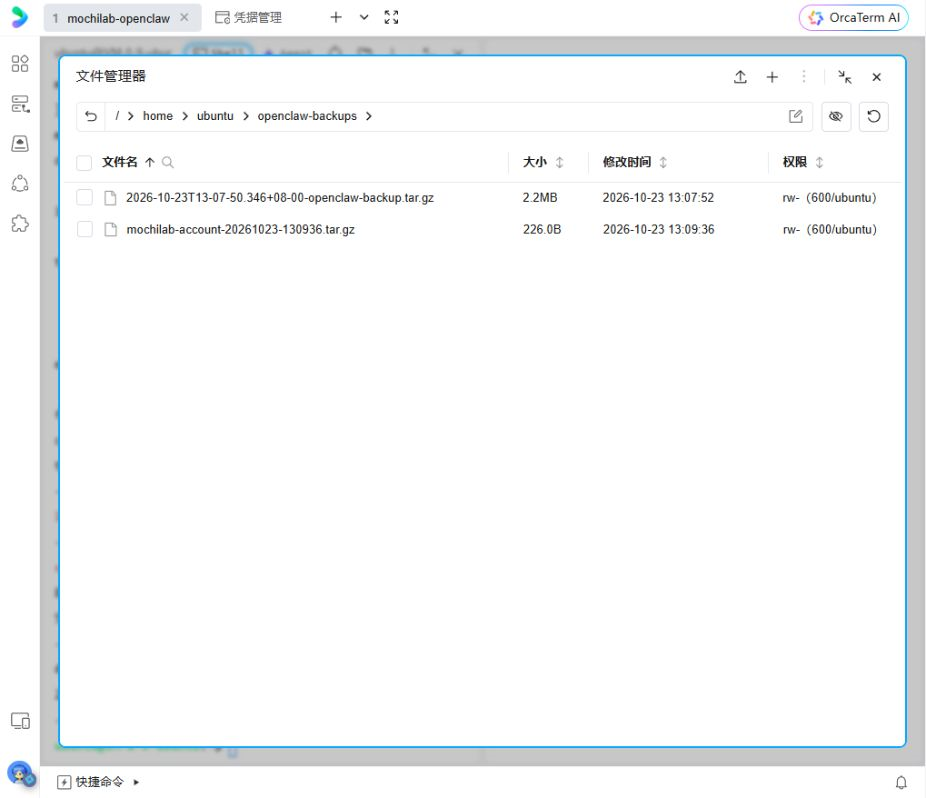
A transfer-success notification does not tell you where the local file is. Check the app/browser download record and the actual directory before placing both files in a private backup folder. This session's verified files were in Windows Downloads, not the desktop folder initially assumed.
On your Windows computer, open PowerShell and run:
$backupFolder = Join-Path $env:USERPROFILE 'Downloads'
Get-ChildItem -LiteralPath $backupFolder -File |
  Where-Object { $_.Name -like '*openclaw-backup*.tar.gz' -or $_.Name -like 'mochilab-account-*.tar.gz' } |
  Get-FileHash -Algorithm SHA256
Change the folder if you saved elsewhere. If historical backups are present, match the exact filenames. Compare each local hash to the corresponding server hash from step 15.2; letter case does not change a hexadecimal hash.
The tested OpenClaw archive was 2,297,253 bytes and the account archive was 226 bytes. Both hashes matched the server. Both archives could be read; the first contained its manifest and the second its connection file. No private-key content was read or published. Local Explorer screenshots could not be captured, so this conclusion uses the actual file-check records rather than an invented screenshot.
Keep your SSH key and both backups. These archives are not executable installers or a full Ubuntu machine image. For a future restore, install a compatible version, follow the official staged restore process, verify it, then switch services. Do not blindly overwrite live directories. Backup creation and transfer integrity were tested; restoration was not.
Troubleshooting by layer
- openclaw command not found — PATH in step 5 and whether you are at the Linux shell
- Select at least one option — Space checks a box; Enter submits
- No WeChat QR code — Run the separate channel login in step 8
- infra-runtime or plugin SDK export error — OpenClaw/plugin compatibility; 2.4.10 fixed the tested combination
- Scanned successfully but no reply — Gateway and channel probe; configured is not running
- Typing indication without a response — Model errors, balance, timeouts, and service status; do not repeatedly reset sessions blindly
- connect_required — Complete MochiLab login in your private terminal
- Newly installed Skill missing from chat — Check its readiness, then start a fresh session
- Claimed report cannot be found — Inspect the returned absolute path with ls and sed
- Closing the terminal stops replies — Background service and Linger
- Download reported success but file is missing — App download records, actual local folder, filename, and hash
What the completed setup demonstrates
The tested assistant replies through WeChat using DeepSeek, connects to MochiLab, installs an entitled Skill, performs a translation check with known answers, and saves a report on the server. It continued replying after the terminal closed, and both its state and separate MochiLab connection file were downloaded intact.
For your next task, ask the assistant to find a suitable MochiLab Skill or use an installed Skill to create a useful file. Reuse the same acceptance pattern: check the target's readiness, give it a task with a verifiable outcome, and inspect the actual output instead of relying only on a completion claim.
Official references and next steps
This guide combines the actual session record with privacy-reviewed screenshots. Versions, offers, and platform interfaces change; use current official instructions and observed checks when they differ.
Advanced tutorials