1. Connect to the server terminal
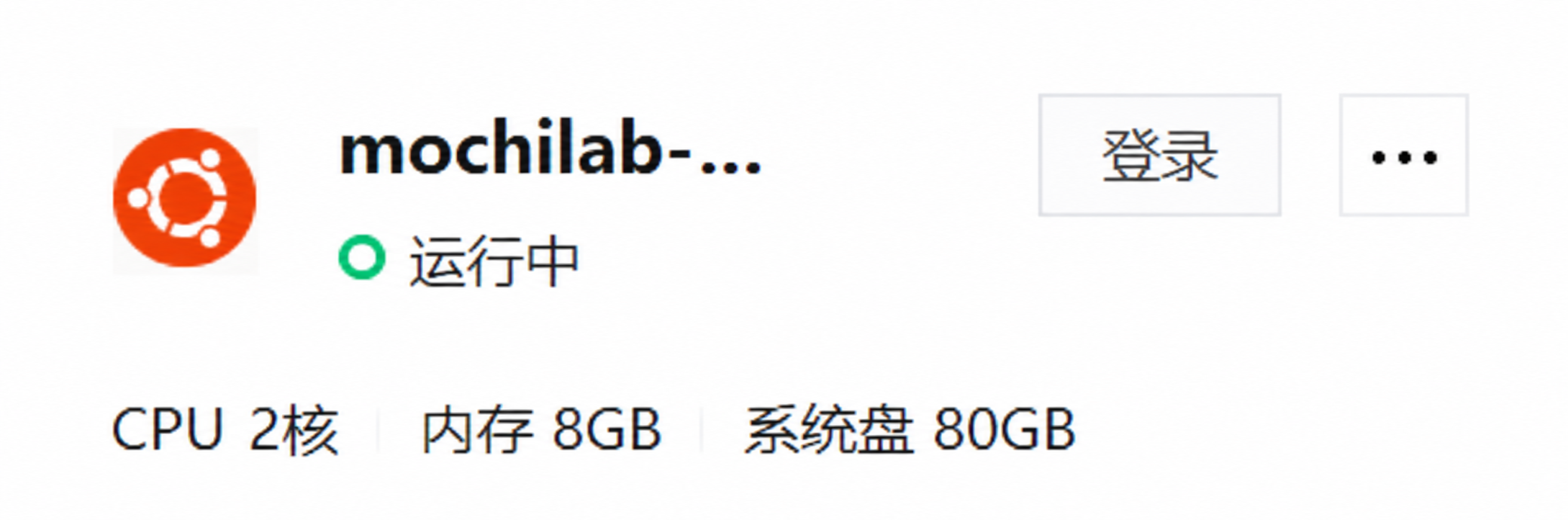
Open the Tencent Cloud console, select Lighthouse and the region containing your existing OpenClaw server, then click Log in on the correct server card.
Complete any account verification yourself. Select the authentication method configured for that instance: SSH key, password or console login. Ubuntu images commonly use the ubuntu account.
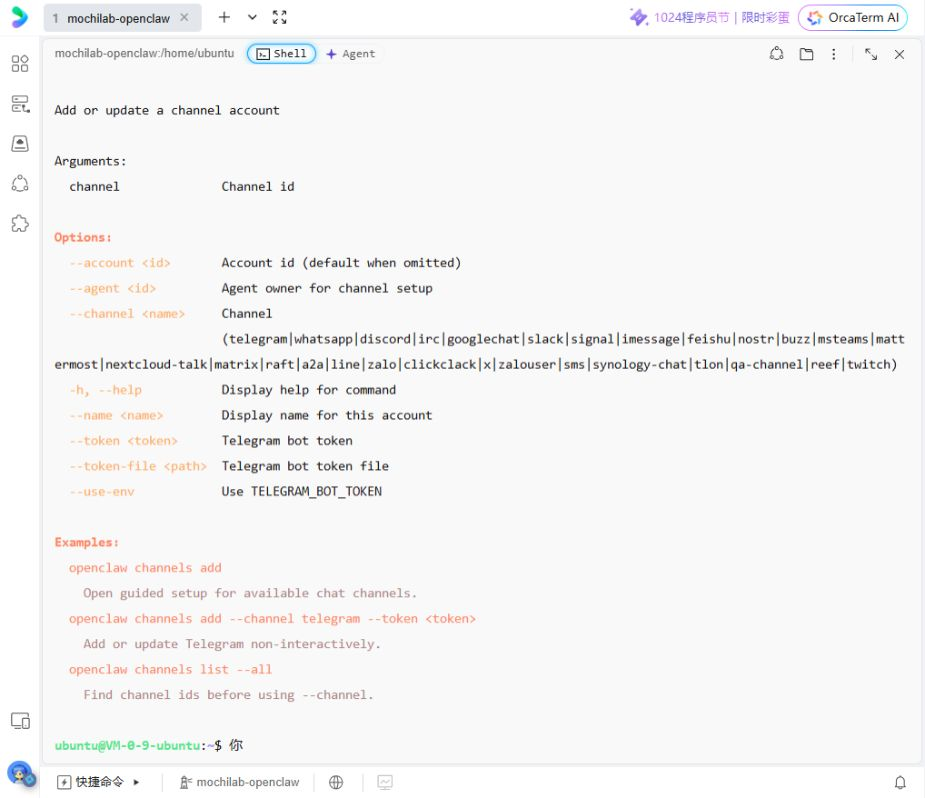
A connected OrcaTerm session shows a Shell tab and a command prompt. Enter commands in that Shell, not in the bulk-command editor.
2. Check OpenClaw and existing agents
This adds Telegram to an existing OpenClaw installation with a working model connection; it does not reinstall OpenClaw or require Ollama.
Tested with OpenClaw 2026.10.6. Existing WeChat agents remain in place. If an agent named telegram or an account named mochi already exists, inspect it first or choose another name.
openclaw --version
openclaw agents list
openclaw channels add --channel telegram --help
openclaw agents add --help
3. Find the official BotFather
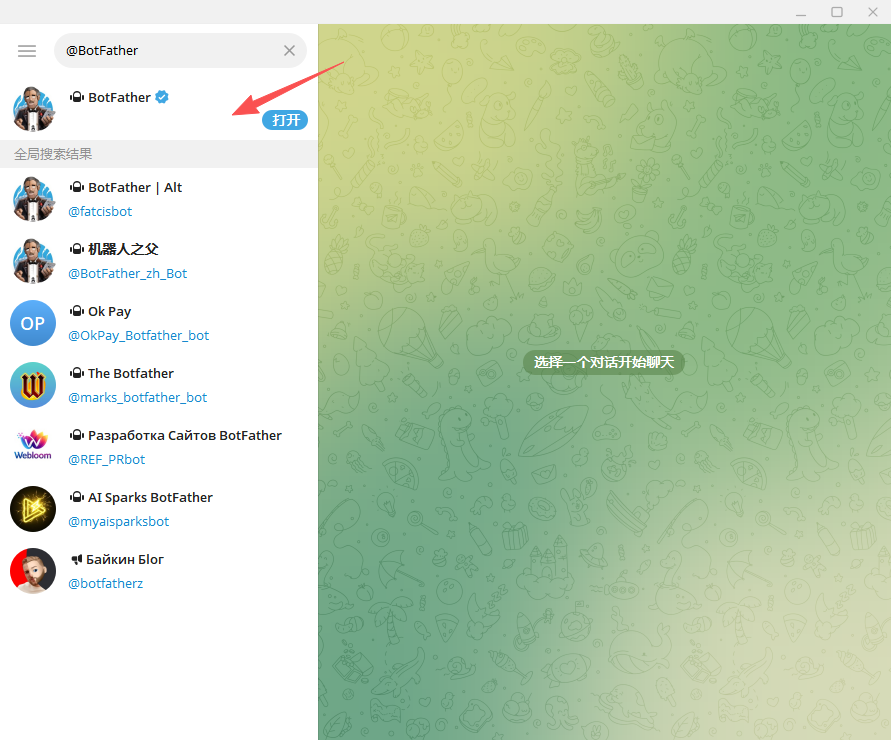
Search Telegram for @BotFather and select the official verified account. Open its chat; avoid similarly named bots.
4. Start the BotFather chat
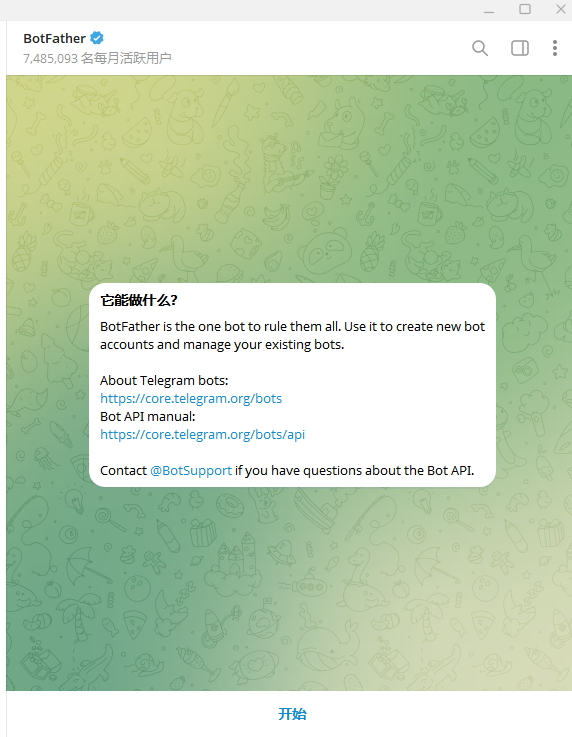
Click Start at the bottom of the welcome screen.
5. Create a bot name and username
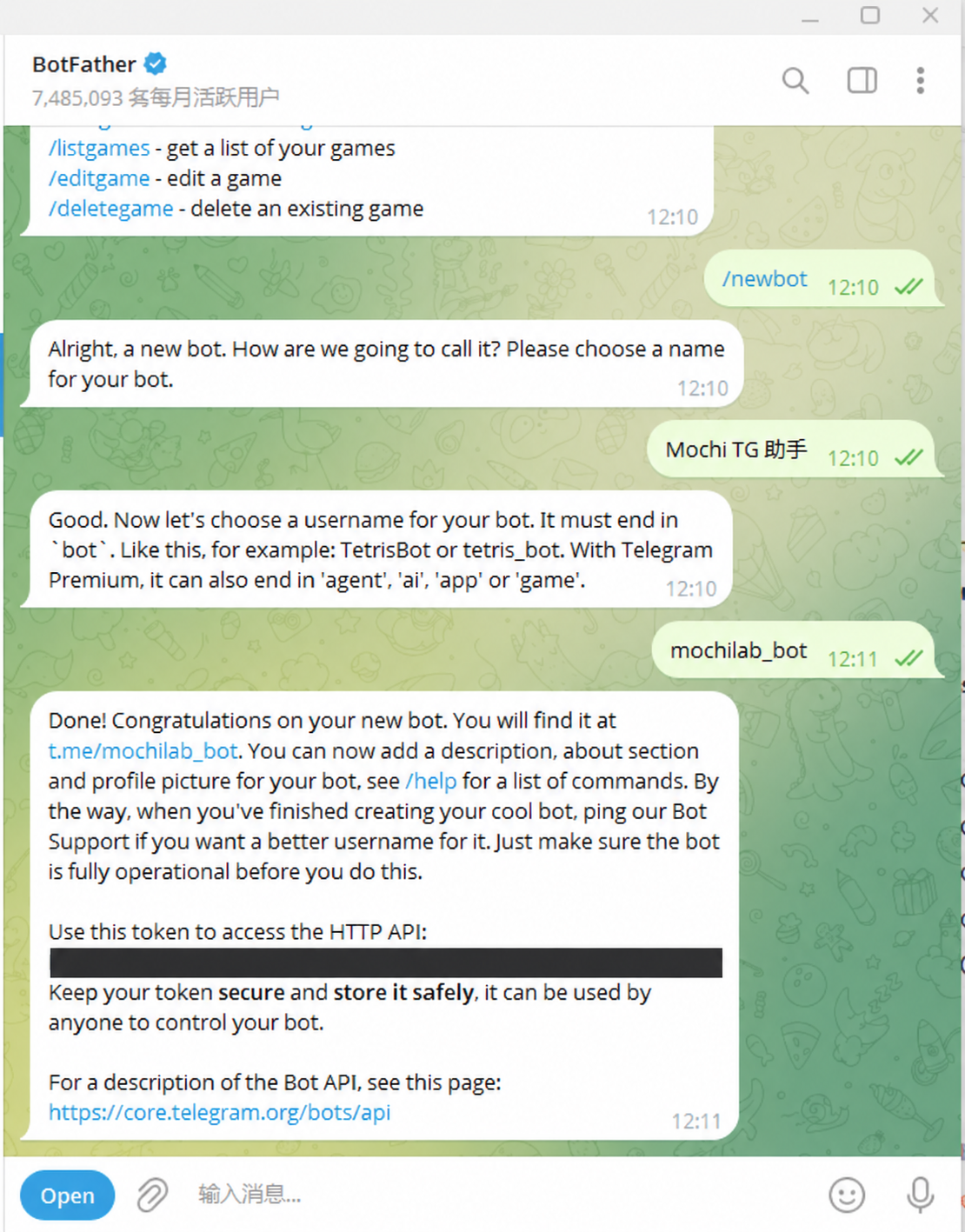
Send /newbot. Choose a display name, then a username. Our example uses Mochi TG 助手 and mochilab_bot; choose an available username for your own bot.
Usernames use 5–32 Latin letters, digits or underscores and end in bot. Save the token from the success message. Keep it out of screenshots. If exposed, use /revoke in BotFather and use the replacement token.
The display name, Telegram username and OpenClaw agent ID are different identifiers.
/newbot
6. Back up configuration and enter the token privately
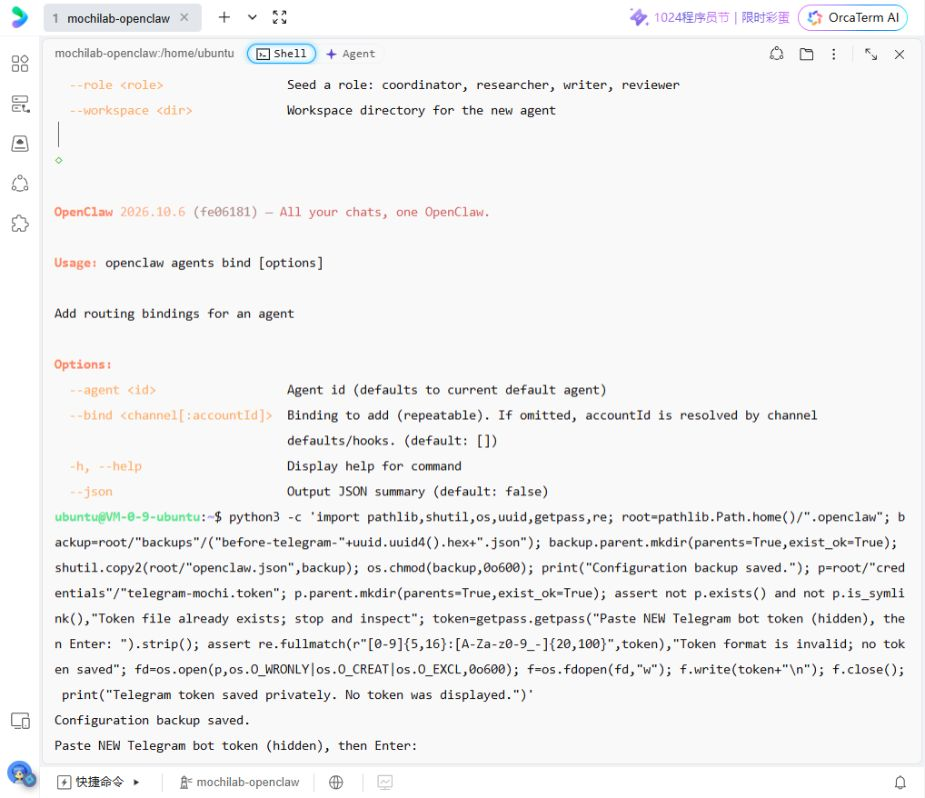
Run the command below as one complete line. It backs up openclaw.json and opens a hidden token prompt. The token is not included in shell history.
At Telegram Token (hidden):, paste the full token using Ctrl+Shift+V or the terminal paste menu, then press Enter. No displayed characters is expected.
Continue only after Telegram token saved privately. The token file is ~/.openclaw/credentials/telegram-mochi.token with mode 600. Do not print its contents. An existing file causes the helper to stop instead of overwriting credentials.
python3 -c 'import pathlib,shutil,os,uuid,getpass,re; root=pathlib.Path.home()/".openclaw"; backup=root/"backups"/("before-telegram-"+uuid.uuid4().hex+".json"); backup.parent.mkdir(parents=True,exist_ok=True); shutil.copy2(root/"openclaw.json",backup); os.chmod(backup,0o600); print("Configuration backup saved."); p=root/"credentials"/"telegram-mochi.token"; p.parent.mkdir(parents=True,exist_ok=True); assert not p.exists() and not p.is_symlink(),"Token file already exists; stop and inspect"; value=getpass.getpass("Telegram Token (hidden): "); token=value.replace(chr(27)+"[200~","").replace(chr(27)+"[201~","").strip(); assert re.fullmatch(r"[0-9]{5,16}:[A-Za-z0-9_-]{20,100}",token),"Invalid input; no token saved"; fd=os.open(p,os.O_WRONLY|os.O_CREAT|os.O_EXCL,0o600); f=os.fdopen(fd,"w"); f.write(token+chr(10)); f.close(); print("Telegram token saved privately.")'
7. Create a separate Telegram agent
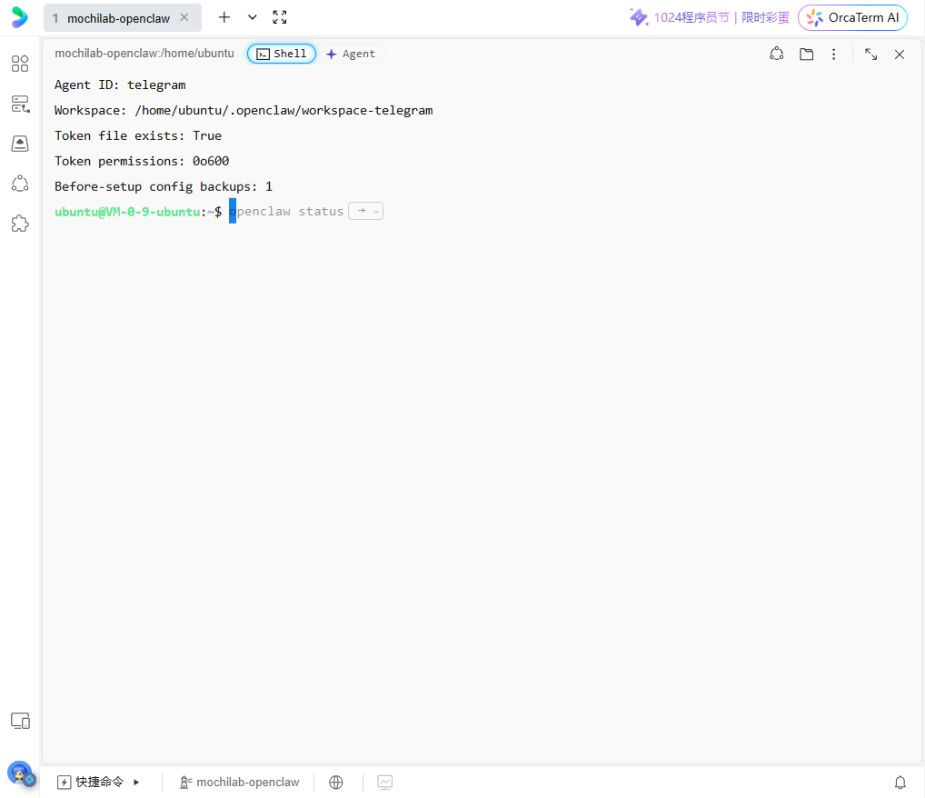
Create the telegram agent and its own workspace. The CLI reports Agent, Workspace and Agent dir.
Replace /home/ubuntu with your actual home directory if different. This does not copy another agent’s identity, notes or conversations. The image shows the resulting agent and workspace verification.
openclaw agents add telegram --workspace /home/ubuntu/.openclaw/workspace-telegram --non-interactive
8. Add the Telegram bot account
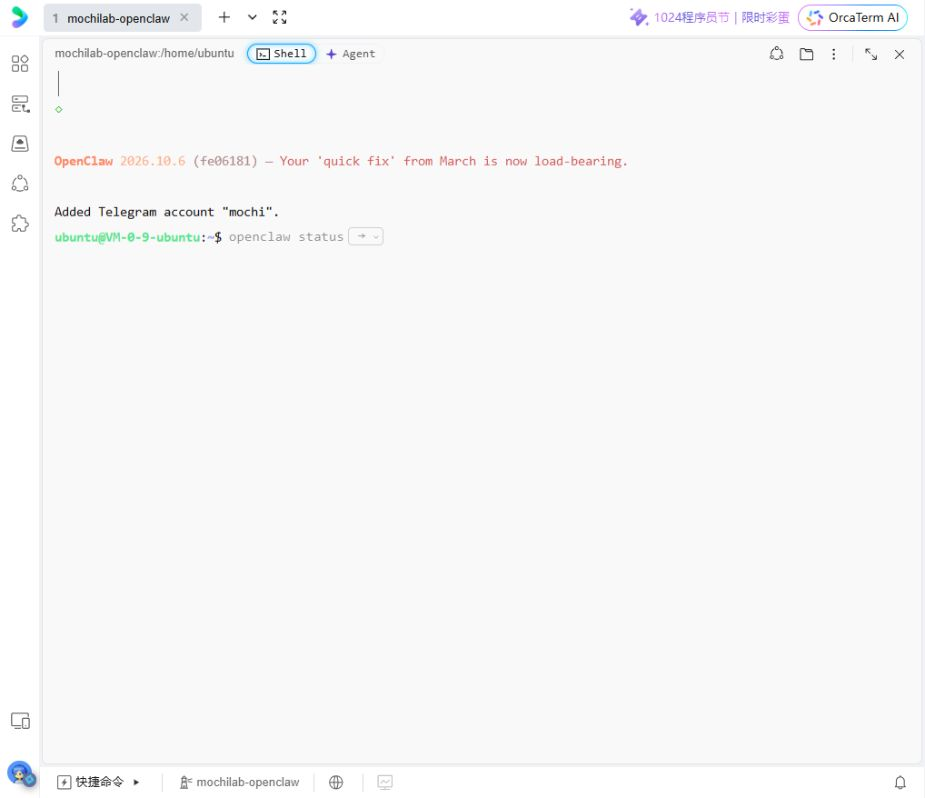
Add the account using the saved token file. mochi is the OpenClaw account ID, not the Telegram bot username.
Added Telegram account "mochi" confirms this step.
openclaw channels add --channel telegram --account mochi --name "Mochi TG" --agent telegram --token-file /home/ubuntu/.openclaw/credentials/telegram-mochi.token
9. Bind the account to the separate agent
Explicitly bind the mochi Telegram account to the telegram agent, then read back the routing rule.
Expect telegram <- telegram accountId=mochi. Use the exact account rather than telegram:* so future Telegram accounts are not silently routed here.
openclaw agents bind --agent telegram --bind telegram:mochi
openclaw agents bindings --agent telegram
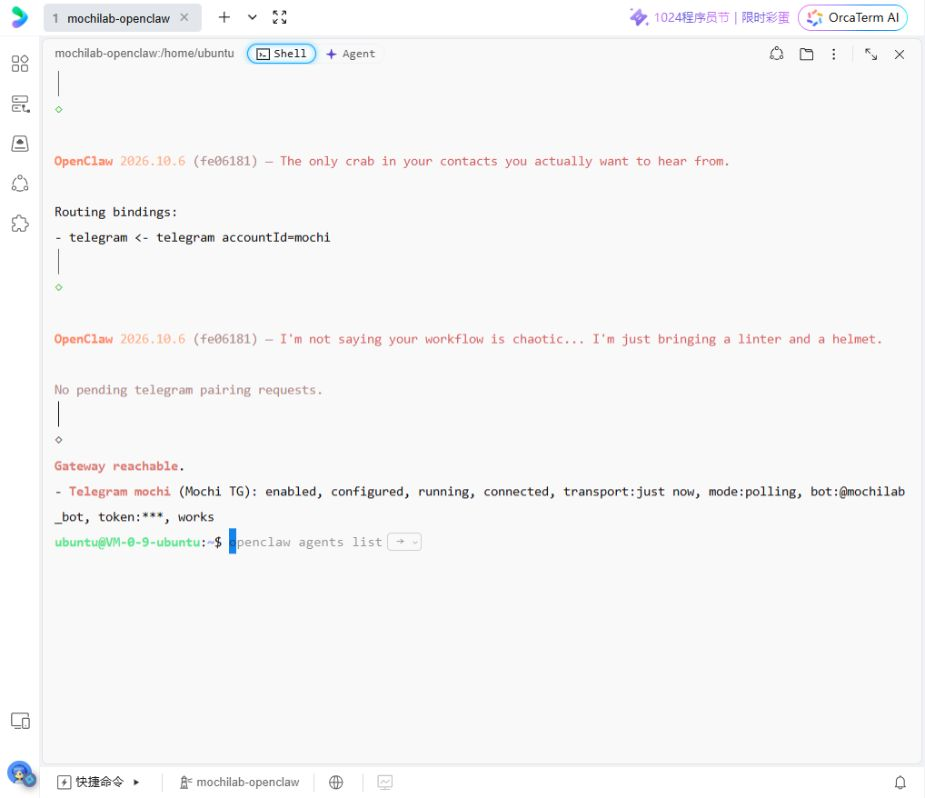
10. Check connectivity and open your bot
Run the channel probe. This installation hot-reloaded the new configuration without a restart. If yours does not, check Gateway status and follow the installed version’s guidance.
Look for Gateway reachable and the actual mochi account showing enabled, configured, running, connected and works. An unconfigured default row is not the status of mochi.
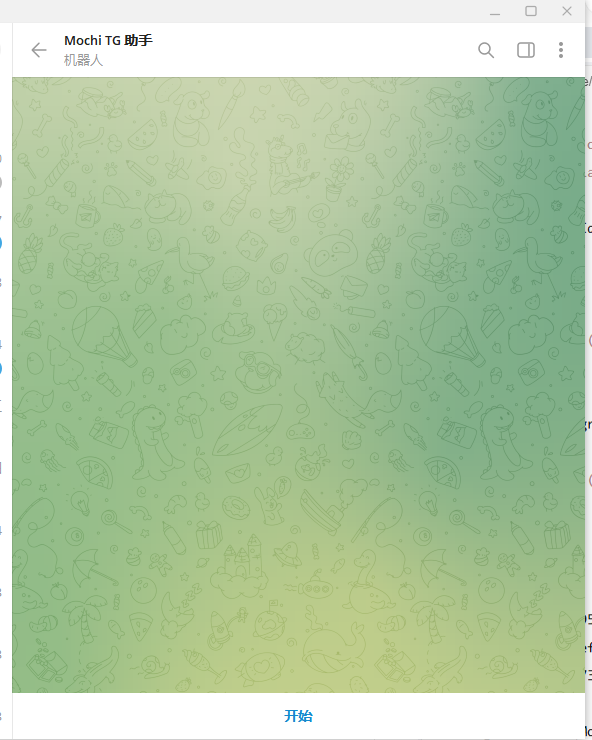
Open your own bot link and click Start.
openclaw channels status --probe
11. Pair only your own Telegram user
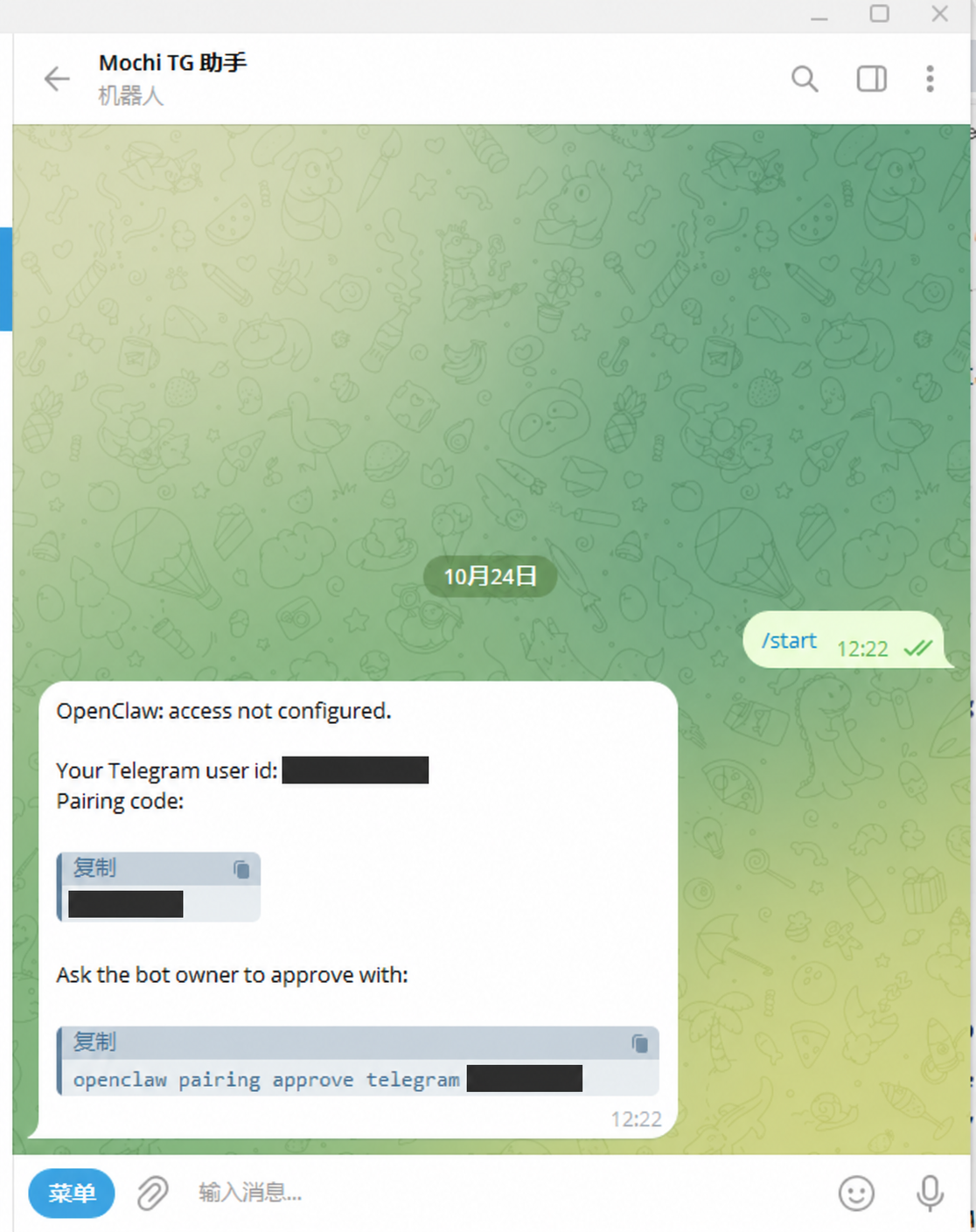
The first message may return access not configured, your Telegram user ID and a pairing code. Telegram delivery has reached OpenClaw, but this user still needs approval.
List requests for account mochi, compare the account and sender with your own request, then replace YOUR_CODE below with your current code and approve it.
The CLI reports Approved telegram sender. On the first approval, this version may also establish the command owner and reports that action. If a code expires, send another message for a fresh request. Personal values are covered in the image.
openclaw pairing list telegram --account mochi
openclaw pairing approve telegram YOUR_CODE --account mochi
openclaw pairing list telegram --account mochi
12. Verify pairing and routing
Read back the routing rule, pending requests and channel probe. The actual result below shows the independent binding, no remaining request and a connected bot.
openclaw agents bindings --agent telegram
openclaw pairing list telegram --account mochi
openclaw channels status --probe
13. Test a real reply and agent isolation
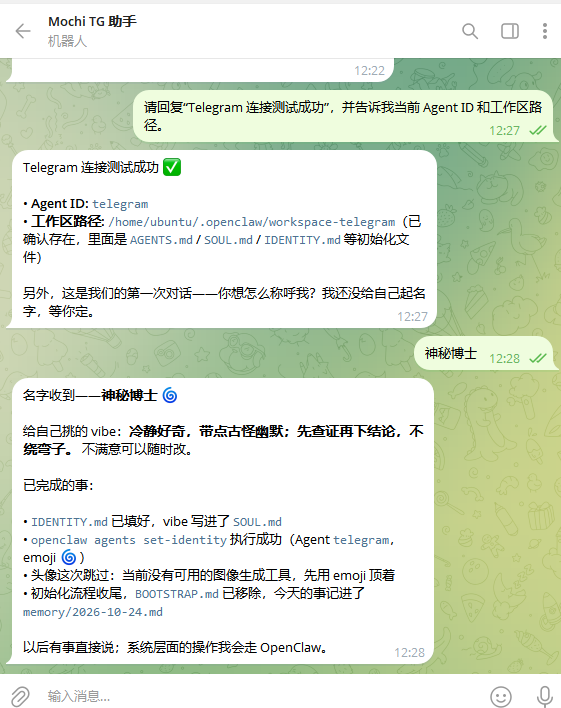
Send the test message below in Telegram. Expect Agent ID telegram and workspace /home/ubuntu/.openclaw/workspace-telegram. Connected status alone does not replace this end-to-end test.
The user later named this independent assistant 神秘博士. You may choose another name. Agent ID, workspace and routing—not the display name—confirm isolation.
Reply “Telegram connection test successful” and tell me your current Agent ID and workspace path.
14. Check token permissions and backup
Confirm the separate workspace, private token file and before-setup backup. This test verified mode 0o600 and one original configuration backup.
Include the credentials directory when backing up OpenClaw. Keep credential-bearing archives private.
This installation uses an existing managed Gateway. To test background operation, close the browser terminal and send another Telegram message; confirm the actual reply.
ls -l ~/.openclaw/credentials/telegram-mochi.token
ls -l ~/.openclaw/backups/before-telegram-*.json
openclaw gateway status
Troubleshooting
Nothing appears while entering the token:Expected. Paste the complete token and press Enter; wait for the saved message.
Invalid input / no token saved:No token was stored. Rerun the input helper and use terminal paste. Never paste the raw token at a normal shell prompt.
Username unavailable:Choose a different available username ending in bot.
Access not configured:List requests for account mochi and approve your own sender.
Unauthorized:Check that the file contains the replacement token from BotFather and that token-file points to that file. Do not print credentials.
Connected but no model reply:Inspect the request error in Gateway logs and check this agent’s model authentication. Telegram credentials and model API credentials are separate.
Reply comes from main:Check the exact account binding, Agent ID and workspace.
Default account not configured:This guide uses the named account mochi. Check that row instead of registering the same bot again.
Sources
OpenClaw Telegram ↗ · Agents ↗ · BotFather ↗
Screenshots have been cropped or enlarged and private values covered.