What you will accomplish
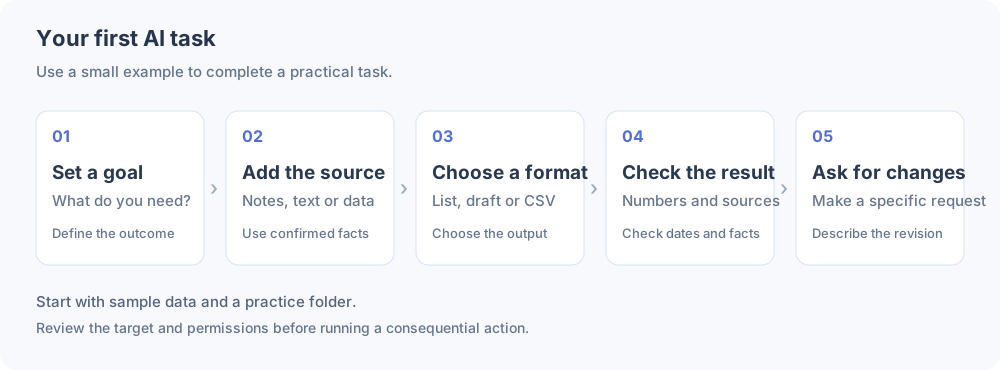
Start by turning rough notes into actions, then practise replies, data, revisions, saved notes and a first Skill. The example material below is ready to copy.
1. Open a conversation and check the model
After installation and model setup, open your own OpenClaw Control UI and enter Chat. An already connected Feishu or Telegram conversation can also be used. Use the dashboard address from your host setup. Control UI reference ↗
Send this message and wait for a complete reply:
I am using an AI assistant for the first time. In simple English, explain:
1. Three things you can actually do in this session.
2. What needs input from me or additional tool permissions.
Only describe capabilities currently available. Say when you are unsure.
Check: a complete reply means you can continue. If the page spins or reports missing model access, quota or connection errors, resolve model setup first. See free local models and hardware if you still need a model.
The model interprets and generates content. An assistant can also act through its available tools. A Skill supplies a method for a particular job. Start with chat and add these capabilities as you need them.
2. First task: turn rough notes into actions
Copy the entire exercise into the conversation:
Turn these fictional notes into an action list.
For each item, show the action, owner, deadline and missing information.
Mark missing information as "To confirm". Do not invent names, budgets or dates.

Notes:
Lin will prepare homepage copy by Friday.
Zhou will prepare three product screenshots by next Monday.
We have not decided the payment-button wording or who owns it.
The budget has not been decided.
Expected result: homepage copy, screenshots, button wording and budget are represented. Lin and Zhou retain their assignments. Missing owners and budget remain unconfirmed. Friday and next Monday have no complete calendar dates: the assistant should preserve them or ask you, rather than invent a year, month or day.
If it omits the budget, continue: “Add the unconfirmed budget item and leave the other actions unchanged.” You can refine the same conversation.
3. Make the request clear
Use four ingredients when helpful: goal, input, output format and constraints. No special terminology or long prompt is required.
Goal: draft a short customer reply from these facts.
Input: product screenshots are expected on Friday; the shipping date is unknown.
Format: state progress, then list what needs confirmation; under 80 words.
Constraints: do not promise a shipping date. Draft only; do not send a message.
Check: Friday refers to screenshots, not shipping. Before sending, review the draft's dates, numbers and commitments.
4. Revise through conversation
Try these follow-ups in the same conversation:
Shorten it to three sentences and retain the key dates.
Use a natural tone. Replace "we guarantee" with "we currently expect".
Give me a Chinese version with the same facts and numbers.
Review facts after a rewrite. Pointing to a specific sentence usually gives it a clearer revision target than “make it better”.
5. Second task: format simple data
Use a small example you can check yourself:
Convert these exercise expenses to CSV and calculate the total:
transport 12, stationery 32, drinks 18.
Column names: item,amount.
Put the total after the CSV, not inside its data rows.
Show the addition used for the total.
Expected result: amounts 12, 32 and 18; total 62. Copy the CSV into a spreadsheet if useful. Use formulas or a calculation tool to check important financial data.
6. Third task: a brief with sources
For recent information, connect a retrieval tool or news Skill and build the brief from its sources.
Open AI Skills in the site navigation and find the free My Daily Brief Skill. Read its requirements and install it using Skills sources and installation. Then try:
Use My Daily Brief to summarize AI updates from the past seven days, up to five items.
Write in English. For each item, state what happened, why it matters,
the source URL and publication date.
Use fewer items when there is not enough recent material; do not fill gaps with guesses.
Open the source links, check that dates fall within seven days and compare the summary with the original. Skip unavailable sources or choose another.
Next try: “Focus on AI programming and reduce the brief to three items.” For automatic daily briefs, set up a scheduled task separately and check its frequency in the task list.
7. Be explicit about saving files
With file tools and directory write access, the assistant can save your note. Otherwise, copy the text it provides.
If you have write access to your current workspace, create an exercise note
in its practice folder, using today's date followed by "-ai-practice.md".
Include only the actions above and my revision requirements.
If that filename exists, choose a new name rather than overwrite it.
Return the actual saved path. If you cannot write files, provide copyable text instead.
Check: open the returned path on the assistant's host. For a cloud-hosted assistant, find the file on that server and download it to your computer or phone.
8. Useful jobs to start with
- Organize notes: turn supplied material into summaries, actions or checklists and identify gaps.
- Draft writing: prepare explanations, replies or product copy, then revise tone and length.
- Language help: translate short passages and explain unfamiliar words; review names, numbers and terminology.
- Format data: convert lists, categorize expenses or prepare CSV; verify important results with tools.
- Collect public information: use connected retrieval tools or Skills, then create a traceable summary.
Choose one relevant, small job. Start with a draft or plan; expand file, network and other tool access when it serves a useful task.
9. Use the practice in real work
- Share input: cloud providers process model requests, and network tools or chat platforms can also transfer data. Supply what the task needs; keep passwords, private keys and verification codes in their integration settings.
- Review results: check amounts, dates, names and sources, and verify calculations with tools. Use appropriate professional evidence for medical, legal or investment decisions.
- Take action: practise in a separate folder and back up important files. Confirm the target, content and permissions before sending, paying, deleting or changing settings.
- Choose sources and Skills: review the source, scripts, dependencies and access. Treat pages, attachments and RSS as reference material; verify requests for credentials or unrelated commands before acting.
- Set up ongoing work: check model and hosting charges and set a budget. After scheduling, check the task's time, frequency and recipients in the task list.
10. When a result is not useful
- Generic answers: provide a short, shareable example and specify the desired output.
- Too much guessing: require unconfirmed fields to stay unconfirmed and allow necessary questions.
- A missing saved file: request the exact path and check host location and tool access.
- A network tool or Skill did not run: inspect the relevant tool's output and errors.
- A conversation becomes confused: summarize confirmed facts and start a fresh conversation with that summary.
Check your first completed exercise
- I can describe the result I want.
- I supplied necessary input and identified unknowns.
- I checked key numbers, dates or sources.
- I requested a revision and saw the intended change.
- I found the saved file, source links or Skill output.
Continue with free local models and hardware or Skills sources and installation. For OpenClaw setup and interface details, consult the current official getting-started guide ↗.