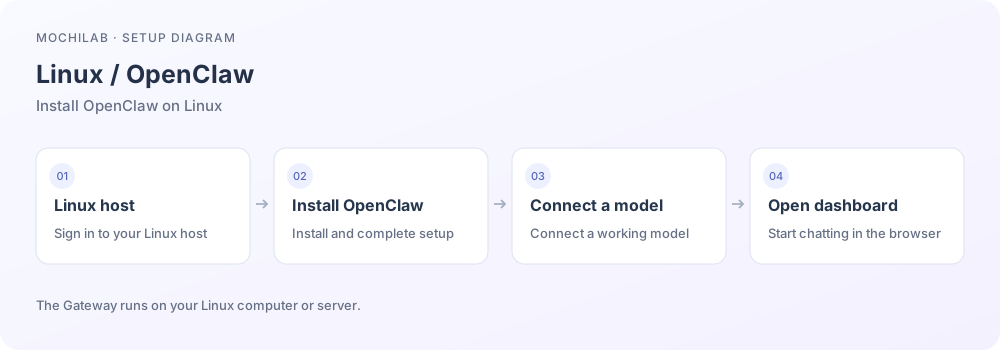
Start with a newly purchased, empty cloud server and work through installation, model setup, browser access, a chat app and your first Skill. This guide uses Ubuntu 24.04 LTS with 2 vCPUs and 8GB RAM, connected to a model API.
1. Buy a cloud server
Purchase links
Choose these options
Choose a cloud server or VPS, then select a plain operating system → Ubuntu → 24.04 LTS → 64-bit. Start with the empty Ubuntu image for this installation route.
- CPU and memory: we recommend 2 vCPUs and 8GB RAM. For a smaller budget and cloud model access, 2 vCPUs and 4GB is a starting option.
- Storage: allow at least 40GB SSD for the OS, OpenClaw, working files and logs.
- Region: choose a location with access to your model provider and chat platform.
- Network: include a public IPv4 address for SSH access from your computer.
- Sign-in: the steps below use an SSH key. Look for SSH keys, key pairs or login credentials in the provider's console.
These are our starter configuration recommendations. The model runs through its provider, while the server runs OpenClaw, tools and files. Choose memory separately if you plan to run a local model on the server. Check the billing period, traffic allowance and renewal price before buying.
2. Create an SSH key on your computer
Where: your own computer. On Windows, open Start and search for PowerShell. On Mac, open Terminal. First run:
ssh -V
A printed OpenSSH version means you can continue. If Windows cannot find the command, install OpenSSH Client under Settings → System → Optional features, then reopen PowerShell.
In Windows PowerShell:
New-Item -ItemType Directory -Force "$HOME/.ssh"
ssh-keygen -t ed25519 -f "$HOME/.ssh/mochilab_vps" -C "mochilab-vps"
Get-Content "$HOME/.ssh/mochilab_vps.pub"
On a Mac or Linux computer:
mkdir -p "$HOME/.ssh"
ssh-keygen -t ed25519 -f "$HOME/.ssh/mochilab_vps" -C "mochilab-vps"
cat "$HOME/.ssh/mochilab_vps.pub"
Choose a key passphrase if desired; typed passphrases are not displayed. If the filename already exists, answer n to preserve it, then read the existing .pub file.
Copy the complete public-key line, usually beginning with ssh-ed25519. Import it through the cloud provider's key-management page and attach it when creating the server. For an existing server, follow that console's key-attachment procedure. Upload the .pub public key; keep the file without .pub on your computer.
Check: the console shows a running server, an attached key, its public IP and its initial login username. Common usernames are root and ubuntu; use the one shown by your provider.
3. Sign in to the server
Where: your computer's terminal. Replace SERVER_IP with the public IP and ubuntu with the username shown by the provider:
ssh -i "$HOME/.ssh/mochilab_vps" ubuntu@SERVER_IP
The first connection displays a host fingerprint. Compare it with the provider's console, then enter yes. Enter your key passphrase if you set one. If a security group restricts access, allow TCP port 22 from your computer's current public IP.
After signing in, run:
whoami
cat /etc/os-release
Check: the first command shows your login username; the second identifies Ubuntu 24.04. From here through step 8, commands run in the server terminal.
4. Create a user for OpenClaw
Create a regular account named claw on the server. adduser asks you to set its password. Press Enter to skip optional name fields, then confirm the details.
sudo adduser claw
sudo usermod -aG sudo claw
sudo install -d -m 700 -o claw -g claw /home/claw/.ssh
sudo install -m 600 -o claw -g claw "$HOME/.ssh/authorized_keys" /home/claw/.ssh/authorized_keys
The last two commands authorize your currently attached SSH public key for the new user. If you are root and sudo is missing, run apt-get update and apt-get install -y sudo, then use the commands above. If claw already exists, confirm it is your intended account before continuing.
Keep this connection open. Open another terminal on your computer and sign in as the new user:
ssh -i "$HOME/.ssh/mochilab_vps" claw@SERVER_IP
Run whoami and confirm it prints claw. Use this account for installation, updates and status checks. You can close the original server-login window.
5. Install basic tools
Where: the server terminal signed in as claw.
sudo apt-get update
sudo apt-get install -y curl git ca-certificates
When sudo asks for a password, enter the claw password from step 4. Wait for installation to finish and the prompt to return, then check:
curl --version
git --version
Check: both commands print a version. The standard installation uses Node.js; a PHP environment or a set of Python libraries is not a prerequisite.
6. Install OpenClaw
Where: the server terminal signed in as claw.
curl -fsSL https://openclaw.ai/install.sh | bash -s -- --no-onboard
The official installer checks and prepares its runtime, then installs OpenClaw. --no-onboard leaves model configuration for the next step. Wait until it finishes and respond to any system-software installation prompts.
After installation, run exit to return to your computer's terminal, then sign in again with the ssh ... claw@SERVER_IP command from step 4. The fresh login loads the updated command path.
openclaw --version
Check: an OpenClaw version appears. If the runtime is incompatible, follow the installer's Node update instructions. See the current official Node requirements ↗; the presence of a node command alone does not confirm compatibility.
7. Connect a model and install the background service
Where: the server terminal signed in as claw.
openclaw onboard --install-daemon
Work through the wizard:
- Read the permission prompts and enter initial setup.
- Choose local Gateway operation on this server.
- Select a model provider where you have an account. For API-key access, create a key in that provider's account and enter it in the corresponding wizard field.
- Choose an available chat model. Select one with tool calling for later tool and Skill tasks.
- Keep Gateway access on loopback and finish verification and background-service installation.
How to use a free model
For this 2-vCPU, 8GB server, start with a free cloud model. The server runs OpenClaw while the cloud supplies inference. There is no model file to download onto the VPS.
- Register with OpenRouter ↗ and create a key under API Keys ↗.
- Choose OpenRouter API Key in the wizard above, enter the key and finish installing the background service.
- Run the following on the server to select the free model router explicitly. The two occurrences of
openrouter are the OpenClaw provider prefix and the upstream model namespace.
openclaw models set openrouter/openrouter/free
Free Models Router ↗ chooses a free model that supports the requested capabilities. Alternatively, choose a tool-capable model with an explicitly listed :free variant; keep fallback choices free too. OpenRouter currently gives free accounts 50 requests per day. One multi-step agent task can use several requests. This allowance was checked on 2026-10-23; see official pricing ↗. Follow the free model connection guide for more detail.
To install a free open-weight model on your own hardware, use Ollama with Qwen3.5. Your hardware supplies the computation, without buying API inference credits. For Q4 quantized variants, these are practical starting points:
- 8GB RAM, no dedicated GPU: try short conversations with 2B. Responses on a basic 2-vCPU VPS will be slow.
- 16GB RAM: start with 4B for basic questions and short-text organization.
- 32GB RAM with 12–16GB VRAM, or an Apple-silicon Mac with 32GB unified memory: start with 9B for OpenClaw and Skill trials.
- A Mac with 48–64GB unified memory, or a PC with ample RAM and at least 24GB VRAM: consider 27B and size the context for your tasks.
These are planning recommendations for one user and one model. Allow memory for the OS and context as well as model weights; longer conversations and tool tasks need more space. Ollama's OpenClaw integration guide ↗ recommends at least 64K context for local models. See the local free model installation guide for installation, downloads and connection steps. You can also run the model and OpenClaw on your own Mac or PC, then connect Telegram, WeChat or Feishu.
Check the completed setup:
openclaw models list
openclaw gateway status
openclaw health
Check: the chosen model is listed, the Gateway is running and the health check connects. If the wizard asks for user services to continue after SSH logout, run:
sudo loginctl enable-linger claw
Check openclaw gateway status again. For an unavailable user session bus, reconnect directly with ssh ... claw@SERVER_IP and follow the diagnosis in the Linux service guide ↗.
8. Get the browser sign-in address
Where: the server terminal signed in as claw.
openclaw dashboard --no-open
The server has no desktop browser, so this prints the access instructions. Keep the output for the next step. If you need a one-time browser pairing link, run:
openclaw dashboard --json
Find browserUrl and copy its complete value. Use this short-lived sign-in link in your own browser. Run the command again if it expires.
9. Connect from your computer
Where: a new terminal on your own computer. Keep the server terminal available.
ssh -i "$HOME/.ssh/mochilab_vps" -N -o ExitOnForwardFailure=yes -o ServerAliveInterval=30 -L 18789:127.0.0.1:18789 claw@SERVER_IP
This creates an SSH tunnel. After authentication, a window waiting without new output is normal. Keep it open.
In your computer's browser, open the complete sign-in address from step 8. The dashboard normally uses http://127.0.0.1:18789/; authenticate as directed by the command. The tunnel connects your computer's local port to the server's Gateway, so the cloud firewall can keep port 18789 private.
Check: the OpenClaw dashboard opens. If another tunnel or a local OpenClaw already uses port 18789, inspect that connection and follow the remote-access guide ↗ to arrange separate ports.
10. Send your first message
Open Chat in the dashboard and send:
Reply "Connected" in English, then tell me the model name you are currently using.
After a reply, try a small task:
Make an action list from these notes: check the homepage copy by Friday and prepare three product screenshots over the weekend. Owners are unconfirmed. Use columns for action, time and owner.
Check: the assistant replies and preserves the supplied times and unconfirmed owners. For key, allowance or access errors, return to the relevant model-provider setting.
11. Connect Telegram, WeChat or Feishu
Once browser chat works, choose your preferred chat app. Configure its connection under the same claw account on this server.
Start with one app. After following its guide, ask your bot to confirm the connection. Messaging-platform access needs the server to remain running; the computer's SSH tunnel mainly provides browser-dashboard access.
12. Install and use a free Skill
Open your first Skill exercise: make a file organization plan and download its ZIP. Move the package's mochi-file-organizer folder into skills/ inside the server's active OpenClaw workspace. The final path contains skills/mochi-file-organizer/SKILL.md.
Use an SFTP client such as WinSCP on Windows, or an SFTP client on Mac/Linux. Connect with the same server IP, claw username and SSH private key, then upload the folder. The installation belongs on the server, rather than in your computer's Downloads folder.
Run openclaw config get agents.defaults.workspace on the server to find the active workspace. The default is usually /home/claw/.openclaw/workspace; create its skills folder and upload there. Use the displayed path if different. For SFTP, select port 22, username claw and your computer’s mochilab_vps private-key file.
In the server terminal, run:
openclaw skills check
Start a new conversation in the dashboard or connected chat app:
Use mochi-file-organizer to scan its samples/sample-input folder. Save the category plan and duplicate report in a new file-plan-demo folder inside my workspace.
Check: find and open the generated report.md and plan.json. The assistant creates them on the server, where you can view or download them.
13. Use it again and maintain it
Use your connected chat app for everyday tasks. For browser access, reopen the SSH tunnel from step 9; obtain a new sign-in link with step 8 when needed.
After a server restart or configuration change, sign in as claw and check:
openclaw gateway status
openclaw health
Before updating, create a backup and review the update plan:
mkdir -p "$HOME/Backups"
openclaw backup create --output "$HOME/Backups" --verify
openclaw update --dry-run
openclaw update
Confirm the backup and review succeed before running the final command. After updating, check the Gateway and a model reply again.
14. Common problems
- SSH times out: check the public IP, server power state, TCP 22 security-group rule and permitted source address.
- Permission denied (publickey): match the provider's username, attached public key and private key selected with
-i. - openclaw is missing: reconnect over SSH, run
command -v openclaw and review the installer's final instructions. - The dashboard will not open: check that the step 9 tunnel is still open, then check Gateway status.
- The dashboard opens without a model reply: check the selected model, provider key and available allowance.
- The Skill is not ready: check its server workspace path and
SKILL.md, then follow openclaw skills check output.
Continue with your first AI task and Skills sources and installation. Command references: official installer ↗, Linux server ↗, remote access ↗ and dashboard CLI ↗.