MOCHILAB / GUIDE
Android: install the official app and connect OpenClaw
Install the Android app, connect over private HTTPS and pair your phone to start chatting.
The setup you are building
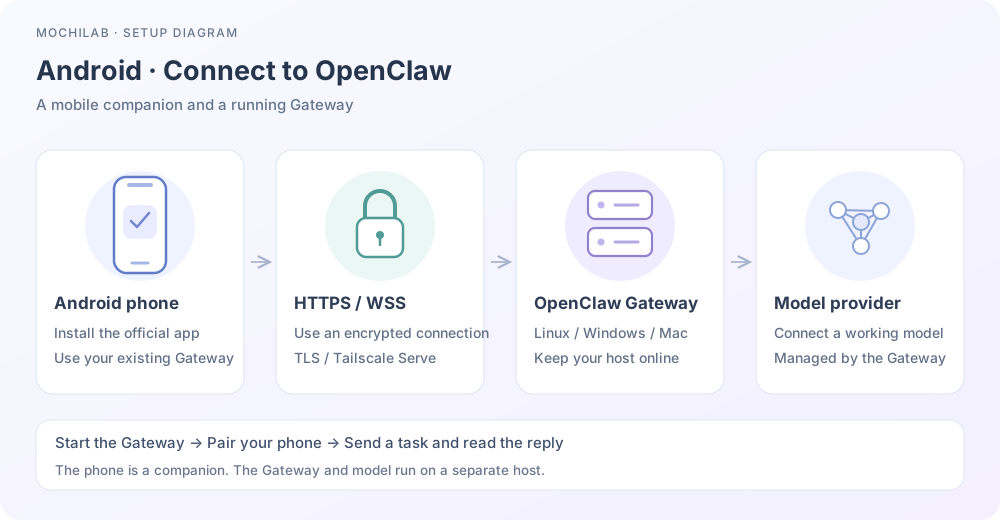
Install the official Android companion, then connect to your own Gateway on Linux, Mac or Windows/WSL2 for chat and approvals. Android overview ↗
1. Use an official installation entry
Prefer Google Play ↗. Check OpenClaw, OpenClaw Foundation and package ai.openclaw.app.
For sideloading, choose an official GitHub Release ↗ listing both OpenClaw-Android.apk and OpenClaw-Android-SHA256SUMS.txt. Choose a release that includes both files. Compare the APK SHA-256 with its checksum file on your computer; the official instructions also describe build-provenance verification. APK verification ↗
Transfer the verified file to your phone. Allow unknown-app installation only for the source you use, then turn that permission off. Keep one update channel: switching between Play and standalone APK may require uninstalling and losing local data.
2. Prepare a working Gateway
Finish our Linux, Mac or Windows host guide and send a first message there. Hosting and model usage may be billed separately.
Run on that host:
openclaw gateway status
Keep it online and awake. Run every command below there. Gateway getting started ↗
3. Establish private HTTPS
Install Tailscale on the host and Android, join the same managed tailnet and allow the phone's VPN connection. Tailscale for Android ↗
Enable MagicDNS and HTTPS certificates; allow the phone to reach host TCP 443. Keep existing Gateway token/password authentication. On the host:
openclaw config set gateway.bind loopback
openclaw config set gateway.tailscale.mode serve
openclaw gateway restart
tailscale serve status
Install the background service through the host guide first if needed. Open the actual https://host.your-tailnet.ts.net output in your phone browser. No separately purchased domain is needed. Remote Android pairing needs HTTPS/WSS, rather than plain public-IP WebSocket access. Private HTTPS setup ↗
4. Pair the intended phone
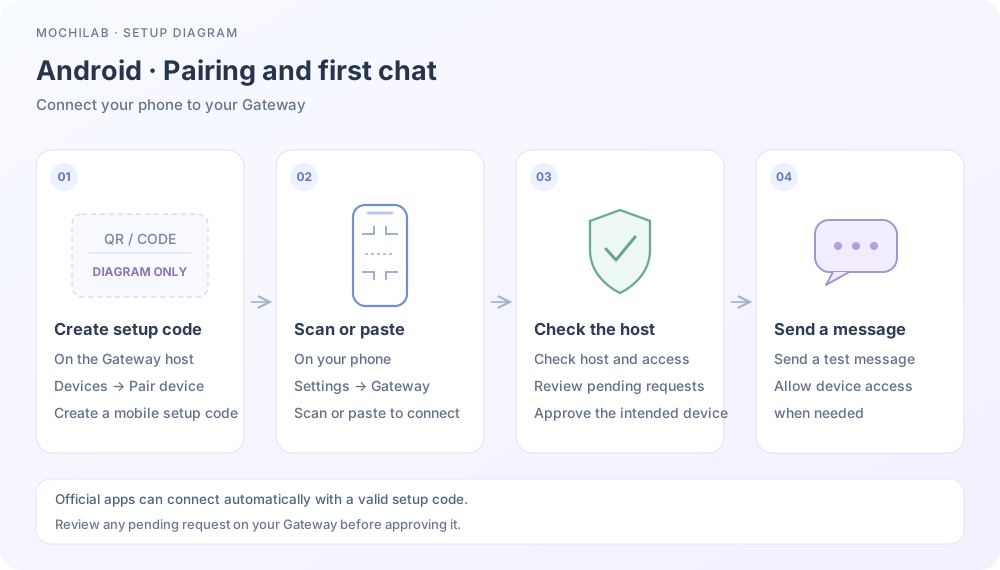
In host Control UI, Nodes / Devices → Pair device creates a mobile setup code. Review Limited access for everyday chat or Full access if you intend to manage Gateway settings. Control UI pairing ↗
The terminal alternative is:
openclaw qr --limited
Choose Scan QR or setup code during Android setup, or Settings → Gateway → Add Gateway. Scan or paste the mobile code. Use the mobile setup code generated for this phone. QR reference ↗
Use the QR generated on your own host and keep its credentials private.
Review the capabilities shown in the app. Matching official apps normally connect automatically. For a remaining pending request, run on the host:
openclaw devices list
openclaw devices approve REQUEST_ID
Replace REQUEST_ID with this phone's exact current request after checking identity and access. Continue in the app when instructed. Retries can create a new ID. Device approvals ↗
5. Try chat before enabling more capabilities
Ask for a three-item to-do list. After a successful reply, try voice or a photo. Grant camera, microphone or location access when needed. Follow notification/background prompts; Android battery restrictions may affect reconnection.
Install Skills on the Gateway host after reviewing permissions and dependencies. See Skills sources.
6. Troubleshoot by layer
Check official APK integrity and compatibility for installation failures. For connection failures, check host uptime, Tailscale, DNS and 443 policy. Secure-endpoint errors require the actual HTTPS/WSS route and a new mobile setup code. List devices again for pending approvals. If chat connects without answers, inspect host model authorization and quota.
Use official troubleshooting ↗. Redact credentials, setup codes and customer information from support screenshots.