MOCHILAB / GUIDE
iOS: install the official app and connect OpenClaw
Install the iPhone app, pair with your Gateway over private HTTPS and start assigning tasks.
The setup you are building
Install the official OpenClaw app on iPhone and connect it to your own running Gateway on Linux, Mac or Windows/WSL2. The phone provides chat and approvals.
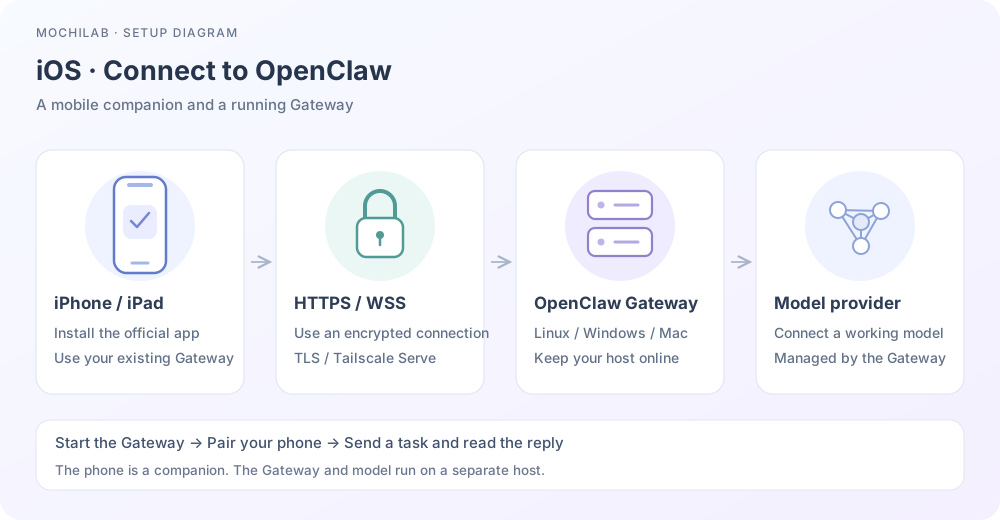
1. Install the official iPhone app
Open the official App Store entry ↗. Check OpenClaw and developer OpenClaw Foundation, then install. It currently requires iOS 26.2+. Check Settings → General → About first; availability depends on your store region. iOS documentation ↗
2. Prepare the Gateway host
Complete our Linux, Mac or Windows guide first. Finish model authorization and send a message from its dashboard. Hosting and model usage can have separate charges.
Run on the host:
openclaw gateway status
Keep it online and awake. All commands below run on this host. Gateway getting started ↗
3. Establish private HTTPS
Install Tailscale on the host and iPhone, join the same managed tailnet and allow the phone's VPN configuration. Keep it connected. Tailscale for iPhone ↗
Enable MagicDNS and HTTPS certificates, and allow the intended phone to reach host TCP 443. Keep the Gateway's existing token/password authentication. On the host:
openclaw config set gateway.bind loopback
openclaw config set gateway.tailscale.mode serve
openclaw gateway restart
tailscale serve status
Install the Gateway service through the host guide first if needed. Open the actual https://host.your-tailnet.ts.net output in iPhone Safari. No separately purchased domain is required. Serve is accessible to permitted tailnet devices. Private HTTPS ↗
4. Create a mobile setup code and pair
In the host Control UI, open Nodes / Devices → Pair device and create a setup code. Review access: Limited access is a starting point for everyday chat; choose Full access only when you intend to grant administrative controls. Control UI pairing ↗
The host terminal alternative is:
openclaw qr --limited
In the iPhone app, Settings → Gateway, scan the QR or paste the setup code. Paste is useful when viewing the code on that same phone. Use the mobile setup code; devices join-code is for node joining. Keep the code's temporary credentials private. Mobile QR reference ↗
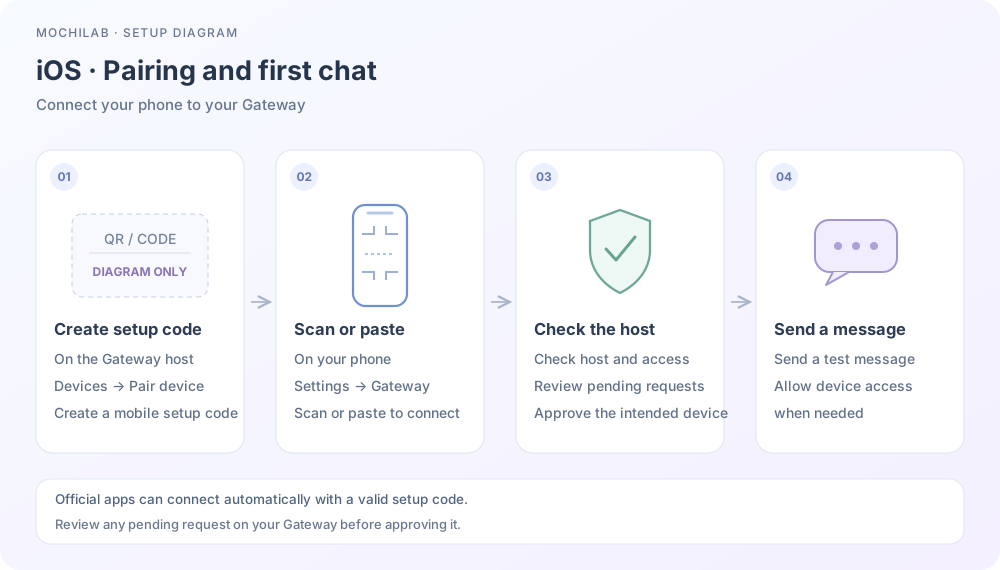
Use the QR or setup code generated on your own host.
Matching official apps normally connect automatically. If a request remains pending, run on the host:
openclaw devices list
openclaw devices approve REQUEST_ID
Replace REQUEST_ID with this phone's exact current request ID after reviewing identity and access. A retry can create a new ID. Device approvals ↗
5. Try a small task
Ask the assistant to describe its capabilities in three sentences. After a successful reply, try one simple task without sensitive files. Enable microphone or camera access when you use that feature; adjust permissions later in iPhone Settings.
Install Skills on the Gateway host. Continue with Skills sources and installation.
6. Troubleshoot in order
- Installation fails: check iOS version, space and store region.
- Safari times out: check host uptime, both Tailscale connections and HTTPS / 443 rules.
- Expired or incomplete setup: create a new mobile code on the intended Gateway.
- Approval stays pending: list devices again and review the current request.
- Connected without replies: inspect model access, quota and task errors on the host.
Use official troubleshooting ↗. Redact keys, passwords, setup codes and customer data before requesting help.