Start with no development environment
Start with a new Windows 10 or Windows 11 computer, prepare its runtime and install OpenClaw. Choose native PowerShell or WSL2 below, then keep following that environment's steps.
The path is: open a terminal → install Node.js/npm and Git → install OpenClaw → connect a model → open the dashboard → connect Telegram, WeChat or Feishu → try tasks and Skills.
The basic route needs Node.js/npm and Git. Add Python/C++ later if a dependency reports a build error. The manual steps below use official installers and work without a package manager. Installation overview ↗
Check your Windows version
This guide uses 64-bit Windows 10 22H2 and Windows 11. Both include Windows PowerShell 5.1. Press Win + R, enter winver and press Enter to check the version. Find the system type under Settings → System → About.
- Windows 10: search the Start menu for Windows PowerShell. Open it normally for everyday steps; right-click and choose Run as administrator when instructed.
- Windows 11: search for Windows PowerShell, or right-click Start and choose Terminal / Terminal (Admin), then open a PowerShell tab.
- Choose a route: use method one for native Windows commands. Use method two for a Linux environment; its OpenClaw, Node and Skills run inside Ubuntu.
The WSL one-command installation requires Windows 10 version 2004 (build 19041) or later, or Windows 11. Update older Windows 10 builds before following these steps. Microsoft WSL requirements ↗
Method 1: native PowerShell
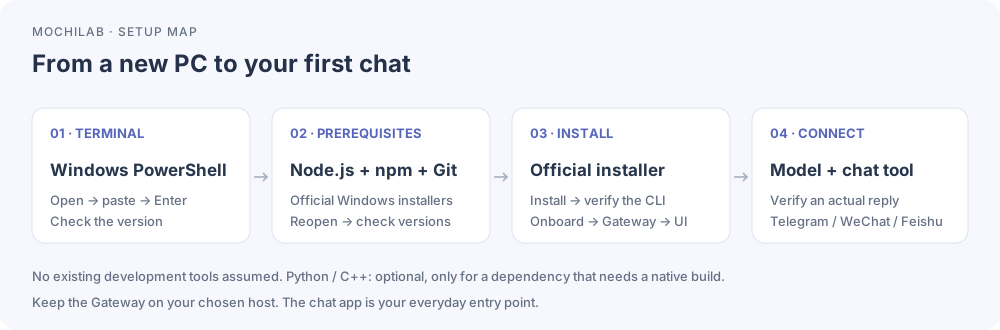
1. Prepare PowerShell, Node.js/npm and Git from scratch
Open a terminal: search Start for Windows PowerShell, or open a PowerShell tab in Windows Terminal. Use your usual Windows account in an ordinary window; installers request elevation when needed.
Copy each code block and press Enter. A prompt such as PS C:\Users\...> is already supplied by the terminal. Check PowerShell first:
$PSVersionTable.PSVersion
Version 5.1 or newer is sufficient, including the Windows PowerShell supplied with Windows. Installer requirements ↗
Install Node.js with its bundled npm: use the official Node.js download page ↗. Select Windows, matching x64 or ARM64 architecture, and Windows Installer (.msi). Find your system type in Settings → System → About.
Choose stable Node 26, version 26.1 or later, or Node 24.x LTS, version 24.16 or later. Node requirements ↗
Run the MSI, retaining npm package manager and Add to PATH. Leave Additional Tools for native modules unselected for now; you can add them if a dependency needs compilation. Close all old terminals and reopen PowerShell:
node --version
npm.cmd --version
Continue when both commands print versions. npm comes with Node. If either command is missing, reopen the terminal and use the PATH checks in step 5.
Install Git: use the official Git for Windows page ↗ and matching architecture. Allow command-line and third-party access on the PATH page, rather than Git Bash only. Keep unfamiliar choices at their defaults, then reopen PowerShell:
git --version
Continue when the Git version appears.
2. Run the official installer
& ([scriptblock]::Create((iwr -useb https://openclaw.ai/install.ps1))) -NoOnboard
This runs the official installer and installs its npm packages. -NoOnboard leaves model setup for step 3. Wait for the installation to finish in this window before continuing. Official installer options ↗
Reopen PowerShell and verify an actual version:
openclaw.cmd --version
A version number confirms that the command is available. The .cmd launcher avoids selecting a same-name .ps1 blocked by script policy. Run the commands below directly.
3. Complete interactive onboarding
Start the model wizard under the same Windows account. If already configured, continue to step 4:
openclaw.cmd onboard
Read the permission prompts and choose model access you are authorized to use. A new computer normally has no reusable login: use a supported sign-in or enter that provider's API key, then select an available model. Model usage draws on your provider account. If using an API key, check that provider's API quota and billing.
Alternatively, follow local models and hardware and return to connect a compatible model. Local models consume memory/storage/compute and must support your needed tools.
Wait for the model connection test to pass. Model credentials go in model setup; Gateway credentials sign you into the dashboard. Redact both from shared screenshots. Onboarding ↗
4. Start the background service
Stop any foreground quick-start Gateway with Ctrl+C first:
openclaw.cmd gateway install
openclaw.cmd gateway status
openclaw.cmd dashboard
Native startup uses managed arrangements such as a Scheduled Task; permission failures may produce a login-dependent fallback. Check that the Gateway is running. If elevation is requested, open administrator PowerShell under the same Windows account, reinstall the service and check status. Windows service notes ↗
The dashboard normally uses http://127.0.0.1:18789/; prefer its actual URL and authentication flow. Ask for a short description of useful tasks. Once it replies, close the terminal and try another dashboard message to check background operation. The local address is ready to use. Gateway commands ↗
Next, choose Telegram, WeChat or Feishu. Follow that channel's bot or pairing guide and send a first message. The phone's chat app is an entry point, while your selected host still runs OpenClaw.
5. PATH or PowerShell script-policy errors
Reopen PowerShell and inspect Get-Command openclaw -All. If a .ps1 launcher is blocked, select the installed command wrapper explicitly:
openclaw.cmd --version
npm.cmd config get prefix
The same wrapper accepts onboard or gateway status. For a missing command, check the npm prefix on user PATH without adding /bin, then reopen the terminal. Keep your existing execution policy. PATH troubleshooting ↗ · PowerShell command resolution ↗
In Windows' current-user environment-variable editor, append the actual npm global folder to Path and preserve the other entries. Check with:
Get-Command node, npm.cmd, git, openclaw.cmd -ErrorAction SilentlyContinue
For download or certificate errors, check the clock, network, proxy and official URL. Keep SSL verification enabled.
6. Optional: Python/C++ only for an actual build error
For an explicit gyp ERR! find Python, missing Visual Studio or C++ toolchain error, first check Node, architecture and that dependency's requirements. Official node-gyp Windows requirements ↗
If needed, use Python's Windows guide ↗ to obtain Python Install Manager and a dependency-compatible Python 3. Get Build Tools from the official Visual Studio downloads ↗ and select Desktop development with C++ with the required MSVC/Windows SDK. Complete installation, restart when requested and check a matching toolchain for ARM64.
Reopen PowerShell, confirm python --version, then rerun the official OpenClaw installer in step 2. Do not use pip install openclaw or obsolete npm install windows-build-tools. If a Skill needs Python, finish basic chat first and add its requirements later.
Method 2: Ubuntu in WSL2
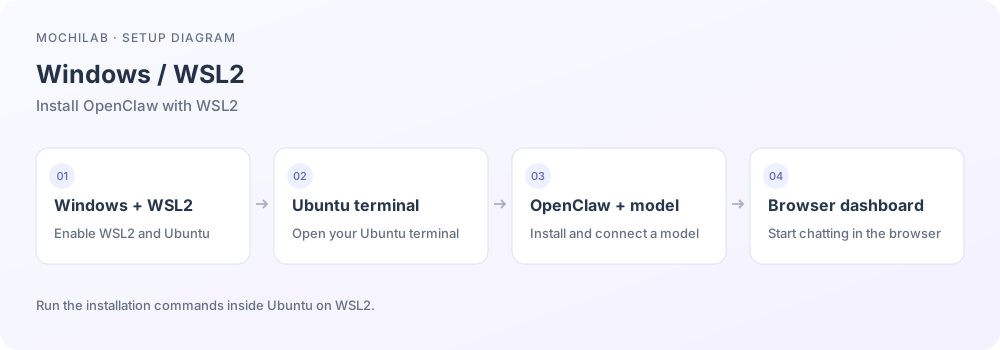
1. Install or inspect WSL2
Run in administrator PowerShell and restart when prompted:
wsl --install -d Ubuntu-24.04
wsl --list --verbose
These commands apply to both Windows 10 and Windows 11. Restart when prompted, open Ubuntu 24.04 from Start, and create its Linux username and password. Password entry is invisible. If WSL only prints help, run wsl --list --online and install the listed Ubuntu distribution with wsl --install -d Ubuntu-24.04. If WSL requests an update, run wsl --update first.
Create the Linux user on Ubuntu's first launch. The intended distribution should show VERSION 2. Inspect an existing WSL installation before creating another. Microsoft WSL guide ↗
2. Check systemd inside Ubuntu
Run ps -p 1 -o comm=. If necessary, edit /etc/wsl.conf with sudo nano /etc/wsl.conf, preserving existing entries while adding:
[boot]
systemd=true
Save all WSL work, run wsl --shutdown in PowerShell, then reopen Ubuntu. This stops every running WSL distribution. Microsoft systemd guide ↗
3. Install inside Ubuntu
Prepare command tools in the new Ubuntu environment, then install; these commands all run inside Ubuntu:
sudo apt update
sudo apt install -y curl git ca-certificates
curl -fsSL https://openclaw.ai/install.sh | bash
If onboarding was not completed, first run openclaw onboard and verify model access. Otherwise skip it. Stop an existing foreground Gateway before:
openclaw gateway install
openclaw gateway status
openclaw dashboard --no-open
Open the printed local URL in your Windows browser and authenticate. Maintain this installation in the Ubuntu terminal. WSL2 route ↗
Confirm success
Check the OpenClaw version, Gateway status and model reply. The WSL2 route also continues with Telegram, WeChat or Feishu, then your first task and Skill installation. Sleep, WSL shutdown and service login conditions affect availability. Use openclaw.cmd doctor on native Windows and openclaw doctor in Ubuntu/WSL. Troubleshooting ↗