Choose a route your computer can support
This guide runs a model in Ollama and connects OpenClaw on the same computer. The main example uses qwen3.5:9b-q4_K_M on a reasonably capable host. Start with small-model chat on an 8GB machine, then try file and tool tasks as resources allow. OpenClaw local models ↗
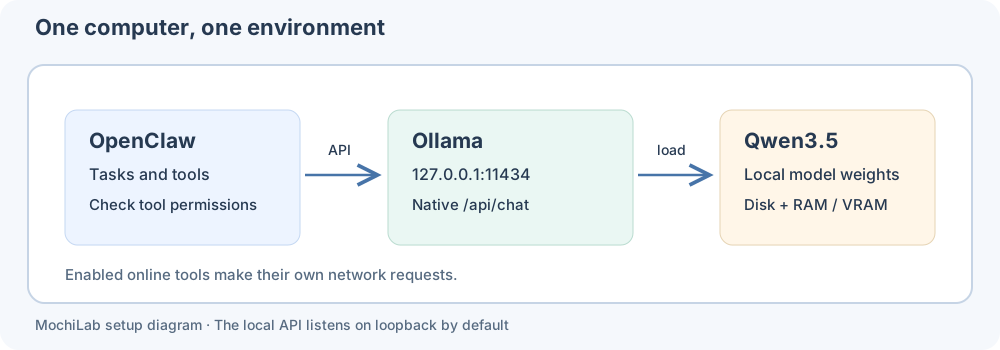
Both programs use the same operating environment, with model files stored on your disk.
1. Understand free, open source and open weights
- The Ollama runtime uses MIT licensing; see its official GitHub repository ↗. Each model has its own license.
- The selected Qwen3.5 weights use Apache-2.0. Check the Qwen3.5-4B model card ↗ and the Qwen GitHub organization ↗. The model card describes which weights and training information are available.
- A second family,
gemma3:4b, is useful for local text/image questions but uses Gemma terms ↗. The tool-calling examples here use Qwen. Model page ↗ - Local inference has no cloud per-token charge, but hardware, storage, electricity and downloads still cost resources. A cloud free tier is a provider's limited service, with its own quotas and possible later charges.
Before downloading, open the model page to check its tag, file size and system requirements.
2. Match the model to existing hardware
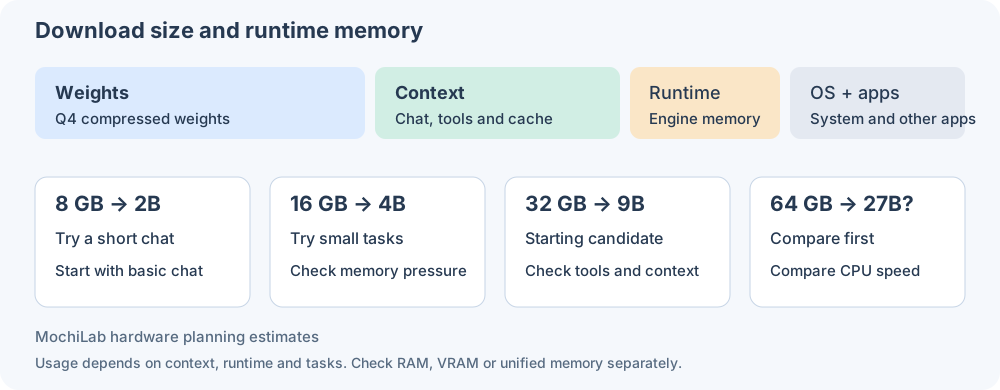
Use these starting points to leave room for model weights, the system and context. Try the smaller suggested model first and check its speed and memory use. Assess RAM, dedicated VRAM and Apple unified memory separately.
System RAM without a dedicated GPU
- 8GB: try
qwen3.5:2b-q4_K_M for short chat or summaries. Begin with short chat before trying tools. - 16GB: start with
qwen3.5:4b-q4_K_M. CPU replies may take a while; longer context and tools need separate checks. - 32GB: the default
qwen3.5:9b-q4_K_M is a candidate. Begin with one task and 32K context; CPU-only operation can remain slow. - 64GB: compare 9B with
qwen3.5:27b-q4_K_M, leaving room for the system and context. 27B needs more compute time.
NVIDIA VRAM
- 6GB: try 4B first; use 2B if memory is tight.
- 8GB: prefer 4B headroom. The 6.6GB 9B model leaves little room for runtime and context.
- 12GB: try 9B, then inspect actual 32K allocation/offloading; reduce to 4B if needed.
- 16GB: give 9B room for context before increasing task length.
- 24GB: start with longer tasks on 9B. The roughly 17 GB 27B model is an option for shorter-context comparisons; adjust using actual memory readings.
GPU architecture and drivers also matter. Check Ollama hardware support ↗ and the Windows-specific requirements. ollama ps reports the actual CPU/GPU split.
Apple Silicon unified memory
Use 8GB→2B, 16GB→4B, 32GB→9B, and 64GB+→consider 27B as starting points. macOS and applications share that memory; inspect Memory Pressure and Swap Used in Activity Monitor. Current Ollama supports GPU execution on Apple M-series, while Intel Macs use CPU inference. macOS requirements ↗
Download and disk budget
These Q4_K_M tags and download sizes also need runtime memory for the system and context:
- 2B ↗: about 1.9GB; allow roughly 5 GB free disk initially.
- 4B ↗: about 3.3GB; allow 8 GB.
- 9B ↗: about 6.6GB; allow 15 GB.
- 27B ↗: about 17GB; allow 35 GB.
The free-space figures are our update/cache allowances. Initial downloads need internet access; another model usually needs another download. Quantization reduces weight storage with potential quality loss; context and tool work still consume resources.
3. Install Ollama and keep its API on loopback
First complete the Windows, Mac or Linux OpenClaw installation. Choose native Windows or WSL2 and install both programs in that same environment.
Native Windows: use the official installer ↗, reopen PowerShell and check ollama --version. Current requirements start at Windows 10 22H2. Windows docs ↗
Mac: install the official app ↗ in Applications, open it and enable the CLI when prompted. Current requirements start at macOS Sonoma 14. Mac setup ↗
Linux/WSL2 Ubuntu: follow the official Linux instructions ↗. For an existing systemd installation, run sudo systemctl edit ollama and add:
[Service]
Environment="OLLAMA_HOST=127.0.0.1:11434"
Environment="OLLAMA_NO_CLOUD=1"
Environment="OLLAMA_CONTEXT_LENGTH=32768"
Save, then run sudo systemctl daemon-reload and sudo systemctl restart ollama. Use that one service rather than starting another ollama serve. Verify GPU drivers separately.
Quit the existing Ollama tray/menu-bar app completely before the foreground example below, so the settings apply to the process actually serving requests. Leave this terminal open and use a second terminal for later steps. Avoid starting two servers on the same port.
Windows PowerShell:
$env:OLLAMA_HOST="127.0.0.1:11434"
$env:OLLAMA_NO_CLOUD="1"
$env:OLLAMA_CONTEXT_LENGTH="32768"
ollama serve
Mac, or Linux without an existing service:
OLLAMA_HOST=127.0.0.1:11434 OLLAMA_NO_CLOUD=1 OLLAMA_CONTEXT_LENGTH=32768 ollama serve
These variables affect this terminal process. For later app startup, use the documented OS environment settings and restart the app. The local API needs no login; retain loopback binding. Server settings ↗ · API authentication ↗
For short-chat trials on 8 GB/16 GB hosts, replace 32768 with 4096 and complete step 4 first. Try tool tasks later as memory allows.
4. Download one model and test a simple reply
In a second terminal run the main candidate. For lower-spec chat trials, replace the tag in both lines with 4B or 2B from above; do not download every variant:
ollama pull qwen3.5:9b-q4_K_M
ollama run qwen3.5:9b-q4_K_M
Ask for one sentence describing what the model can help with. After a reply, enter /bye. Inspect:
ollama list
ollama ps
list shows installed models; ps shows loaded models and actual processor/context allocation. Use the actual context shown by ps. Ollama recommends substantial context for agent/coding workloads; current OpenClaw local onboarding uses 32K. Larger windows require more memory. Context reference ↗ · OpenClaw recipes ↗
5. Connect through the native Ollama provider
Run interactive onboarding, select Ollama → Local only, enter http://127.0.0.1:11434, choose the exact downloaded tag and confirm a real test reply. Back up an existing configuration first: re-onboarding can rebuild that provider's model catalog.
openclaw onboard
openclaw models list --provider ollama
openclaw models set ollama/qwen3.5:9b-q4_K_M
openclaw gateway status
openclaw dashboard
If using 4B, the full model reference must also become ollama/qwen3.5:4b-q4_K_M. If an idle installed model is not discovered, load it with ollama run, or explicitly choose the installed model in the Ollama connection setup. Official onboarding ↗
Start a new conversation and verify its current ollama/... model, or explicitly select /model ollama/qwen3.5:9b-q4_K_M in chat. Review any existing cloud models, fallback routes and paid tools in your configuration.
OpenClaw calls native /api/chat; adding /v1 can break tool calling. The local ollama-local value is a placeholder; follow the wizard for this local connection. Native API guidance ↗
Search, plugins and other network tools can still contact external services. Review their data access and charges when enabling them, and redact credentials from shared screenshots.
6. Try a file task
Create and back up a nonsensitive practice directory, then add hello.txt with a phrase you choose. Ask OpenClaw to read only that file and return its first line without changing files. Inspect the actual read-tool record and returned text, then ask for a three-sentence summary.
Compare the returned first line with the file. If the tool fails, check permissions, model support and available context, then expand from this small task. Discovery and narrow smoke tests ↗
7. Troubleshoot in order
- Command missing: reopen the terminal and check installation/PATH in the chosen environment.
- Connection refused/port busy: keep one Ollama process and both programs in the same environment.
- Unknown model: match the exact
ollama list tag, including quantization; avoid mixing latest/MLX aliases. - Download failure: check disk/network, then retry the same official pull.
- Out of memory, swapping or slow replies: close other models/apps, reduce model size and inspect CPU/GPU allocation. Shorten context according to actual memory use.
- Tool JSON or chat-only behavior: check the native URL, model tool capability and task logs. Troubleshooting ↗
Continue with Skills sources and installation. Review accounts and charges separately when enabling web search or other external tools.